Latest Updates
How to Update WordPress Installation
How to Update WordPress Installation WordPress powers millions of websites worldwide, making it the most popular content management system (CMS) available today. To keep your website secure, fast, and compatible with the latest technologies,…
How to Update WordPress Installation
WordPress powers millions of websites worldwide, making it the most popular content management system (CMS) available today. To keep your website secure, fast, and compatible with the latest technologies, it is essential to update your WordPress installation regularly.
WordPress updates provide security patches, bug fixes, performance improvements, and new features that help website owners maintain a reliable and secure online presence. Neglecting updates can expose your website to vulnerabilities, compatibility issues, and performance problems.
In this guide, you’ll learn how to update your WordPress installation safely and efficiently using the WordPress Dashboard.
Why Is It Important to Update WordPress?
Keeping WordPress updated is one of the simplest ways to protect and improve your website. Every update released by the WordPress development team includes enhancements designed to strengthen security, improve functionality, and ensure compatibility with modern web standards.
Some key reasons to update WordPress include:
- Protection against security vulnerabilities
- Improved website performance
- Access to new features and enhancements
- Better compatibility with plugins and themes
- Bug fixes and stability improvements
- Support for newer PHP versions and hosting environments
Before performing any update, it is always recommended to create a complete backup of your website files and database.
Steps to Update WordPress Installation
Step 1: Log in to Your WordPress Dashboard
Begin by accessing your WordPress administration area.
Open your web browser and visit:
https://yourdomain.com/wp-admin
Enter your administrator username and password, then click Log In.
Once logged in, you will be redirected to the WordPress Dashboard.
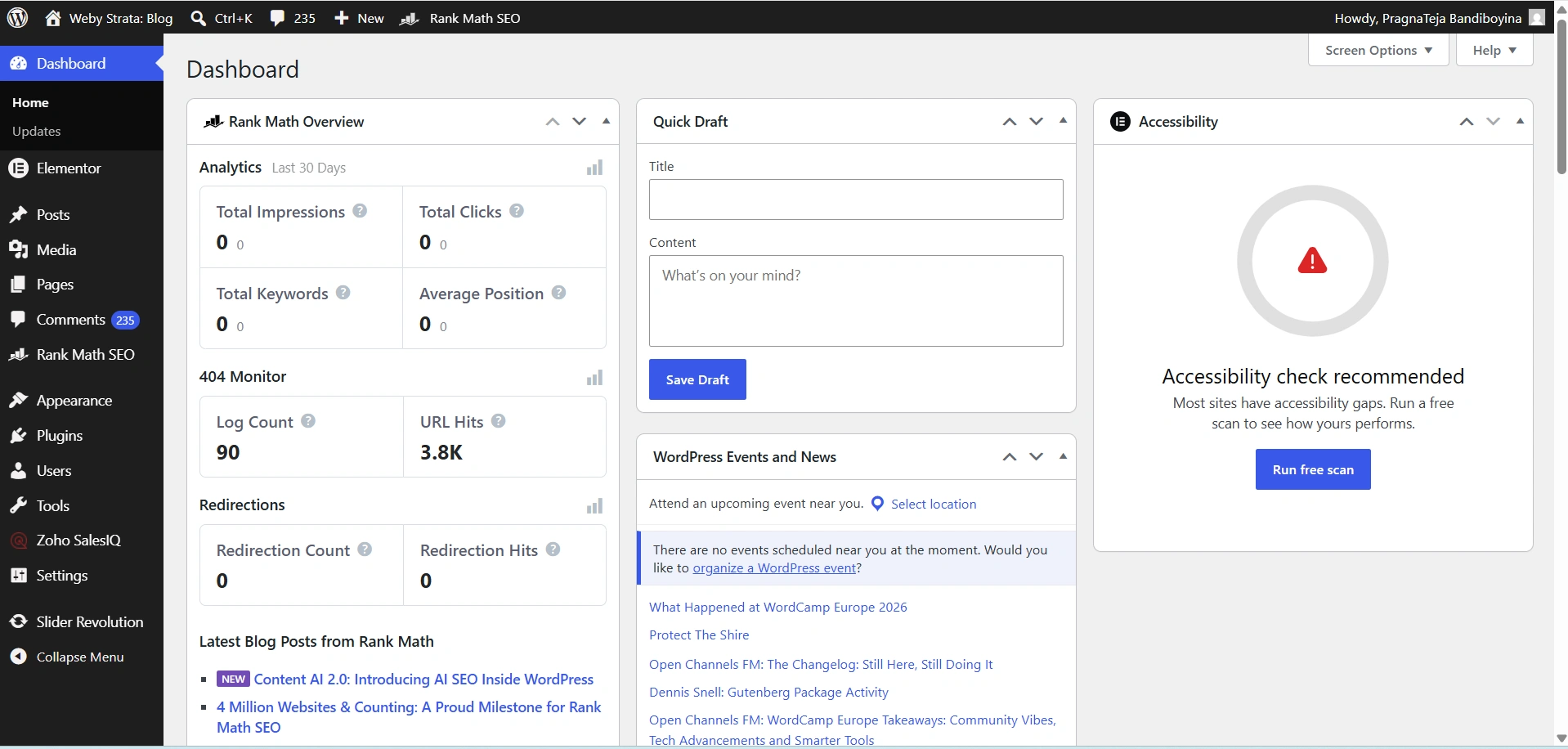
Step 2: Navigate to the Updates Section
On the left-hand navigation menu, locate and click:
Dashboard → Updates
The Updates page serves as the central location for managing WordPress core updates, plugin updates, and theme updates.
Here, WordPress automatically checks whether newer versions are available for installation.
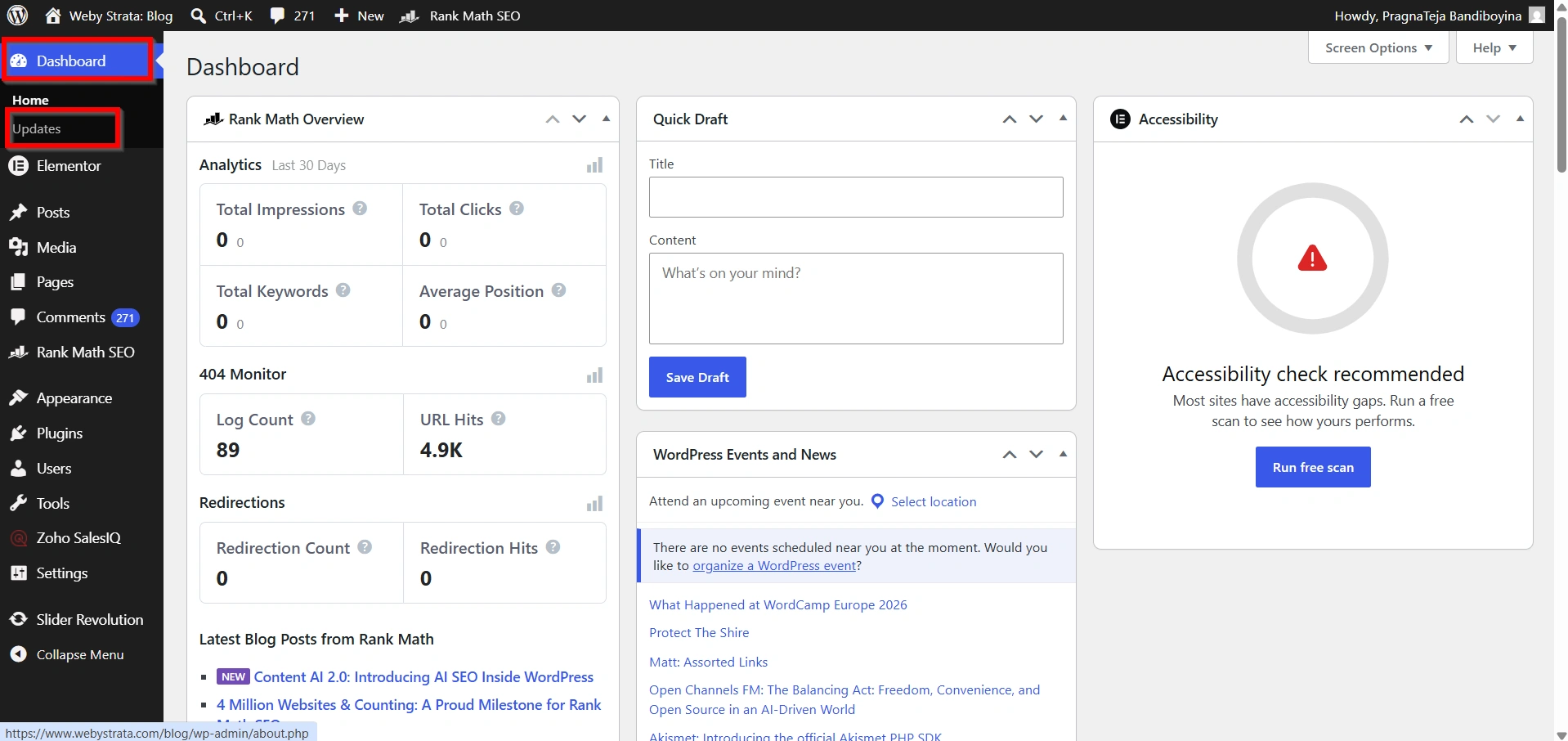
Step 3: Check for Available Updates
Although WordPress checks for updates automatically, you can manually verify that your website is running the latest version.
Click the Check Again button located near the top of the Updates page.
WordPress will connect to its update servers and verify the latest available version.
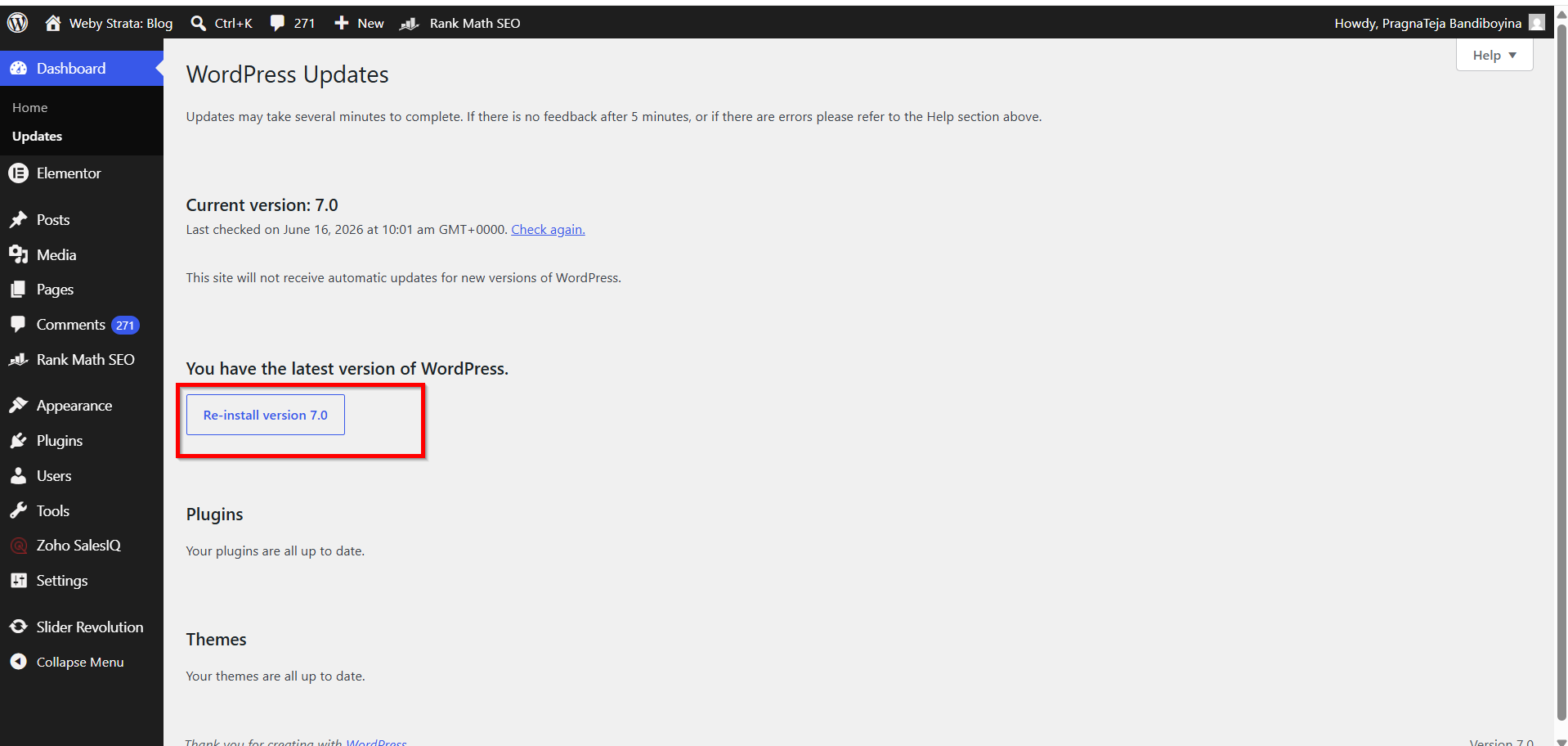
If your website is already up to date, you’ll see a message indicating:
“You have the latest version of WordPress.”
This confirms that no further action is required for the WordPress core installation.
Step 4: Update WordPress Core
If a new version is available, WordPress will display an update notification along with an Update Now button.
To install the latest version:
- Click Update Now.
- Wait while WordPress downloads the update package.
- Allow the system to install the updated files.
- WordPress will automatically complete the installation process.
The duration of the update depends on your hosting server’s performance and internet connectivity.
During the update process, avoid closing your browser window or interrupting the installation.
Once completed, WordPress will display a success message confirming that your website is now running the latest version.
Step 5: Reinstall WordPress (Optional)
In rare situations, WordPress files may become corrupted due to failed updates, server interruptions, or file modifications.
WordPress provides a simple reinstallation feature to restore core files without affecting your content.
If available, click the Re-install Now button.
This process will:
- Download a fresh copy of the current WordPress version
- Replace damaged or missing core files
- Preserve your posts, pages, media files, plugins, and themes
After the reinstallation finishes, your WordPress installation will be refreshed and restored to a healthy state.
Verify the Update
After updating WordPress, it is important to confirm everything is working properly.
Perform the following checks:
- Visit your website homepage
- Test important pages and forms
- Verify plugin functionality
- Review theme appearance
- Clear website and browser cache
- Check for any error messages
These simple checks help identify potential compatibility issues before they affect your visitors.
Benefits of Updating WordPress Installation
1. Enhanced Security
2. Improved Performance
3. Better Compatibility
4. Access to New Features
5. Greater Stability
Conclusion
Updating your WordPress installation is an essential maintenance task that helps keep your website secure, fast, and reliable. By regularly checking for updates, installing the latest WordPress version, and keeping plugins and themes current, you can ensure your website continues to perform at its best.
Whether you manage a personal blog, business website, or eCommerce store, maintaining an updated WordPress installation is one of the most effective ways to protect your online presence and provide a better experience for your visitors.
Related Articles


