Latest Updates
How to Configure WHM Package Mapping in WHMCS
How to Configure WHM Package Mapping in WHMCS If you use WHM (Web Host Manager) to manage cPanel hosting accounts, configuring WHM Package Mapping in WHMCS is an important step for automating account creation.…
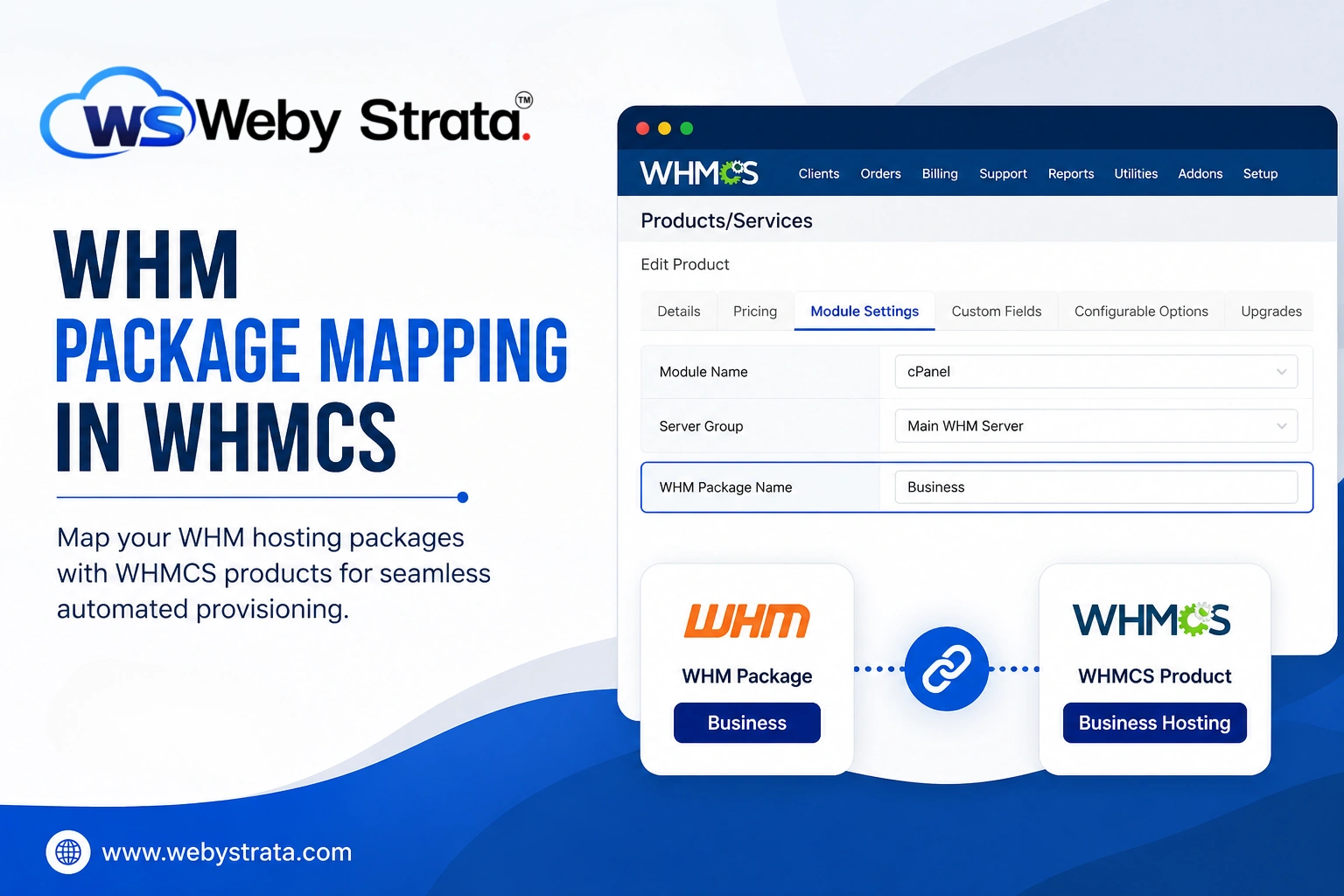
How to Configure WHM Package Mapping in WHMCS
If you use WHM (Web Host Manager) to manage cPanel hosting accounts, configuring WHM Package Mapping in WHMCS is an important step for automating account creation. Package mapping ensures that every hosting product in WHMCS is linked to the correct hosting package created in WHM.
Once the mapping is complete, WHMCS automatically provisions customer accounts with the appropriate disk space, bandwidth, email limits, and other hosting resources whenever an order is accepted.
In this guide, you’ll learn what package mapping is, why it’s important, and how to configure it correctly.
What is WHM Package Mapping in WHMCS?
WHM Package Mapping in WHMCS is the process of linking a hosting product in WHMCS to an existing hosting package in your WHM server.
For example:
- WHM Package: Starter
- WHMCS Product: Starter cPanel Hosting
When a customer purchases the Starter Hosting plan, WHMCS automatically creates a cPanel account using the Starter package from WHM.
Without package mapping, WHMCS won’t know which hosting package should be assigned during account creation.
Why Package Mapping is Important
Configuring package mapping provides several benefits:
- Fully automated account provisioning
- Eliminates manual account creation
- Assigns correct resource limits automatically
- Reduces configuration mistakes
- Saves time for hosting providers
- Improves customer experience
- Simplifies hosting management
Prerequisites
Before configuring WHM Package Mapping in WHMCS, ensure that:
- WHMCS is installed.
- Your WHM server is already connected to WHMCS.
- API Token or Remote Access Key is configured.
- At least one hosting package exists in WHM.
- A hosting product has already been created in WHMCS.
Step 1: Create Hosting Packages in WHM
Log in to your WHM server.
Navigate to:
Packages → Add a Package
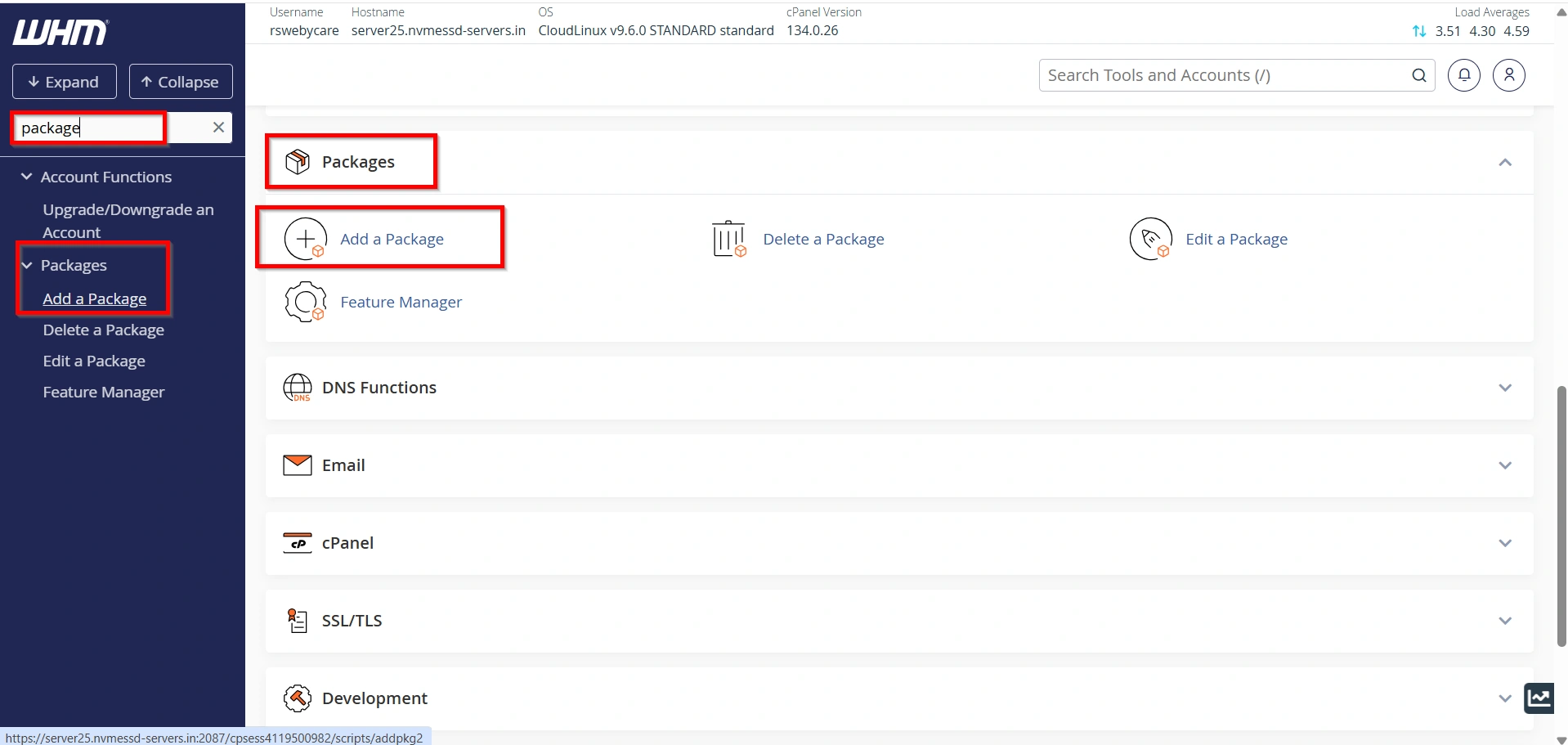
Create packages such as:
- Basic
- Starter
- Business
- Premium
Configure:
- Disk Space
- Monthly Bandwidth
- Email Accounts
- FTP Accounts
- Databases
- Subdomains
- Parked Domains
- Addon Domains
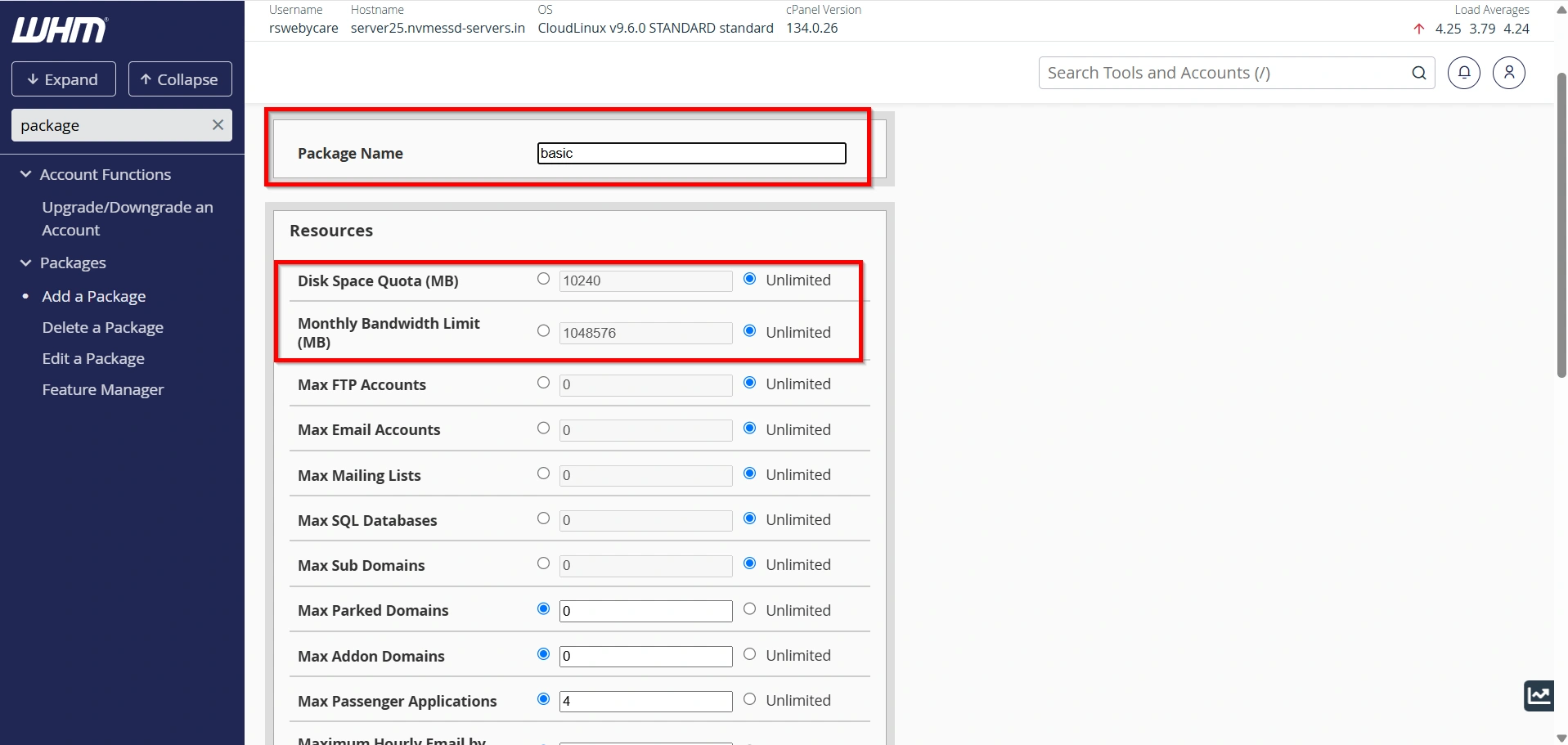
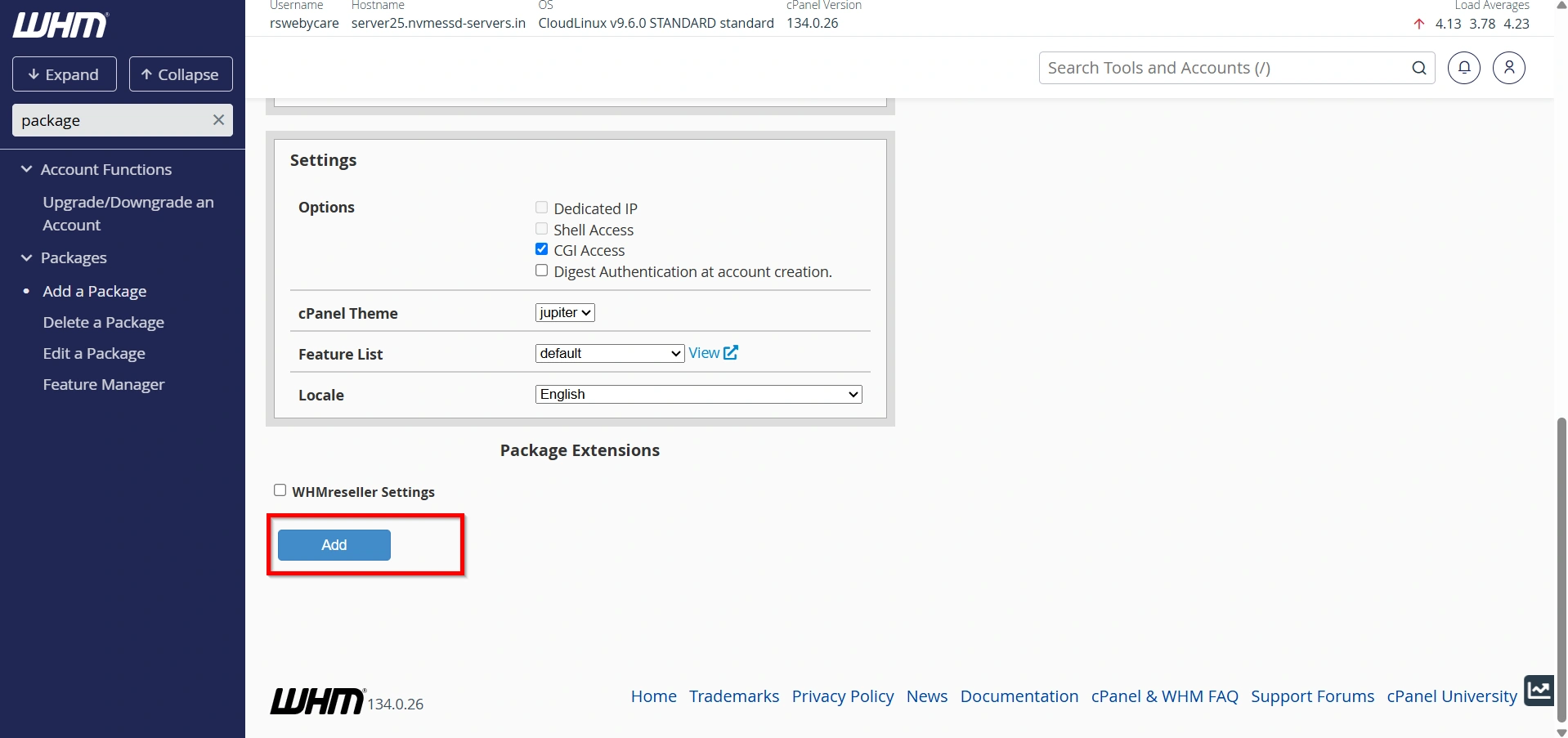
- Click Add
Step 2: Open Product Settings in WHMCS
In the WHMCS Admin Area:
Configuration → System Settings → Products/Services
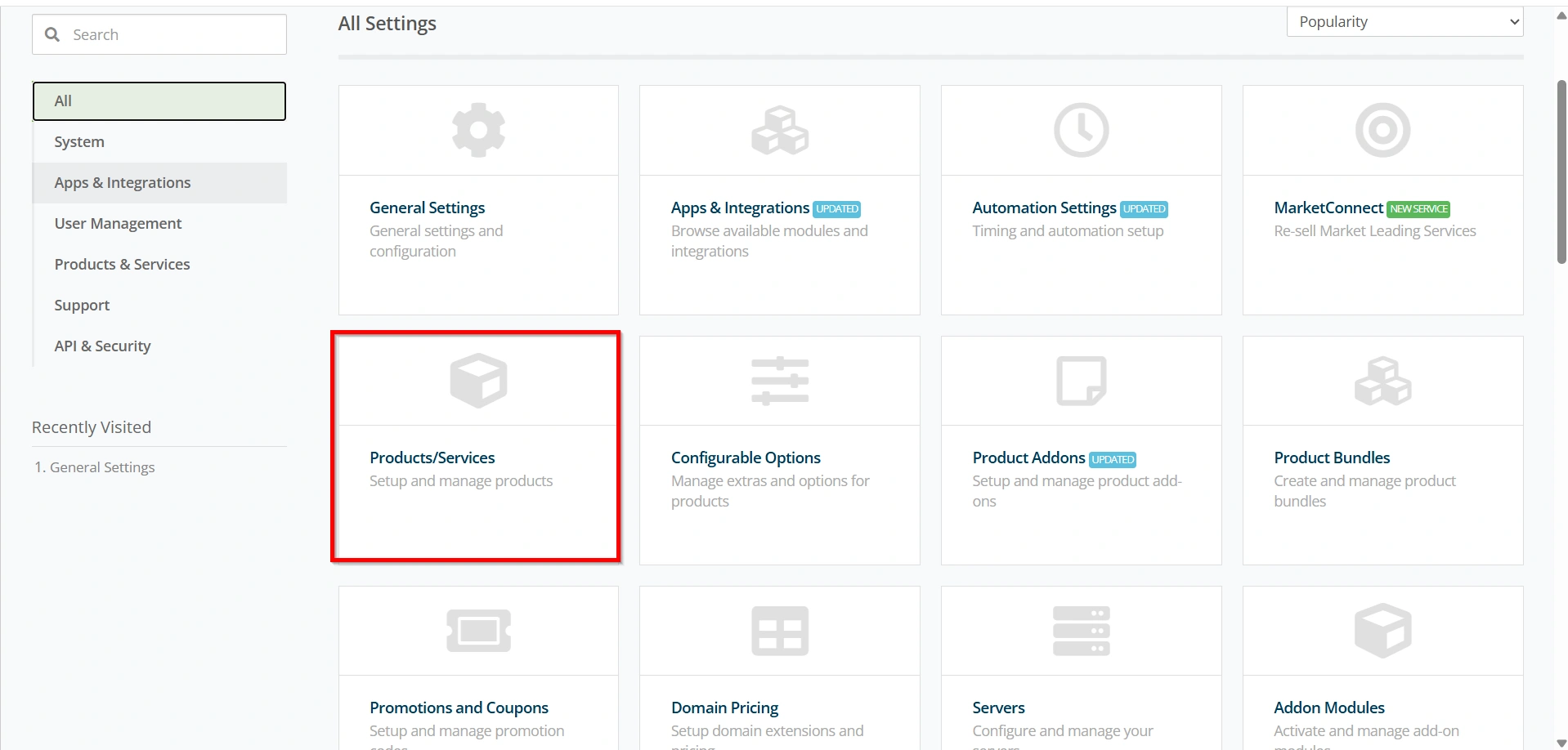
Open the hosting product you want to configure.
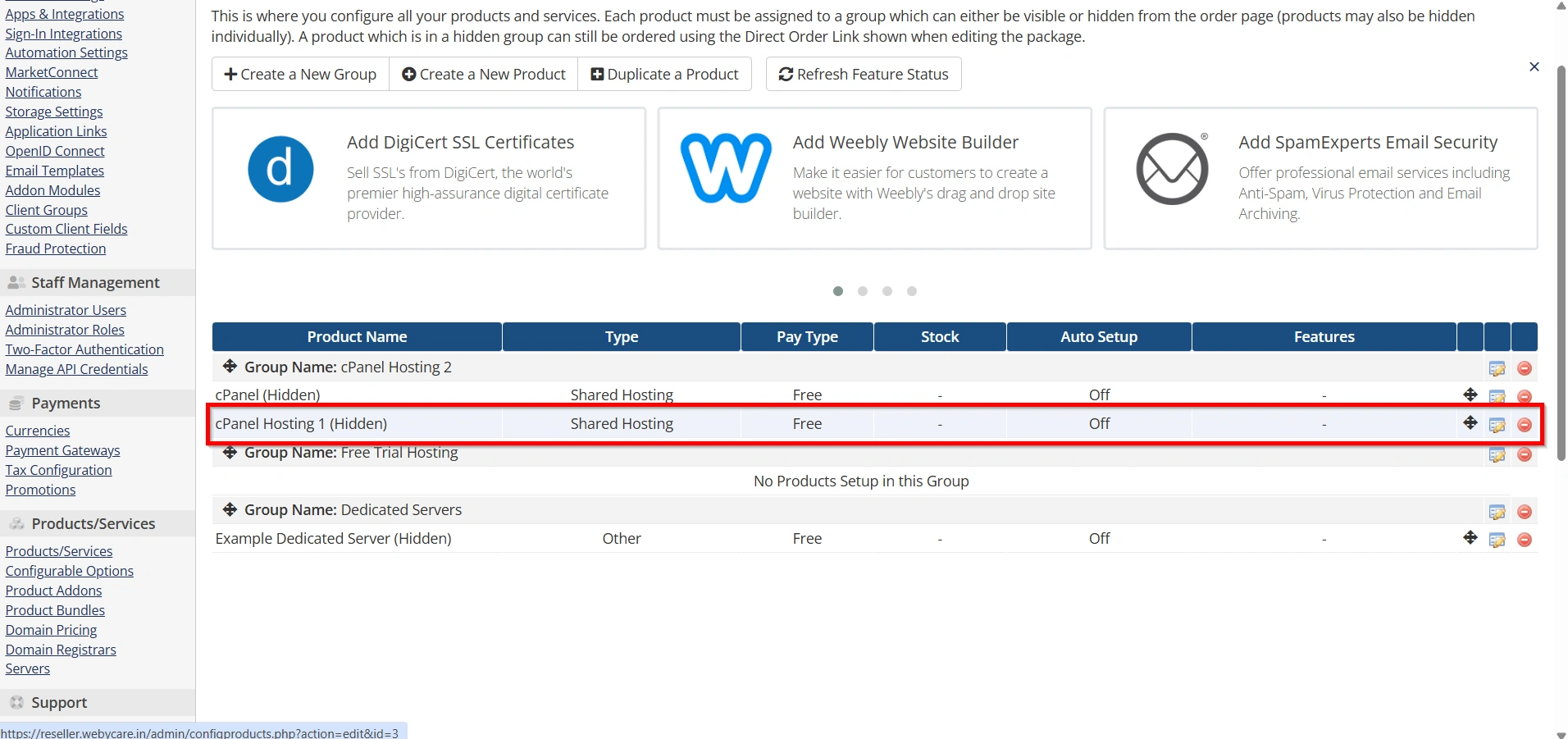
Step 3: Select the Module
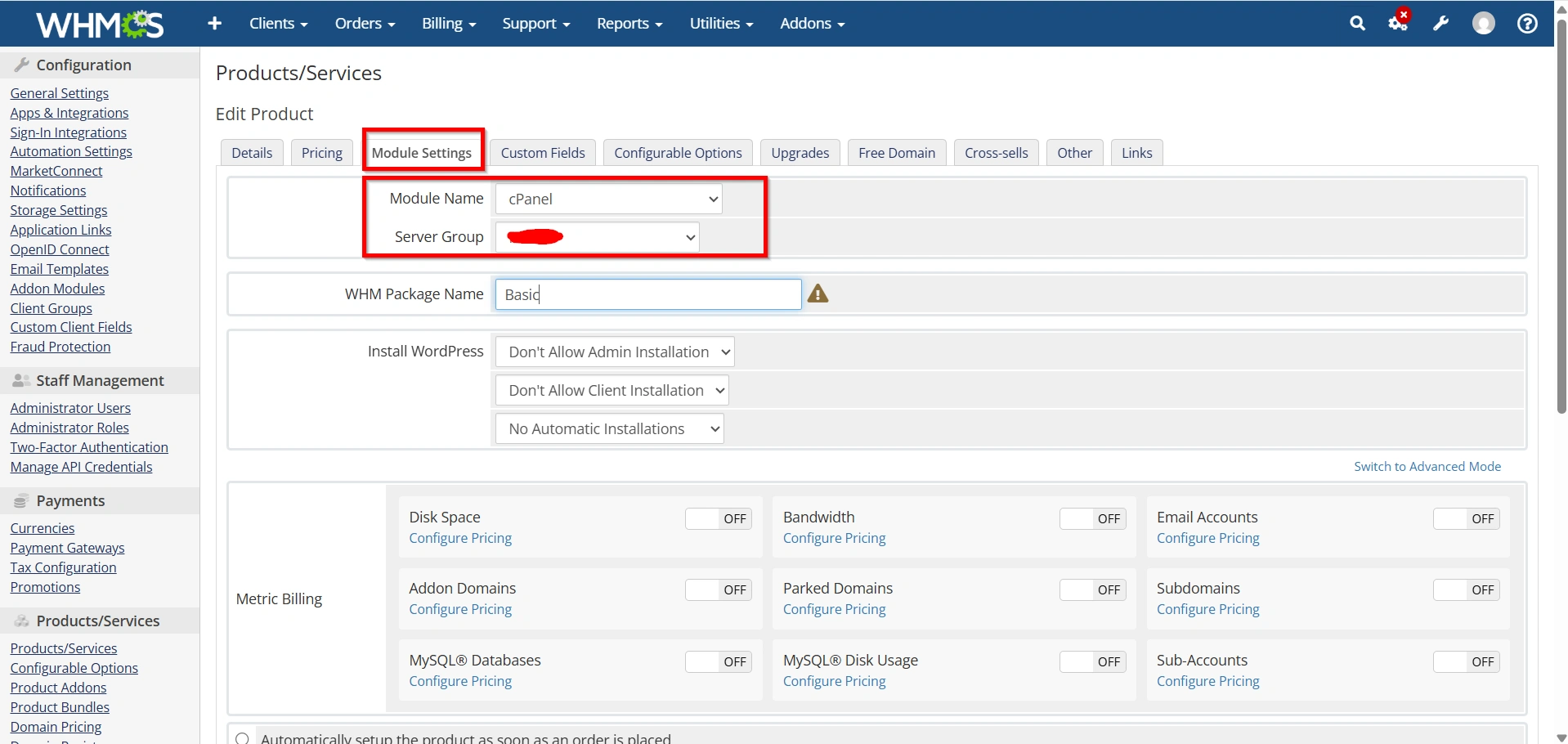
Open the Module Settings tab.
Choose:
Module Name: cPanel
or
Module Name: WHM
depending on your server configuration.
Select the Server Group
Under Server Group, choose the server or server group that contains your WHM server.
This tells WHMCS where the hosting account should be created.
Step 4: Configure WHM Package Mapping
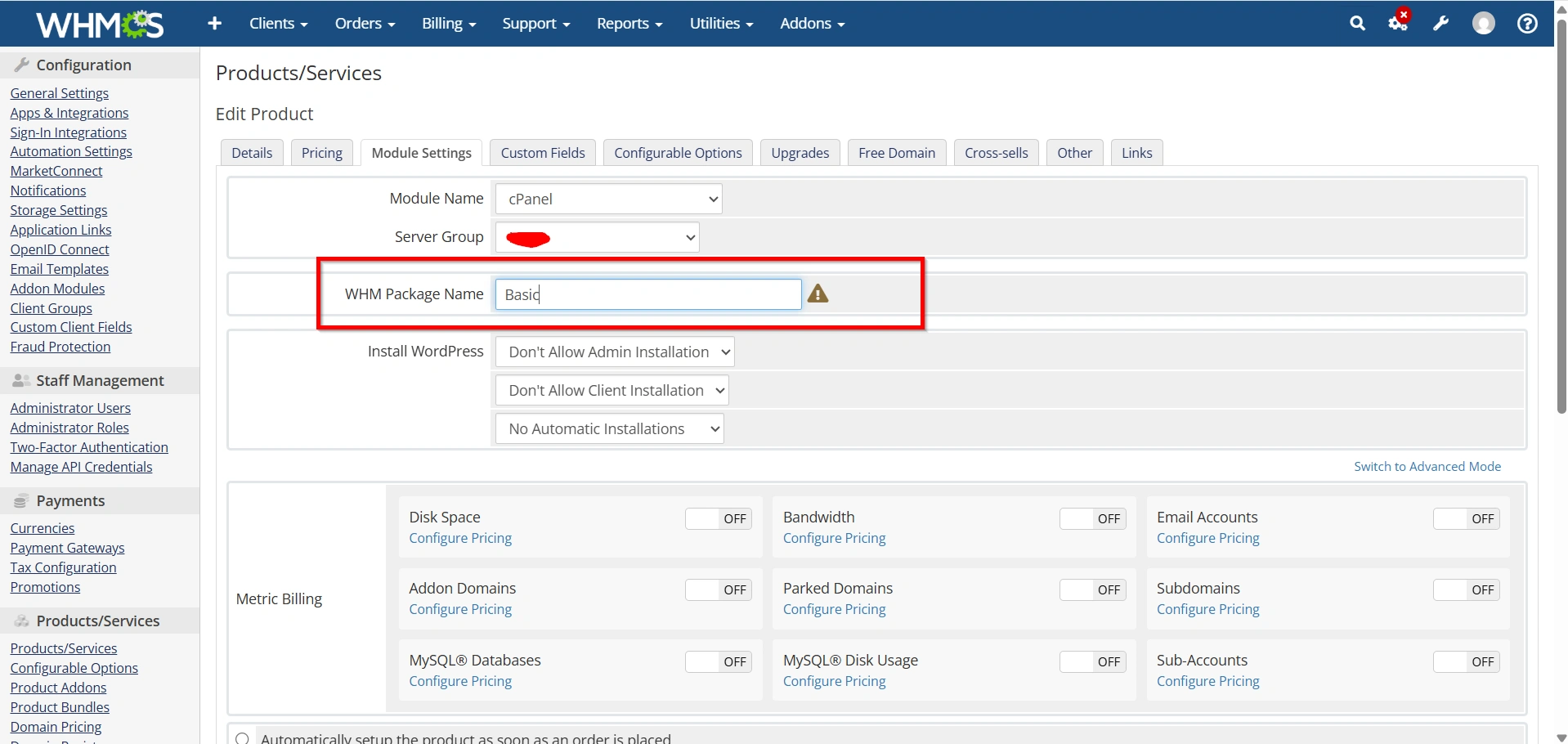
Locate the WHM Package Name (sometimes labeled Package Name) field.
Enter the exact package name created in WHM.
Example:
| WHMCS Product | WHM Package |
|---|---|
| Starter Hosting | Starter |
| Business Hosting | Business |
| Premium Hosting | Premium |
The package name must exactly match the package in WHM, including capitalization and spelling.
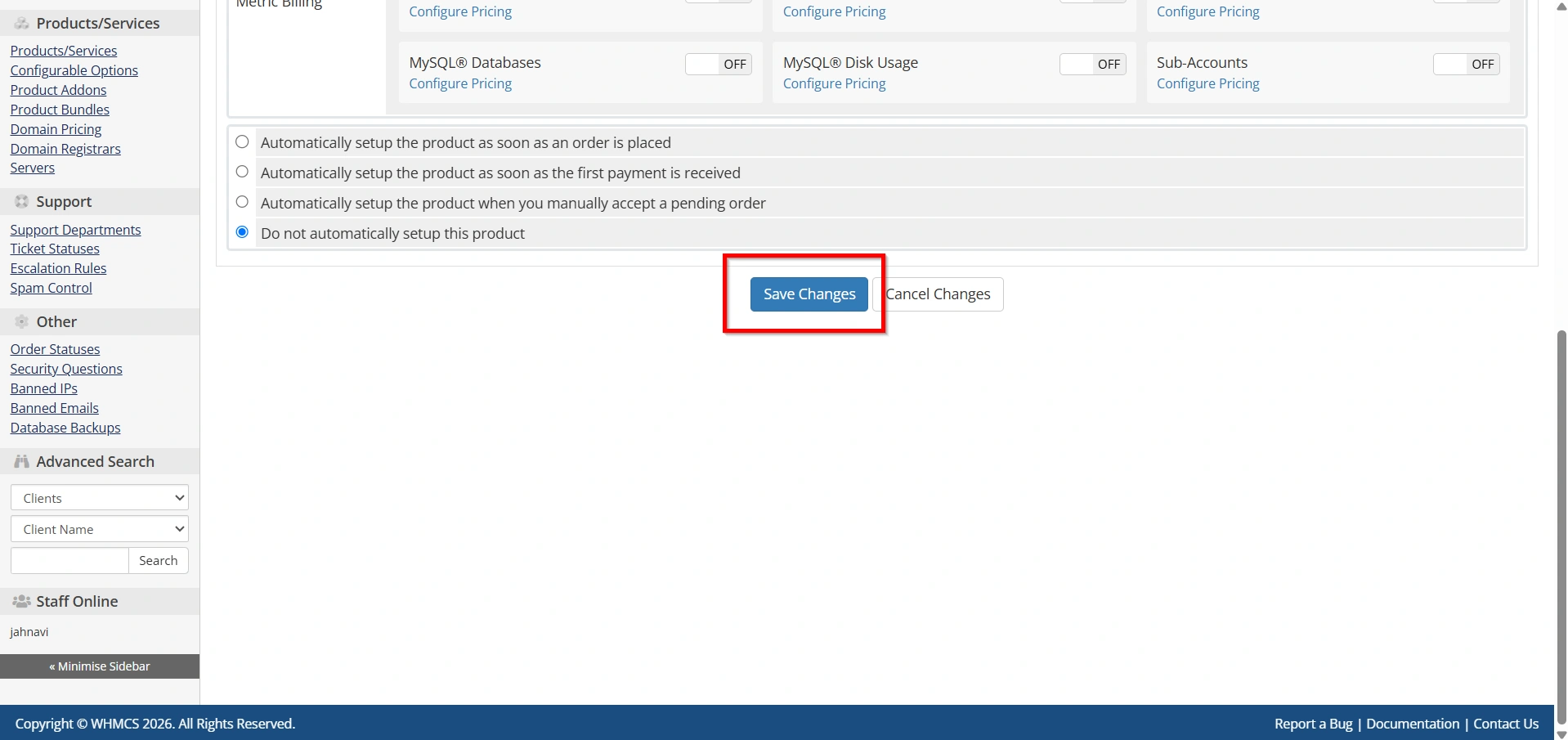
Step 6: Save the Product
Click Save Changes.
Your WHM Package Mapping in WHMCS is now complete.
Step 7: Test Automatic Provisioning
Place a test order using the hosting product.
Accept the order.
WHMCS will automatically:
- Create the cPanel account
- Assign the mapped WHM package
- Set hosting limits
- Generate login credentials
- Send the Welcome Email
If everything is configured correctly, the account will appear in WHM automatically.
Best Practices
To ensure smooth provisioning:
- Use consistent package names.
- Avoid unnecessary spaces in package names.
- Test every hosting product after configuration.
- Keep package names simple and descriptive.
- Regularly review package mappings after making changes in WHM.
- Monitor the WHMCS Module Log for provisioning issues.
Troubleshooting Tips
If automatic provisioning isn’t working:
- Confirm the package exists in WHM.
- Verify the package name matches exactly.
- Check the WHMCS Module Log.
- Test the server connection.
- Ensure the selected server group is correct.
- Rebuild the package mapping if you’ve renamed a package in WHM.
Conclusion
Properly configuring WHM Package Mapping in WHMCS is essential for seamless hosting automation. By correctly linking your WHM hosting packages with WHMCS products, every new hosting order can be provisioned automatically without manual intervention. This saves time, reduces errors, and ensures customers receive the correct hosting resources immediately after their order is approved.
Related Articles


