Web Hosting
WordPress Hosting Staging Workflow: A Safer Path to Production
A staging site is more than a duplicate WordPress installation. Used well, it gives you a safe place to update plugins, test theme changes, check forms, and measure performance before visitors see the result.…
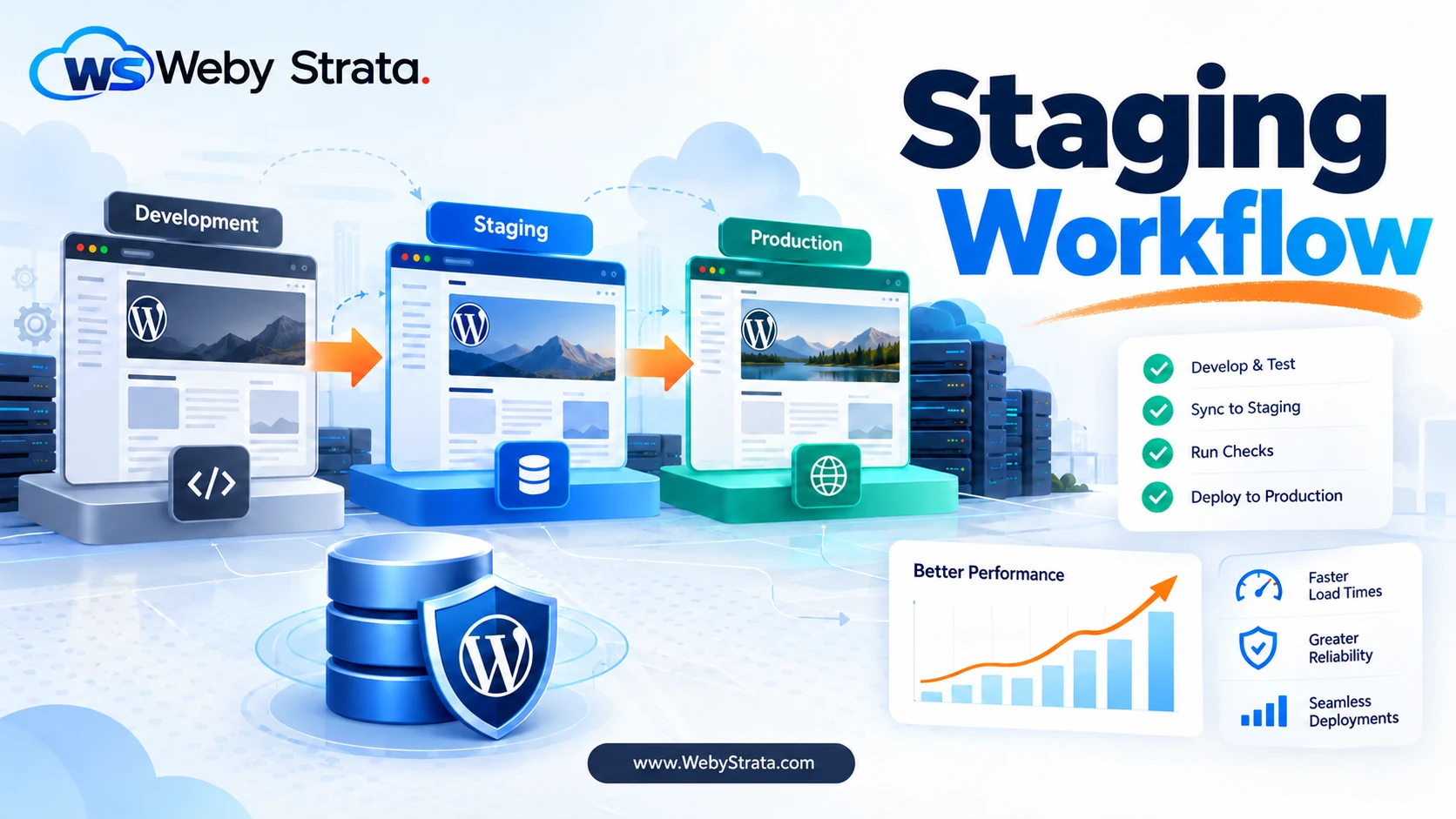
A staging site is more than a duplicate WordPress installation. Used well, it gives you a safe place to update plugins, test theme changes, check forms, and measure performance before visitors see the result. Used carelessly, it can overwrite production data, leak private content, or create a site that looks healthy only because it is not receiving real traffic.
What a useful WordPress staging workflow includes
A reliable workflow separates testing from production, defines what moves in each direction, and gives you a rollback point. The safest default is to move code and configuration toward production while treating production content and customer data as protected.
1. Decide what belongs in staging
Use staging for changes that could affect visitors or data:
- WordPress core, theme, and plugin updates
- Theme templates, CSS, JavaScript, and custom code
- New forms, checkout changes, and analytics integrations
- Performance changes such as caching, image optimization, or PHP version changes
- Security fixes and configuration changes
Do not assume staging is the right place to experiment with live payment transactions, real customer accounts, or private user data. Mask or remove sensitive information before copying production content.
2. Create a controlled staging environment
Give staging its own URL, database, credentials, and access rules. Password-protect it or restrict it from search engines. Make the environment different enough to be safe, but close enough to production that test results mean something.
- Use the same PHP major version as production.
- Match important server extensions and database versions.
- Keep HTTPS enabled so mixed-content and secure-cookie issues appear early.
- Disable outgoing email or route it to a test inbox.
- Prevent search indexing with access control and an appropriate noindex setting.
3. Copy production down carefully
When you refresh staging, take a backup first. Copy files, uploads, and the database as a coordinated snapshot, then replace production URLs inside the staging database. Check that serialized WordPress data is handled by a WordPress-aware tool rather than a blind text replacement.
For shops, memberships, bookings, and other dynamic sites, remember that production keeps changing. A staging copy is a point-in-time view, not a live replica.
4. Test the change instead of only looking at the homepage
Use a small acceptance checklist:
- Log in as an administrator and a normal user.
- Open key templates on desktop and mobile widths.
- Submit forms and confirm validation and notifications.
- Check menus, search, media, redirects, and structured content.
- Test critical plugins and integrations.
- Review browser console errors and server logs.
- Run a performance check on representative pages.
5. Keep production data protected during deployment
The most dangerous staging mistake is replacing the live database with an older copy and losing new orders, comments, leads, or user registrations. Prefer a deployment process that moves tested code and selected configuration changes upward without overwriting newer production content.
If a database change is unavoidable, document it, take a fresh backup, schedule a maintenance window, and prepare a rollback. For WooCommerce or membership sites, consider a short freeze on writes during the final migration.
6. Clear caches after release
After deploying, clear the right layers: WordPress or object cache, page cache, CDN cache, and browser cache where necessary. Then test the production URL as an anonymous visitor and as a logged-in user. A successful deployment can still appear broken when an old CSS or page-cache version is being served.
7. Keep a rollback plan
Record the previous plugin or theme versions, database backup location, deployment time, and person responsible for the change. Define what triggers rollback: failed checkout, broken forms, fatal errors, major visual problems, or unacceptable performance.
WordPress staging checklist
- Staging is private and excluded from indexing
- PHP, database, and important extensions match production
- Outgoing email and payment actions are safely isolated
- Production data was backed up before refresh or deployment
- Updates were tested on important templates and user flows
- Production database writes will not be overwritten
- Caches were purged and the live site was retested
- Rollback steps and owners are documented
Choose hosting that supports a repeatable workflow
WordPress hosting should make it easier to separate environments, protect production, and inspect performance when a change behaves differently under real traffic. Build your workflow first, then choose the plan and resources that can support it reliably.
WebyStrata helps you build a dependable hosting foundation for WordPress sites that need safer updates, clearer deployments, and room to grow.
Related Articles