cPanel
How to Add a Signature to Your Webmail via cPanel
How to Add a Signature to Your Webmail via cPanel Email remains one of the most important communication tools for businesses, organizations, and individuals. Whether you are sending emails to customers, colleagues, or business…

How to Add a Signature to Your Webmail via cPanel
Email remains one of the most important communication tools for businesses, organizations, and individuals. Whether you are sending emails to customers, colleagues, or business partners, presenting yourself professionally is essential. One simple way to improve the appearance and effectiveness of your emails is by adding an email signature.
An email signature acts as a digital business card that is automatically included at the end of every message you send. It can contain your name, job title, company information, phone number, website address, social media profiles, and other important contact details.
If you use webmail through cPanel, adding a signature is quick and easy. This guide will walk you through the process and explain why email signatures are important for professional communication.
What Is an Email Signature?
An email signature is a block of text or formatted content that appears at the bottom of outgoing emails. It provides recipients with information about the sender and offers convenient ways to get in touch.
A typical email signature may include:
- Full Name
- Job Title
- Company Name
- Phone Number
- Website URL
- Social Media Links
- Company Logo
- Business Address
By automatically attaching this information to every email, you create a consistent and professional image for your brand.
How to Add a Signature to Your Webmail via cPanel
Follow these steps to create or update your email signature.
Step 1: Login to cPanel from Client Area
First, visit the WebyStrata website and log in to your client area account using your registered email address and password.
official Website www.webystrata.com
After logging in:
- Go to Services
- Click on My Services
- Select your active hosting service
- Click on Login to cPanel

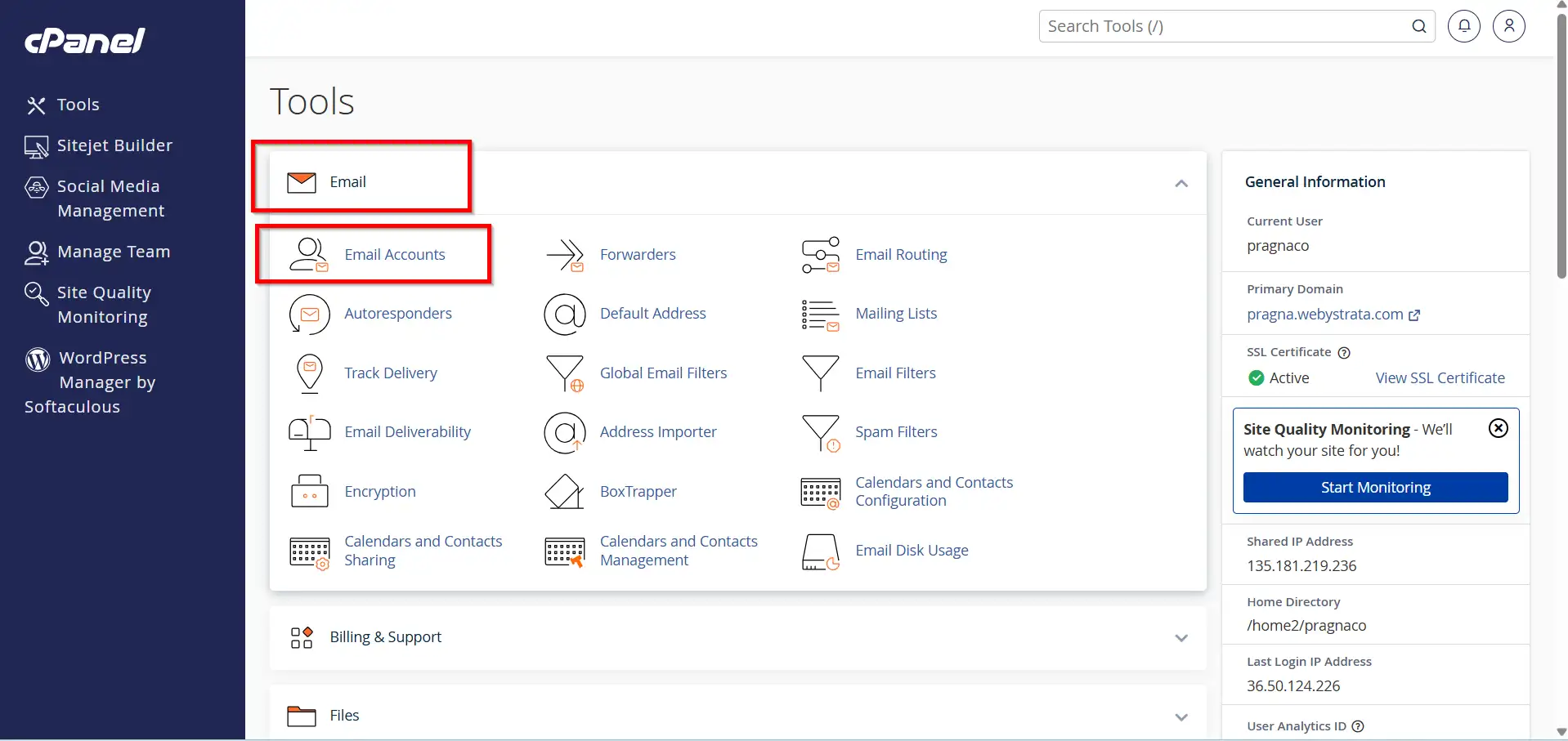
Step 2: Open Email Accounts
After logging into cPanel:
- Locate the Email section.
- Click Email Accounts.
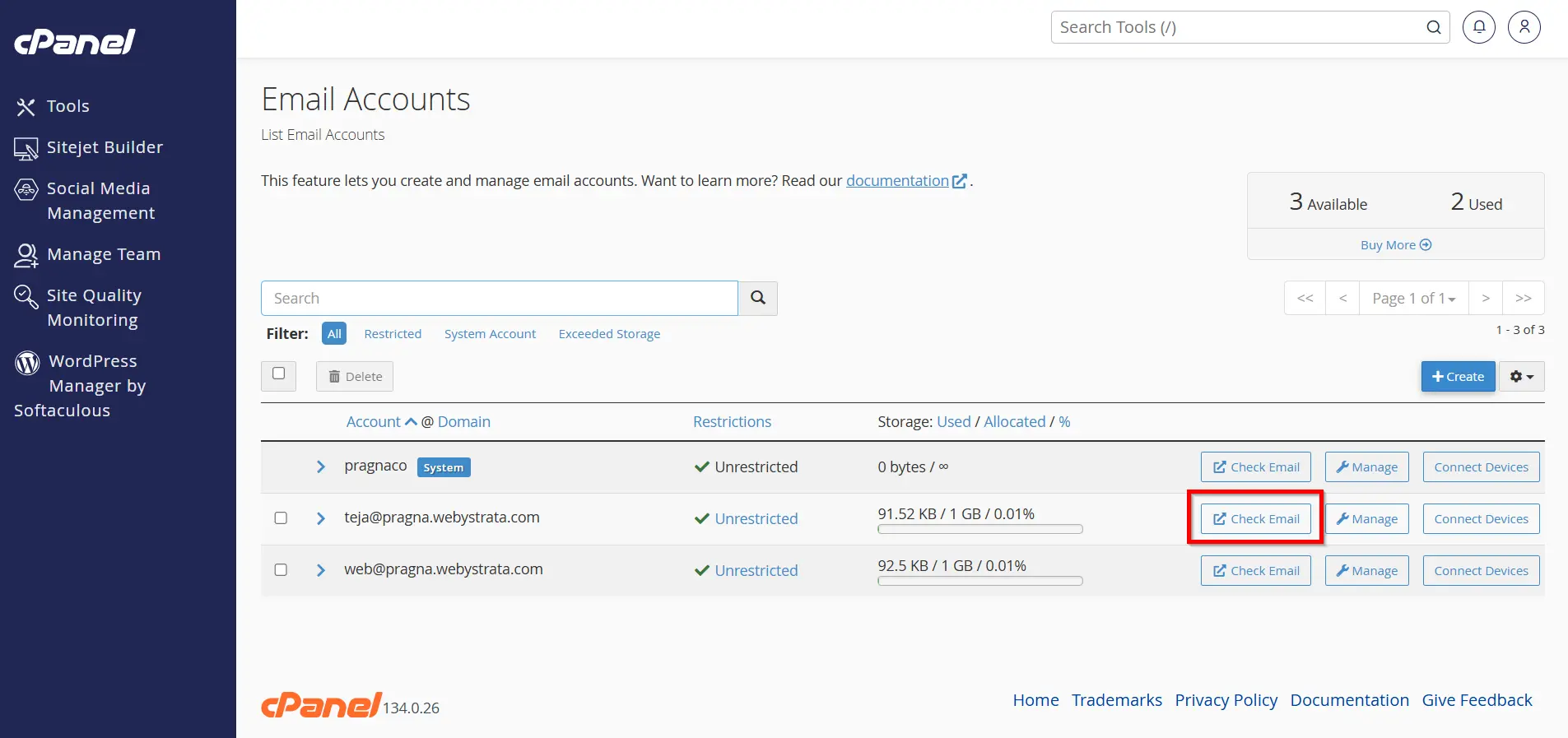
2. Find the email account where you want to add a signature.
3. Click Check Email next to the account.
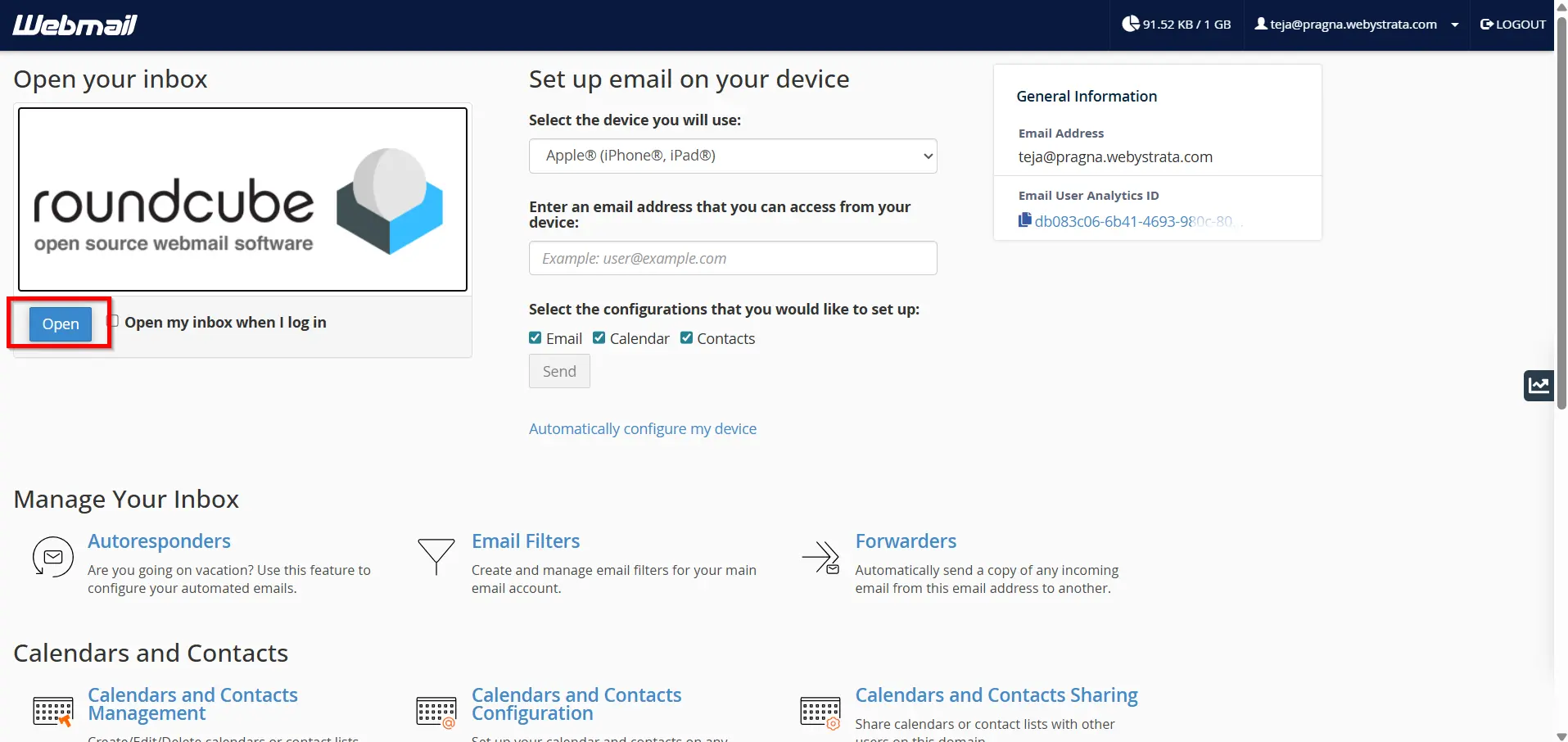
Step 3: Access Roundcube Webmail
Most cPanel hosting accounts use Roundcube as the default webmail application.
- Select Roundcube if prompted.
- Wait for the Roundcube interface to load.
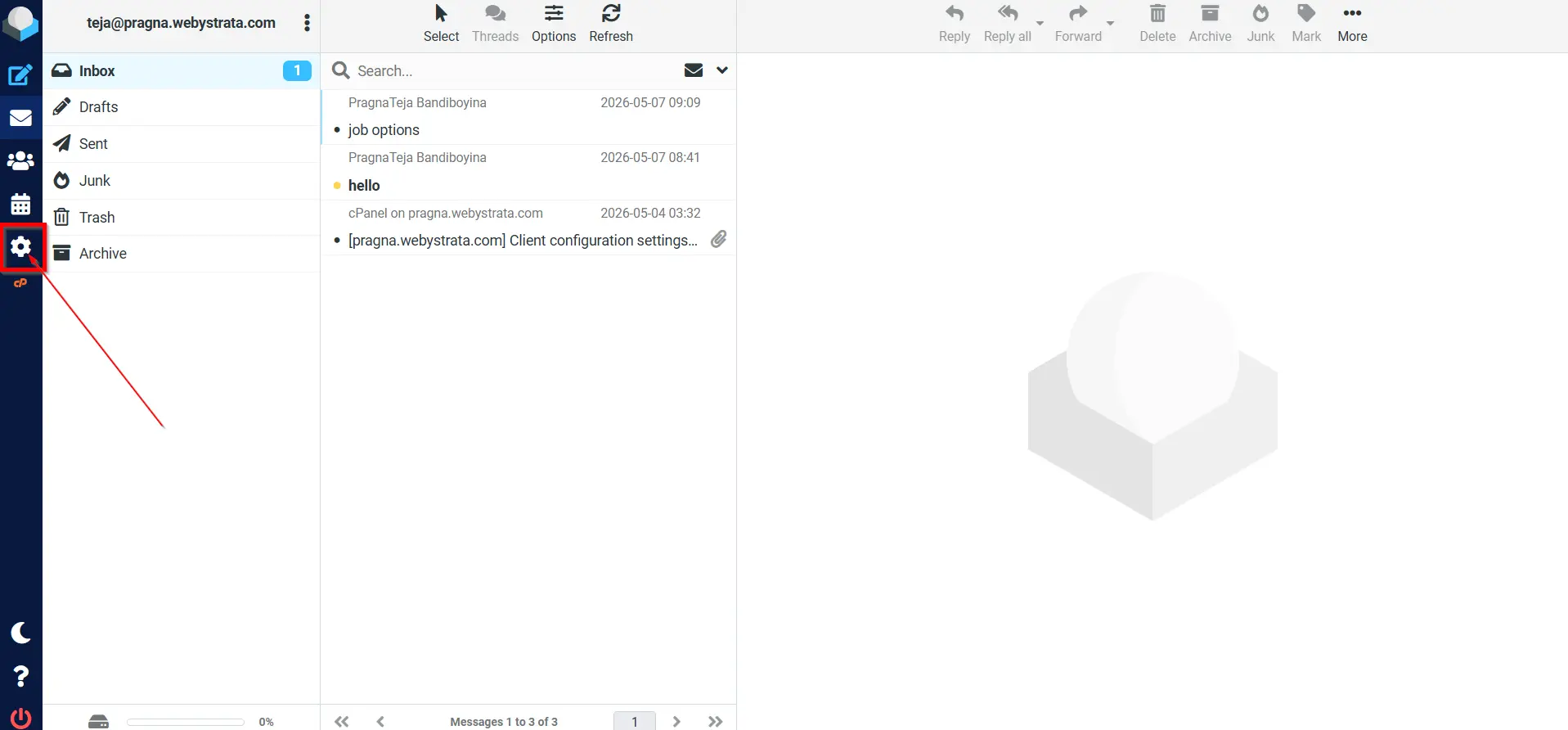
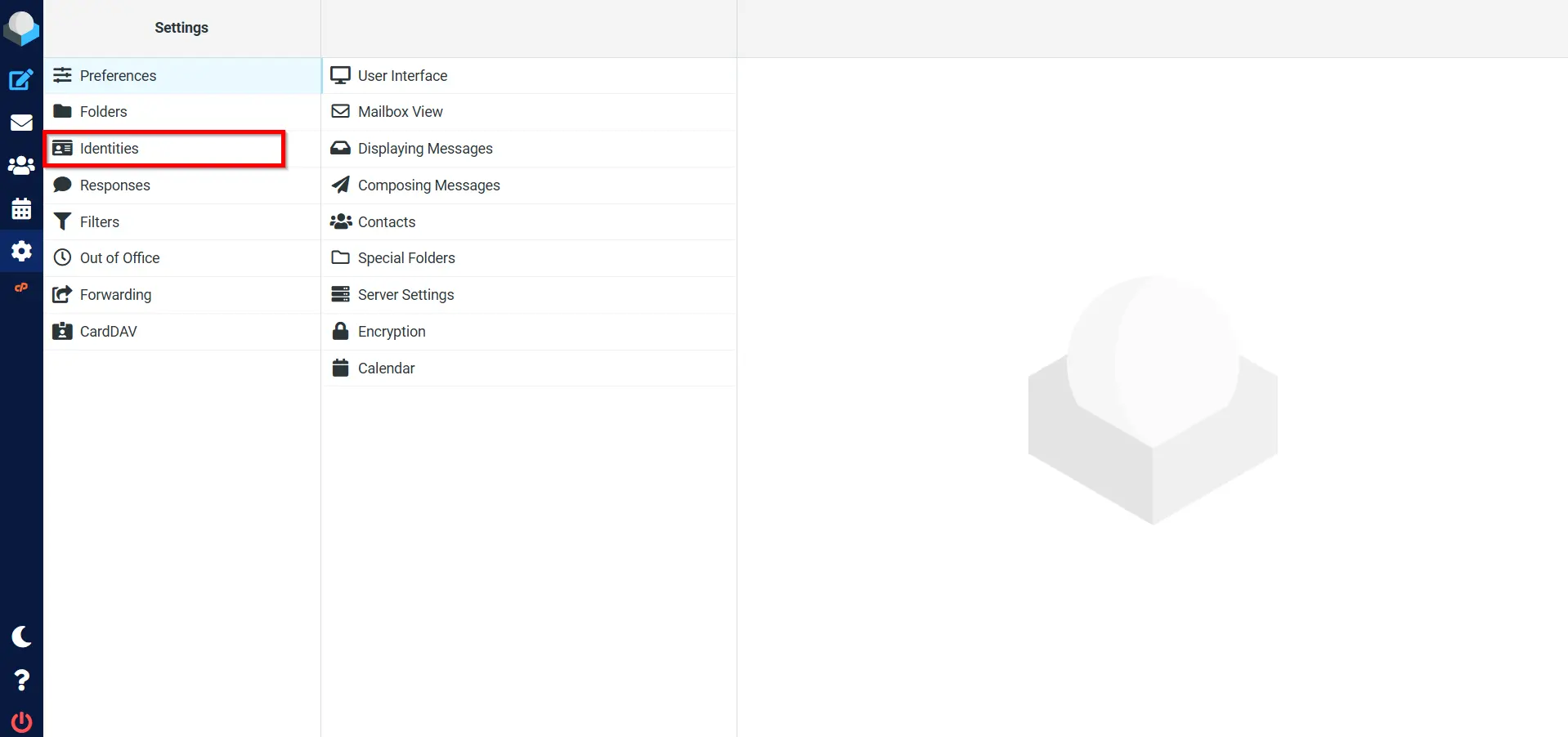
Step 4: Open Settings
Once inside Roundcube:
- Click the Settings icon in the left-side menu.
2. Select Identities.
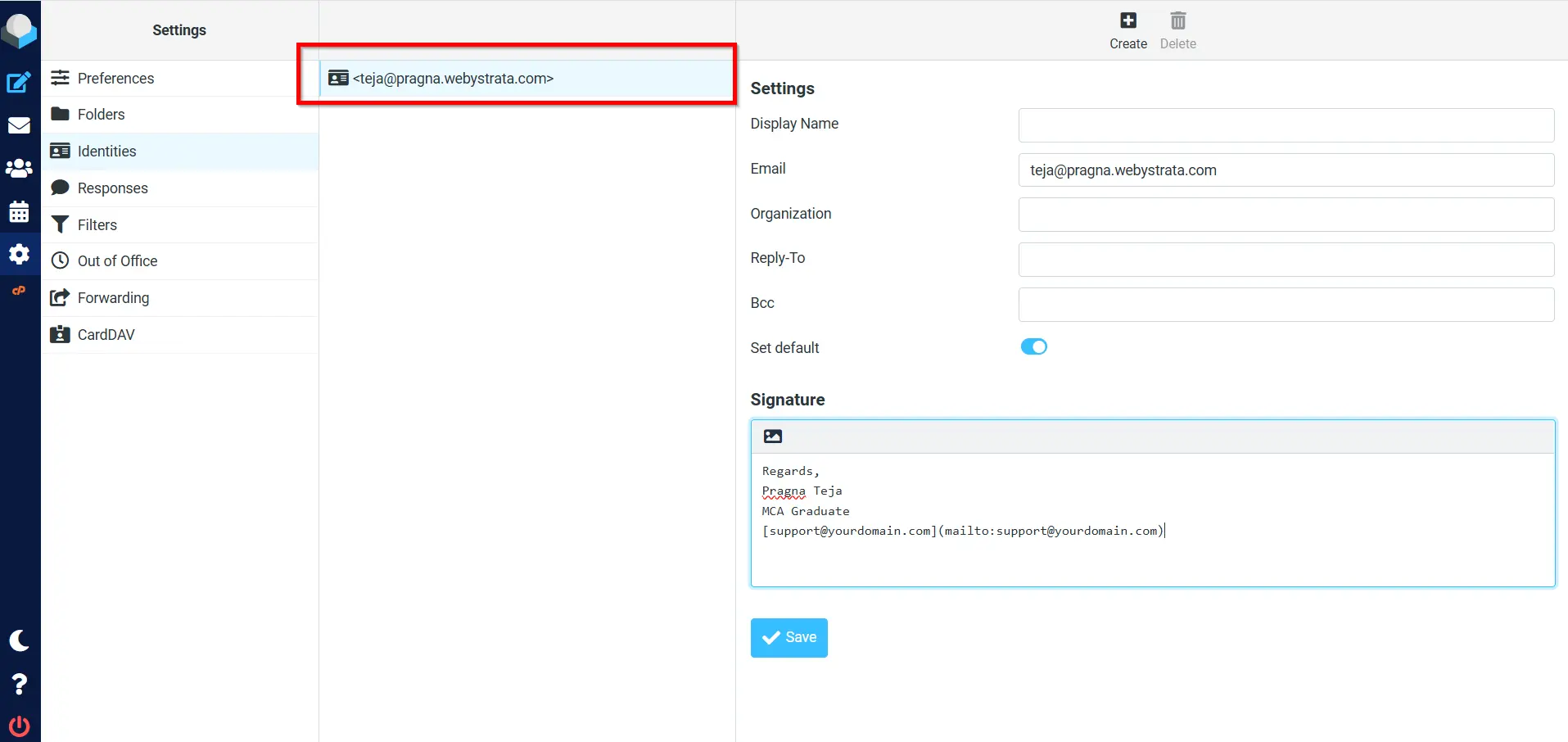
3. Click the email address you want to edit.
The identity settings page allows you to manage sender information and signatures.
Step 5: Create Your Signature
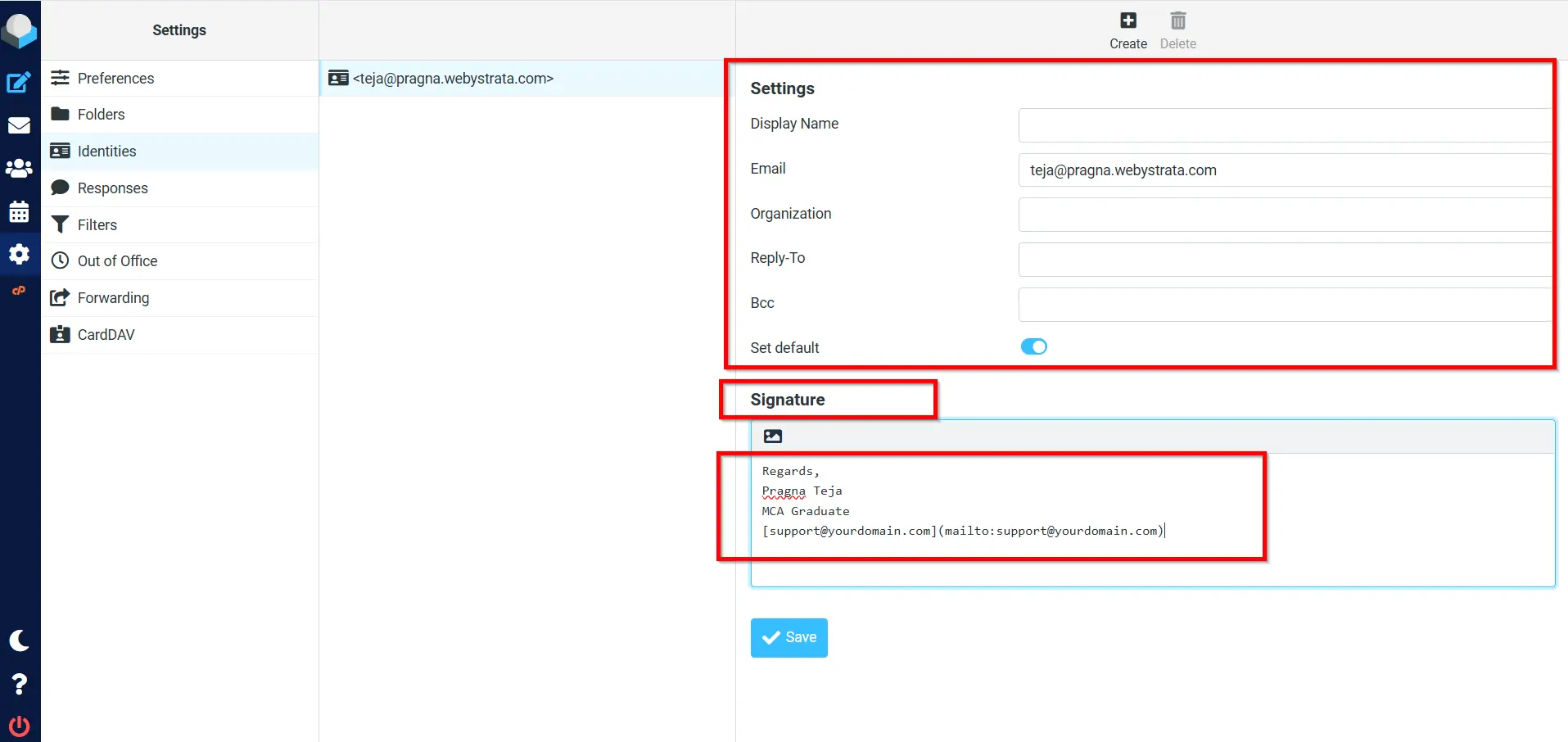
Scroll to the Signature section and enter the content you want displayed in outgoing emails.
Example:
John Smith
Sales Manager
WebyStrata
www.john.webystrata.com
Phone: +1 123 456 7890
Keep your signature concise and professional. Avoid excessive graphics or lengthy promotional content.
Step 6: Save Your Changes
After creating your signature:
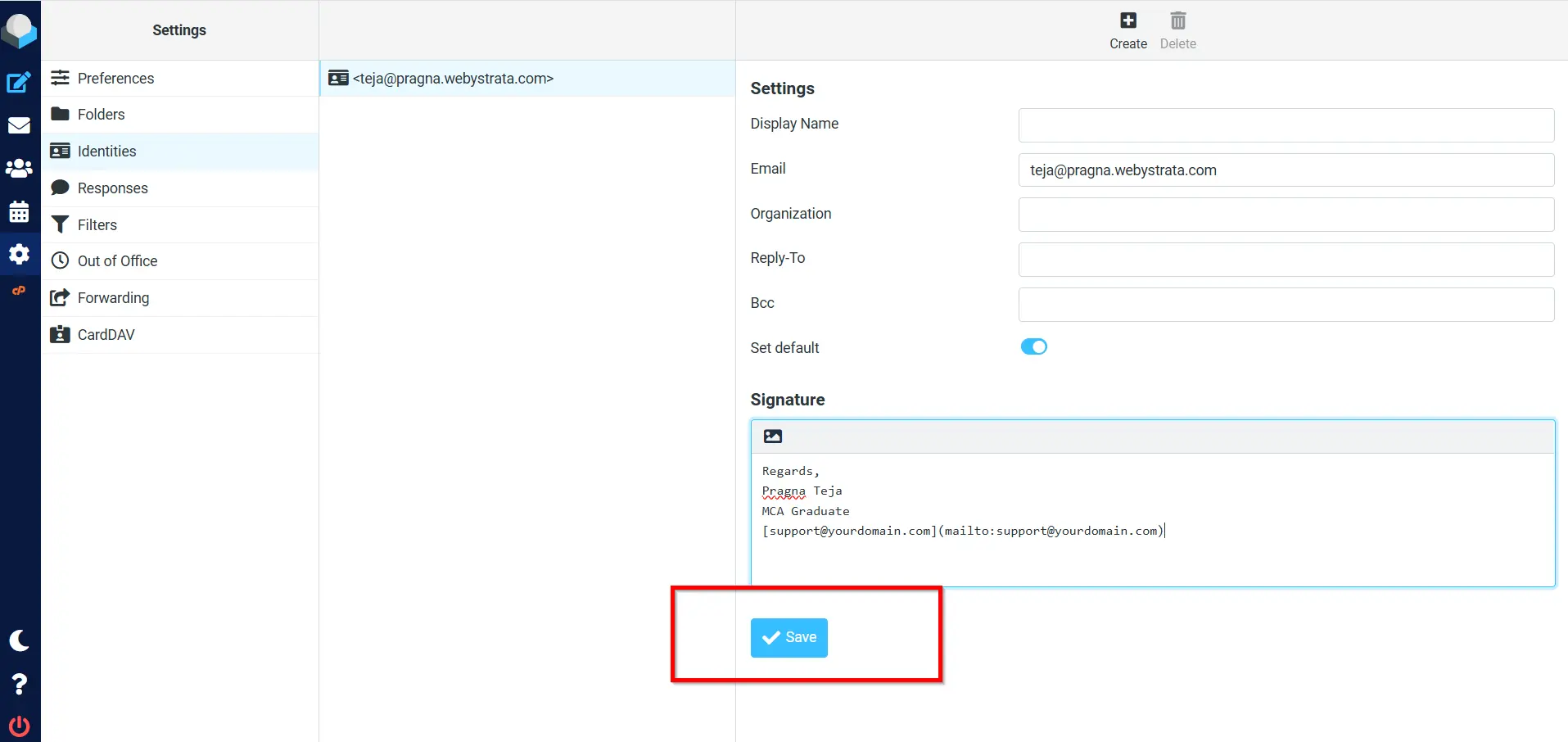
- Click Save.
- Compose a new email to verify that the signature appears automatically.
Your new signature will now be added to all outgoing emails sent through Roundcube webmail.
Verify Your Signature
To ensure your signature is working correctly:
- Compose a new email.
- Check whether the signature appears automatically.
- Send a test email to yourself and confirm the formatting displays correctly.
Why Add a Signature to Your Webmail?
Adding a signature to your webmail account offers several benefits:
- Professional Appearance
- Saves Time
- Improves Brand Visibility
- Provides Easy Contact Information
- Creates Consistency
- Supports Marketing Efforts
When Should You Use an Email Signature?
You should add an email signature if:
- You communicate with customers or clients.
- You use a business email address.
- You represent a company or organization.
- You regularly send support or sales emails.
- You want to provide easy access to your contact information.
- You want to strengthen your professional image.
Even personal users can benefit from a simple and informative email signature.
Benefits of Adding an Email Signature
1. Creates a Professional Image
2. Provides Contact Information
3. Saves Time
4. Promotes Your Brand
5. Improves Communication
6. Maintains Consistency
7. Supports Marketing Efforts
8. Builds Trust and Credibility
Conclusion
Adding a signature to your webmail via cPanel is a simple but effective way to improve your email communications. A professional email signature helps establish credibility, promotes your brand, and ensures recipients always have access to your contact information.
By following the steps outlined in this guide, you can quickly create a personalized signature in Roundcube webmail and maintain a consistent, professional appearance in every email you send.
Related Articles


