cPanel
How to Configure Autoresponders in cPanel
How to Configure Autoresponders in cPanel Effective communication is essential for any business, organization, or website owner. Whether you receive customer inquiries, support requests, partnership proposals, or general questions, responding to emails promptly helps…
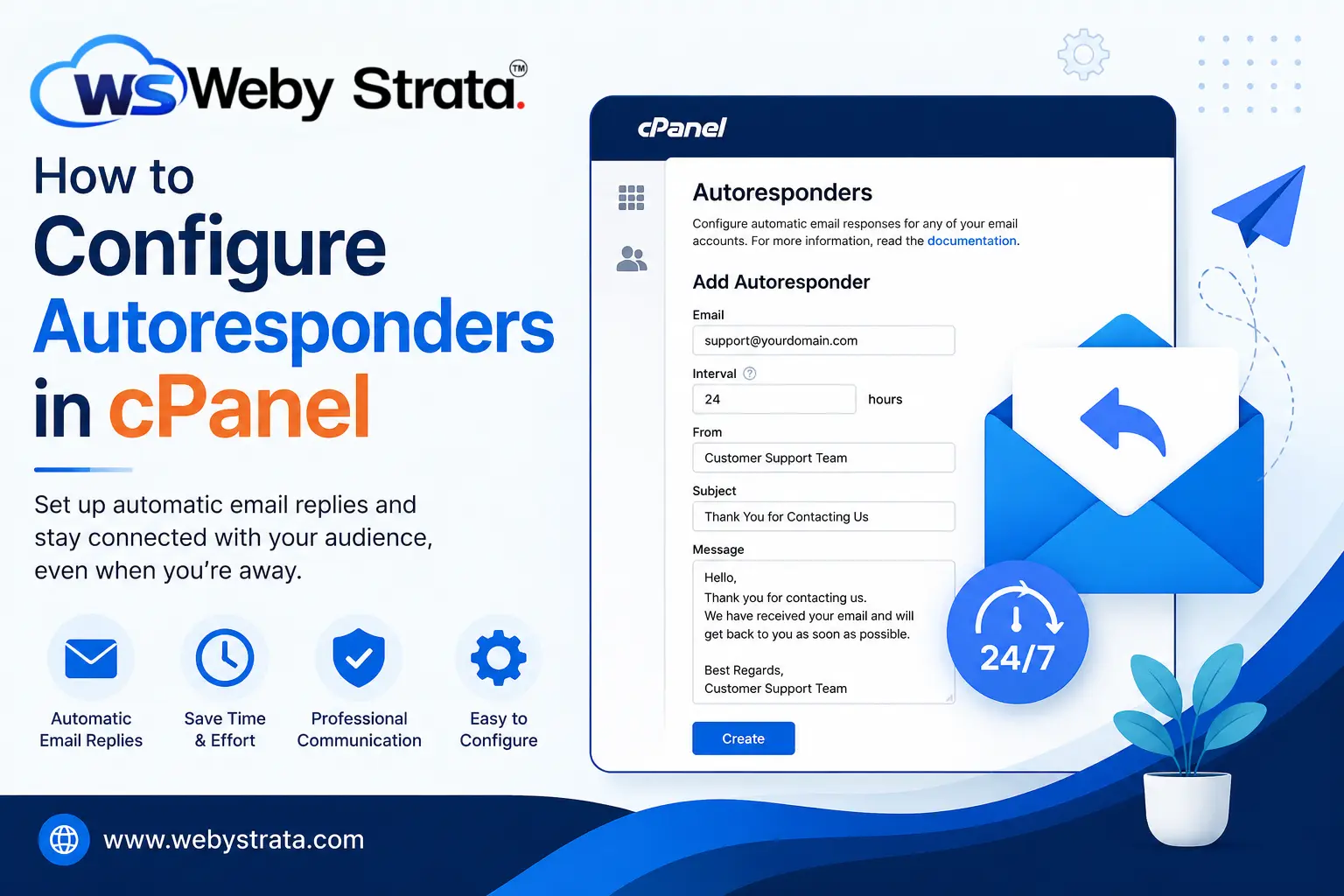
How to Configure Autoresponders in cPanel
Effective communication is essential for any business, organization, or website owner. Whether you receive customer inquiries, support requests, partnership proposals, or general questions, responding to emails promptly helps build trust and maintain professionalism. However, there are times when you may not be available to respond immediately. You may be on vacation, attending meetings, traveling, or simply managing a high volume of emails.
By configuring autoresponders in cPanel, you can automate routine email responses, improve customer experience, and maintain professional communication around the clock. Whether you want to create an out-of-office message, acknowledge customer inquiries, or confirm support requests, autoresponders make the process simple and efficient.
In this guide, you will learn what autoresponders are, their benefits, common use cases, and how to configure autoresponders in cPanel step by step.
What Is an Autoresponder?
An autoresponder is an automated email reply sent to anyone who emails a particular email address. The response is generated automatically based on the settings you configure in cPanel.
For example, if someone sends an email to support@yourdomain.com, the autoresponder can instantly send a message such as:
“Thank you for contacting our support team. We have received your request and will respond within 24 business hours.”
This ensures that the sender knows their email has been successfully received.
Prerequisites
Before configuring an autoresponder, ensure that:
- You have access to your cPanel account.
- An email account already exists in cPanel.
- You have permission to manage email settings.
Step 1: Login to cPanel from Client Area
First, visit the WebyStrata website and log in to your client area account using your registered email address and password.
official Website www.webystrata.com
After logging in:
- Go to Services
- Click on My Services
- Select your active hosting service
- Click on Login to cPanel

Step 2: Access the Autoresponders Feature
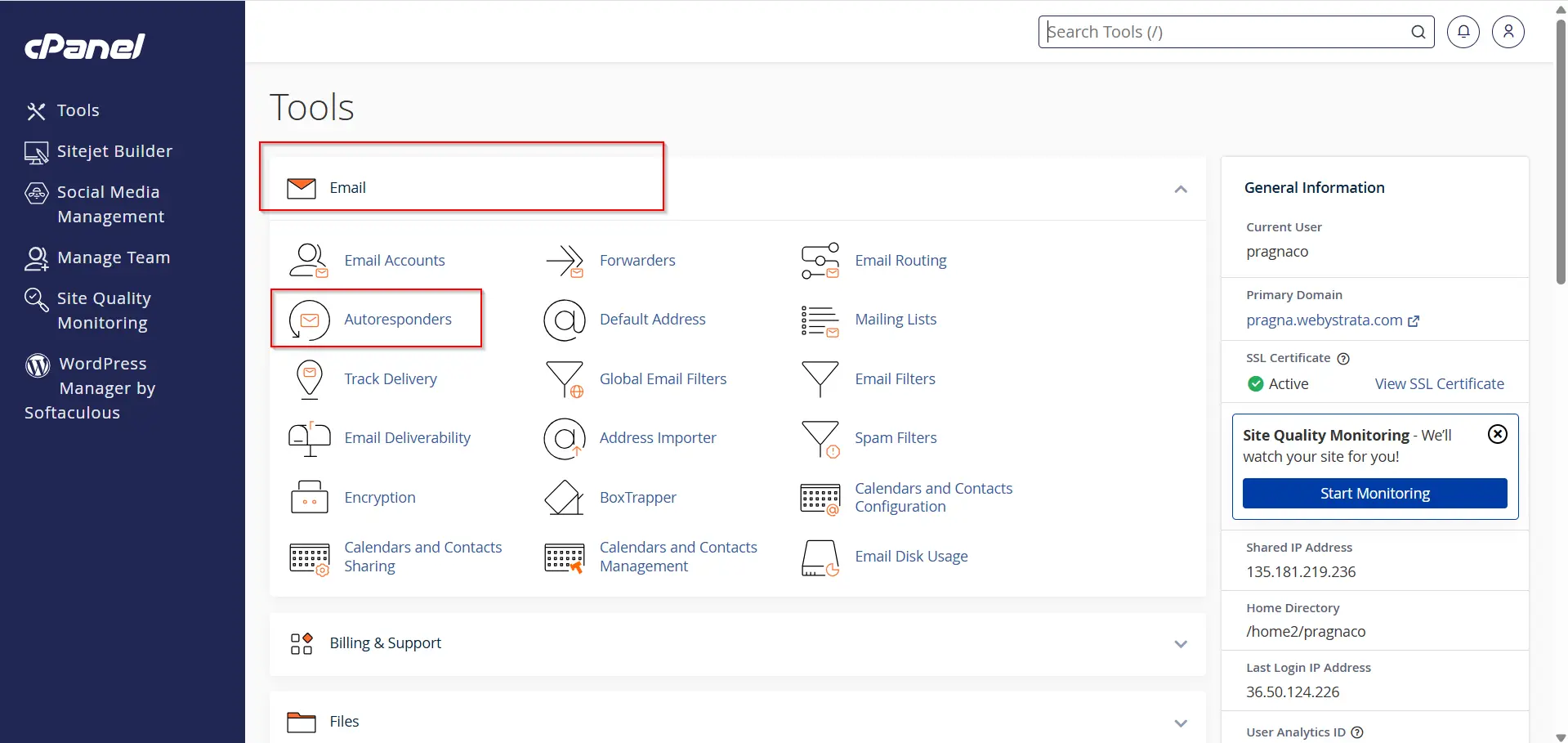
Navigate to the Email section.
Click Autoresponders.
The Autoresponders page will display all existing autoresponders for your email accounts.
Step 3: Create a New Autoresponder
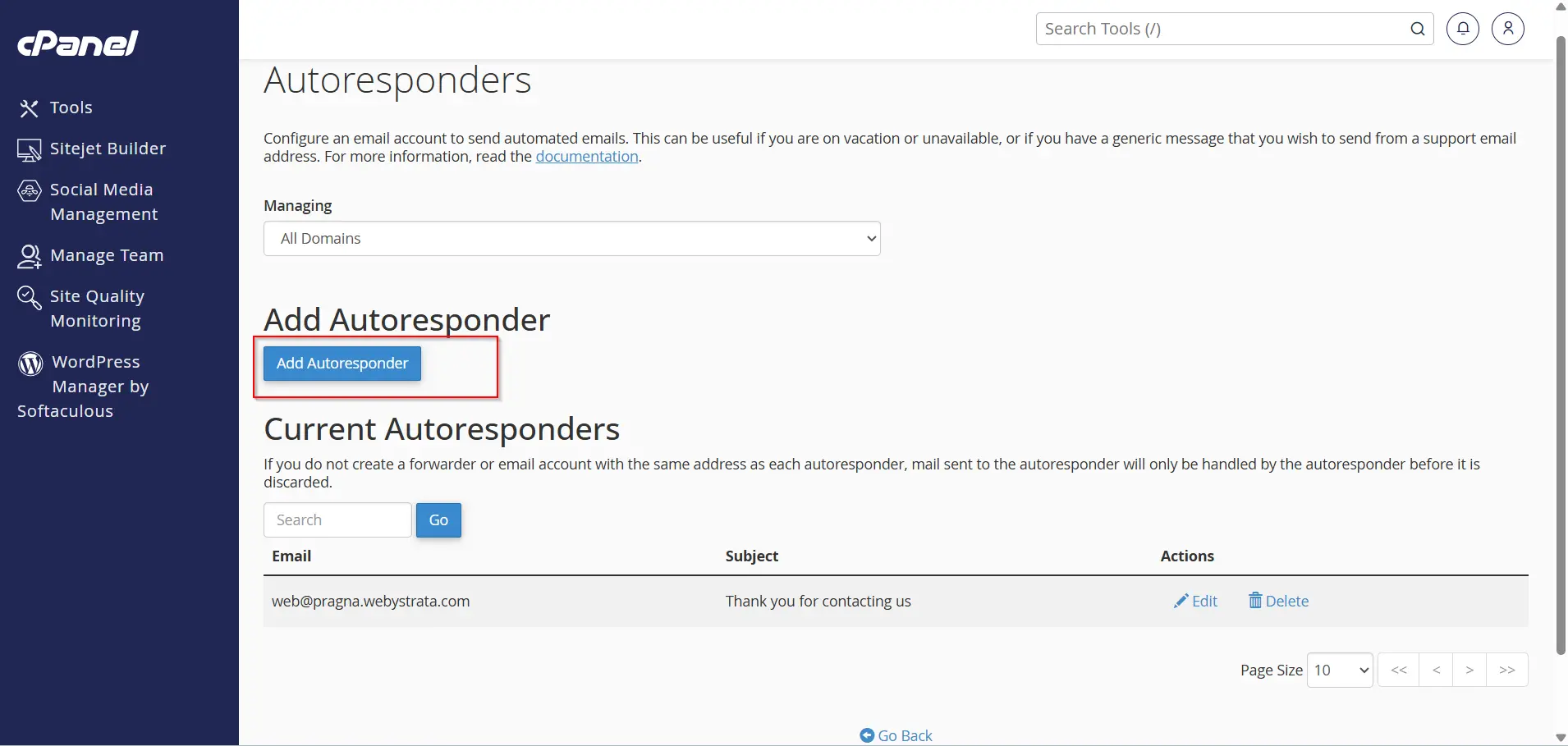
- Click Add Autoresponder.
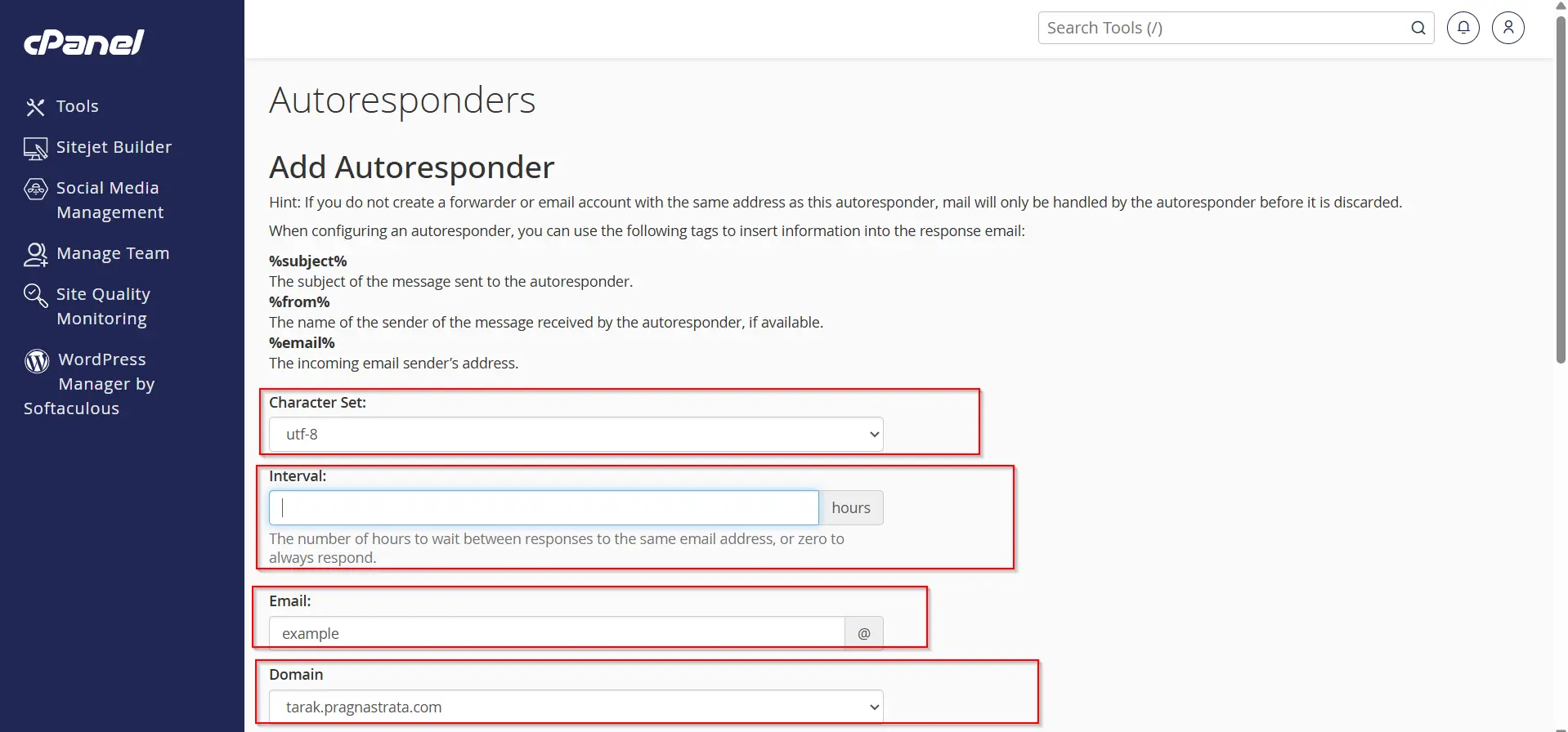
2. Choose the character set.
Recommended: UTF-8
3. Enter the email account name.
4. Select the domain associated with the email account.
5. Configure the Interval value.
Example: 0 (reply to every email)
Example: 24 (reply once every 24 hours to the same sender)
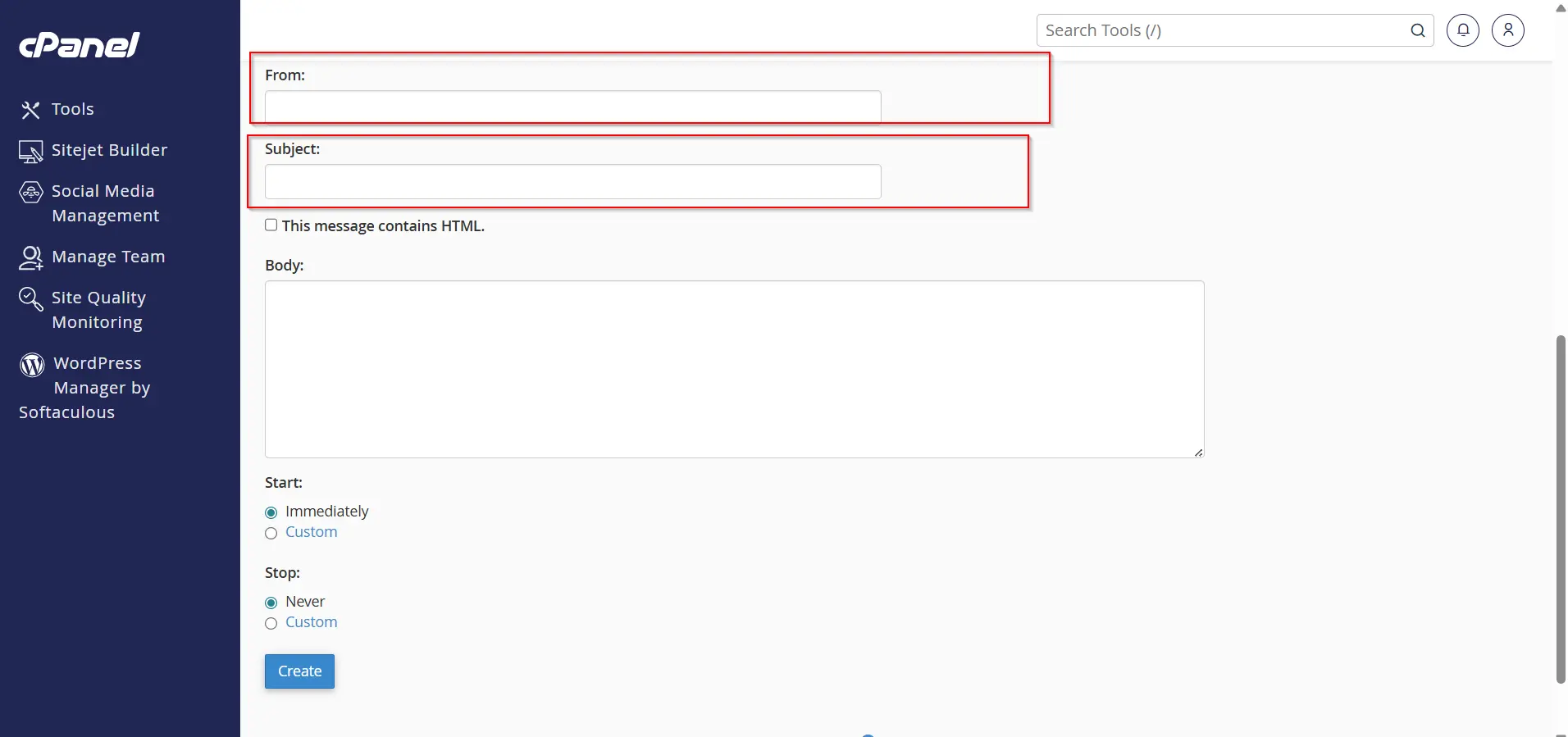
Step 4: Configure Autoresponder Details
1. Enter a From Name.
Example: Customer Support Team
2. Enter a Subject for the autoresponse.
Example: Thank You for Contacting Us
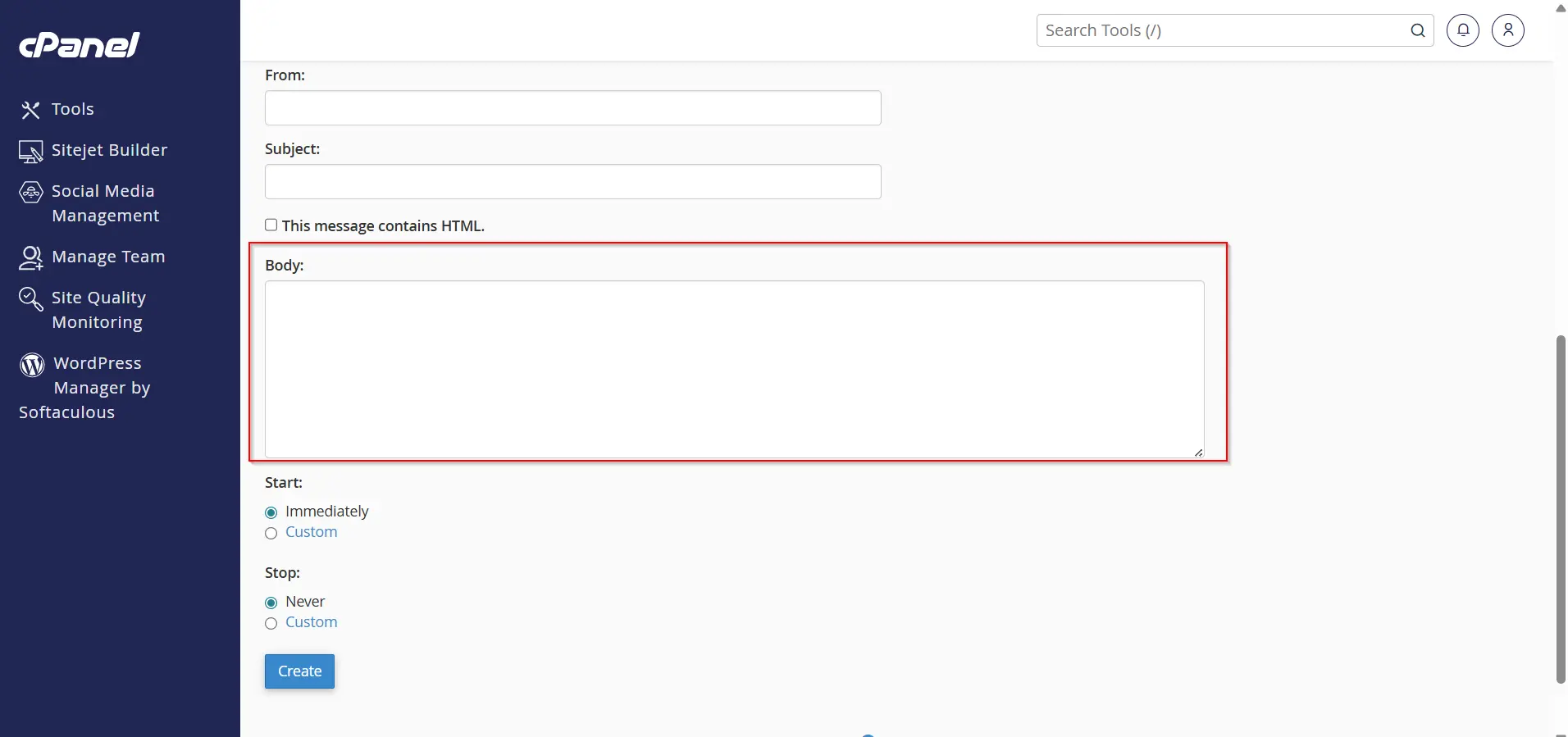
Step 5: Create the Autoresponder Message
1. Enter the message that will be sent automatically.
Example:
Hello,
Thank you for contacting us.
We have received your email and will respond as soon as possible.
Best Regards,
Customer Support Team
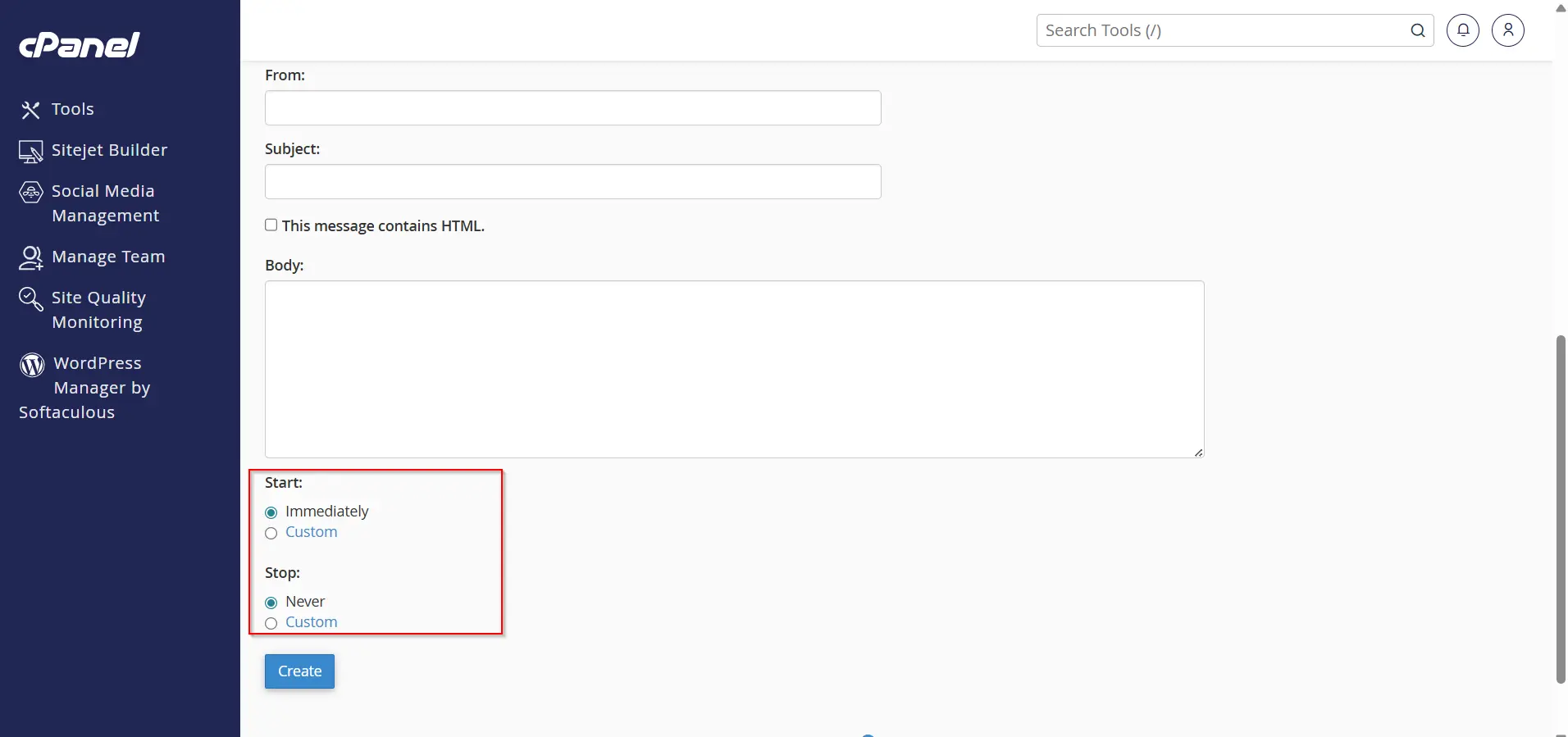
2. Set the start time if required.
3. Optionally, configure a stop time for temporary autoresponders.
Step 6: Save the Autoresponder
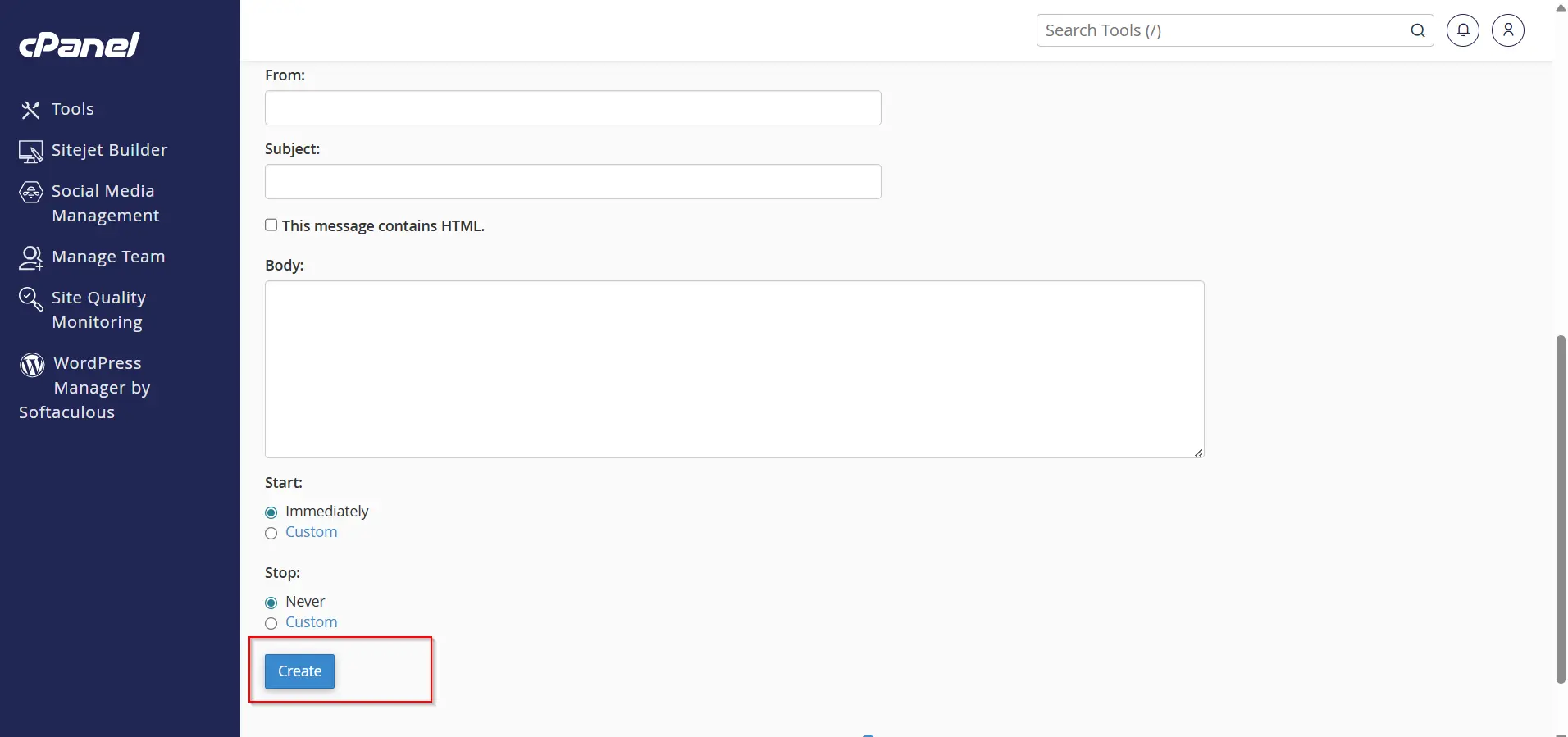
Review all settings carefully.
Click Create.
Your autoresponder will be created successfully and will automatically reply to incoming emails based on the configured settings.
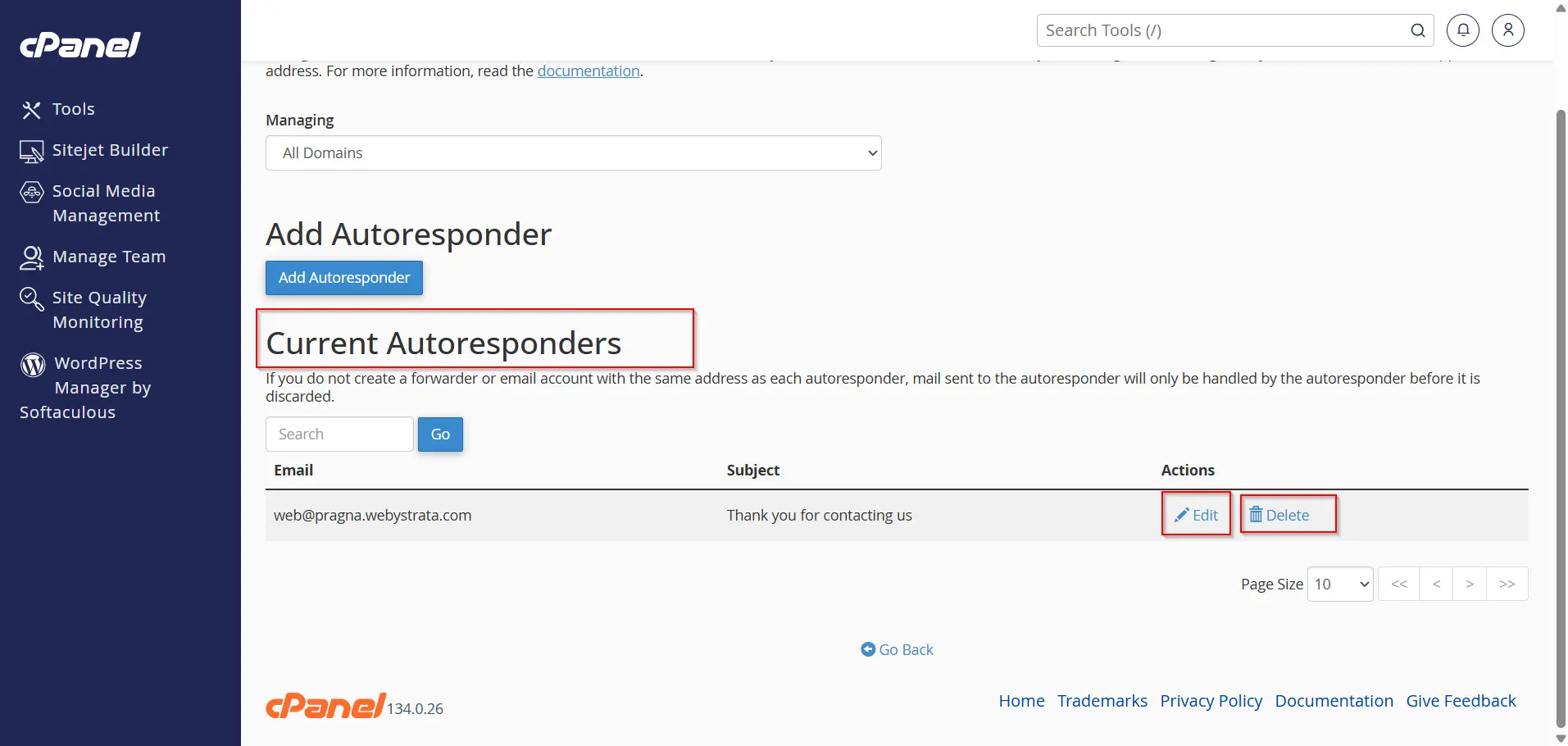
Managing Existing Autoresponders
To edit or remove an autoresponder:
- Open the Autoresponders section in cPanel.
- Locate the autoresponder you want to manage.
- Select:
- Edit
- Delete
Changes take effect immediately after saving.
Benefits of Using Autoresponders
- Professional Communication
- Improved Customer Experience
- Time Saving
- Vacation and Out-of-Office Notifications
- Consistent Messaging
Common Uses of cPanel Autoresponders
Autoresponders can be used for:
- Vacation notifications
- Out-of-office messages
- Customer support acknowledgments
- Contact form confirmations
- Order confirmation emails
- Event registration confirmations
- Business inquiry responses
- Holiday announcements
Why Businesses Should Use Autoresponders
Businesses of all sizes can benefit from autoresponders.
They provide immediate communication, improve customer satisfaction, reduce workload, and ensure that every inquiry receives acknowledgment.
Whether you operate an eCommerce store, hosting company, digital agency, educational institution, or corporate website, autoresponders can significantly improve email communication efficiency.
Conclusion
Configuring autoresponders in cPanel is an effective way to automate email communication and improve customer experience. Whether you need an out-of-office notification, customer support acknowledgment, or automated response for business inquiries, cPanel makes the setup process simple and efficient.
By properly configuring autoresponders, you can maintain professional communication, keep contacts informed, and ensure that every incoming email receives timely acknowledgment even when you are unavailable.
Related Articles


