Latest Updates
How to Delete a Plugin in WordPress
How to Delete a Plugin in WordPress Plugins are one of the reasons WordPress is so popular. They allow website owners to add new features and functionality without writing code. Whether you need a…
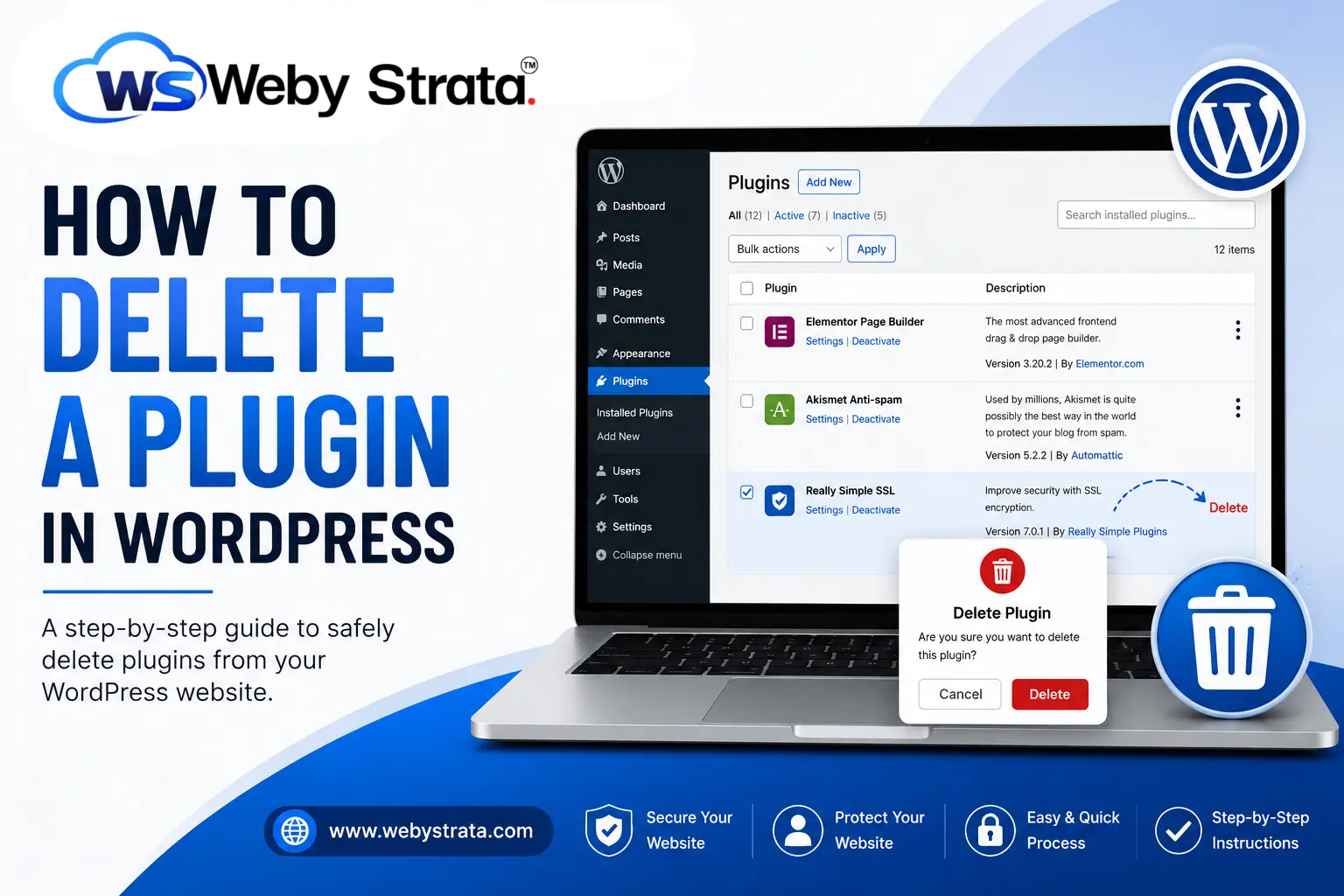
How to Delete a Plugin in WordPress
Plugins are one of the reasons WordPress is so popular. They allow website owners to add new features and functionality without writing code. Whether you need a contact form, SEO tools, security features, backup solutions, or page builders, there is likely a plugin available to meet your needs.
However, as your website evolves, you may find that certain plugins are no longer necessary. Leaving unused plugins installed can clutter your website, consume resources, and even create security vulnerabilities. That’s why it’s important to know how to properly delete a plugin in WordPress.
In this guide, you’ll learn how to safely delete a plugin in WordPress, why plugin removal is important, and the best practices to follow before and after deleting plugins.
Things to Do Before Deleting a Plugin
Before removing any plugin from WordPress, consider the following precautions:
- Create a Backup
- Verify Plugin Usage
- Check for Dependencies
- Save Important Data
How to Delete a Plugin in WordPress
Deleting a plugin through the WordPress dashboard is the easiest and safest method.
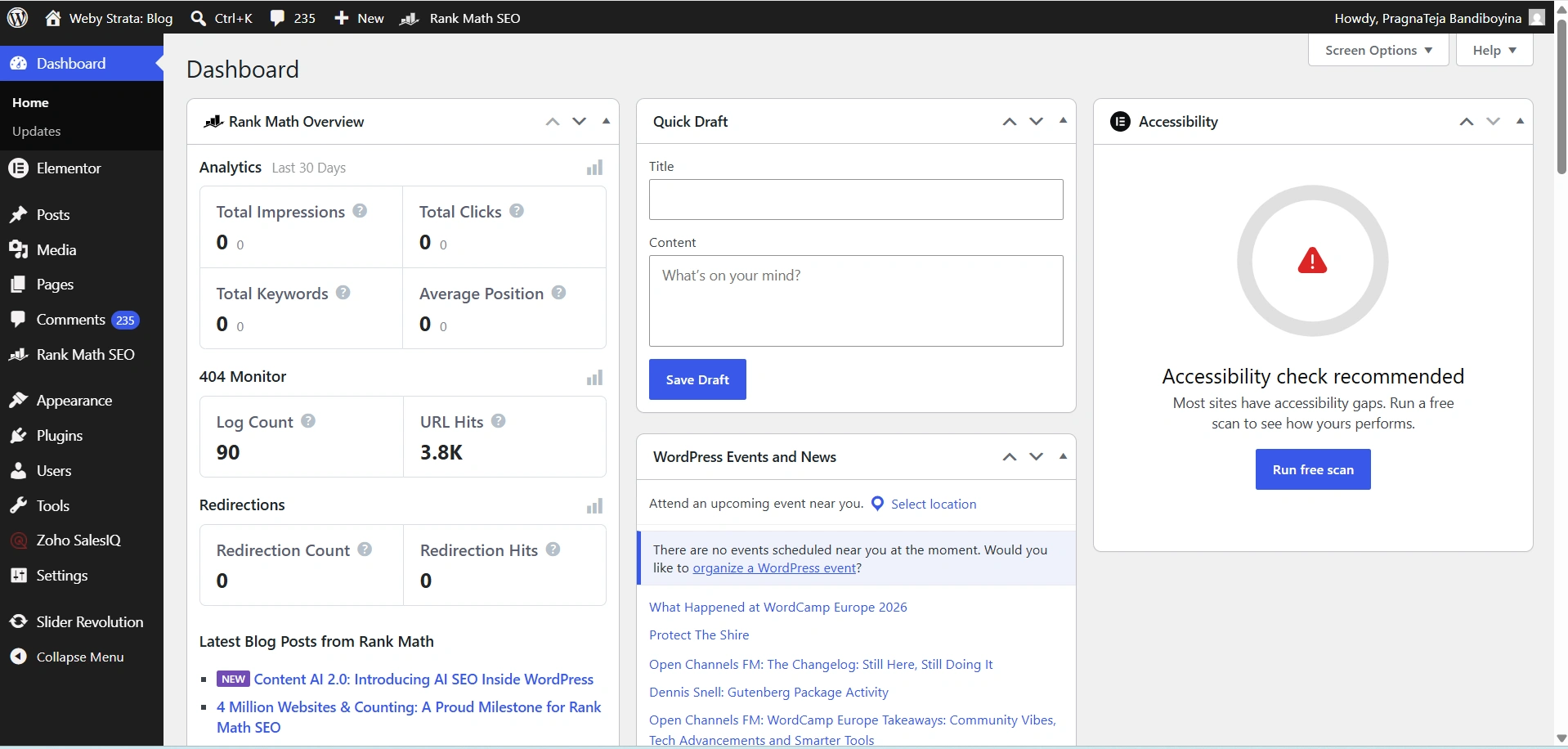
Step 1: Log in to Your WordPress Dashboard
Begin by accessing your WordPress administration area.
Open your web browser and visit:
https://yourdomain.com/wp-admin
Enter your administrator username and password, then click Log In.
Once logged in, you will be redirected to the WordPress Dashboard.
Step 2: Navigate to Installed Plugins
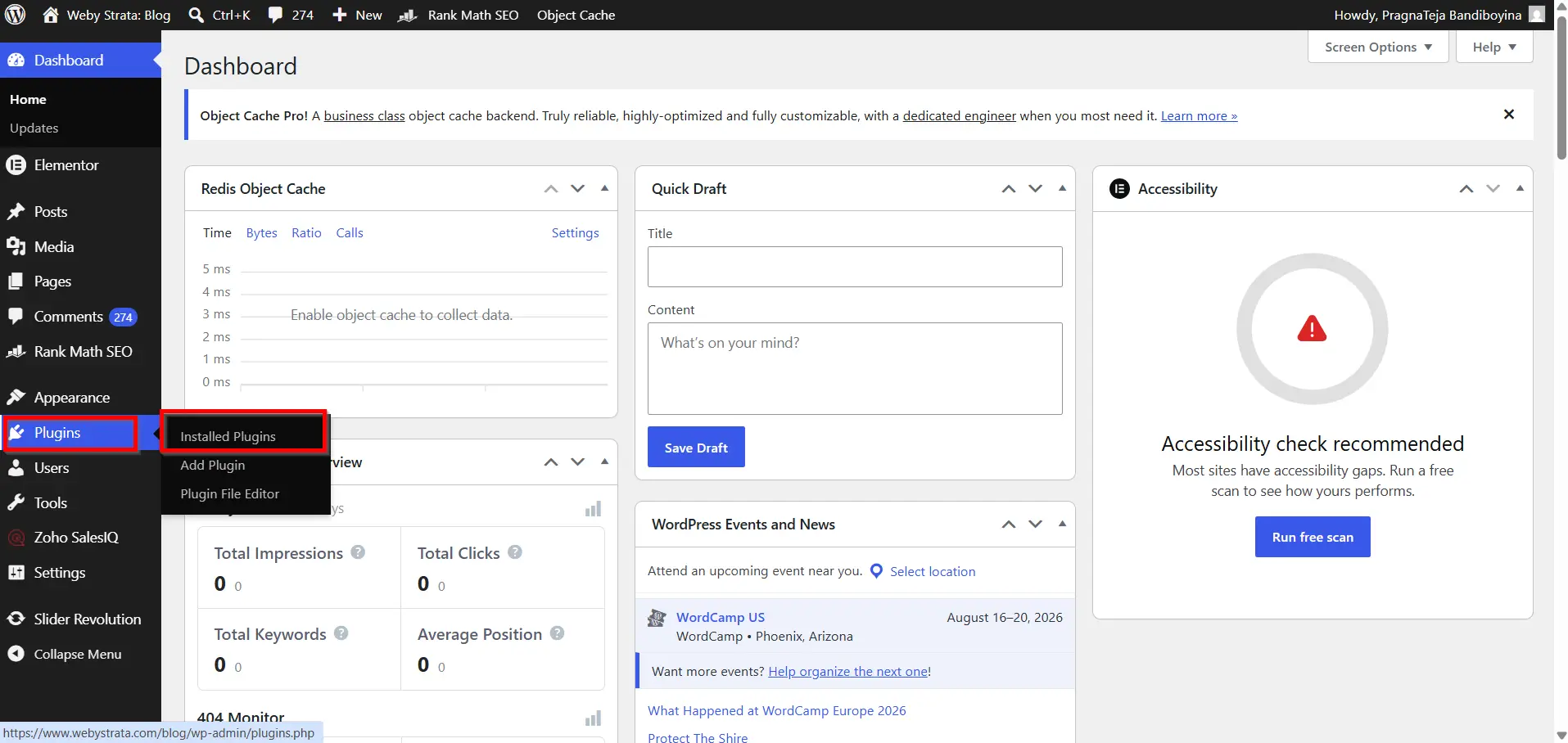
From the left-side menu, click:
Plugins → Installed Plugins
You will see a complete list of plugins currently installed on your website.
Step 3: Deactivate the Plugin
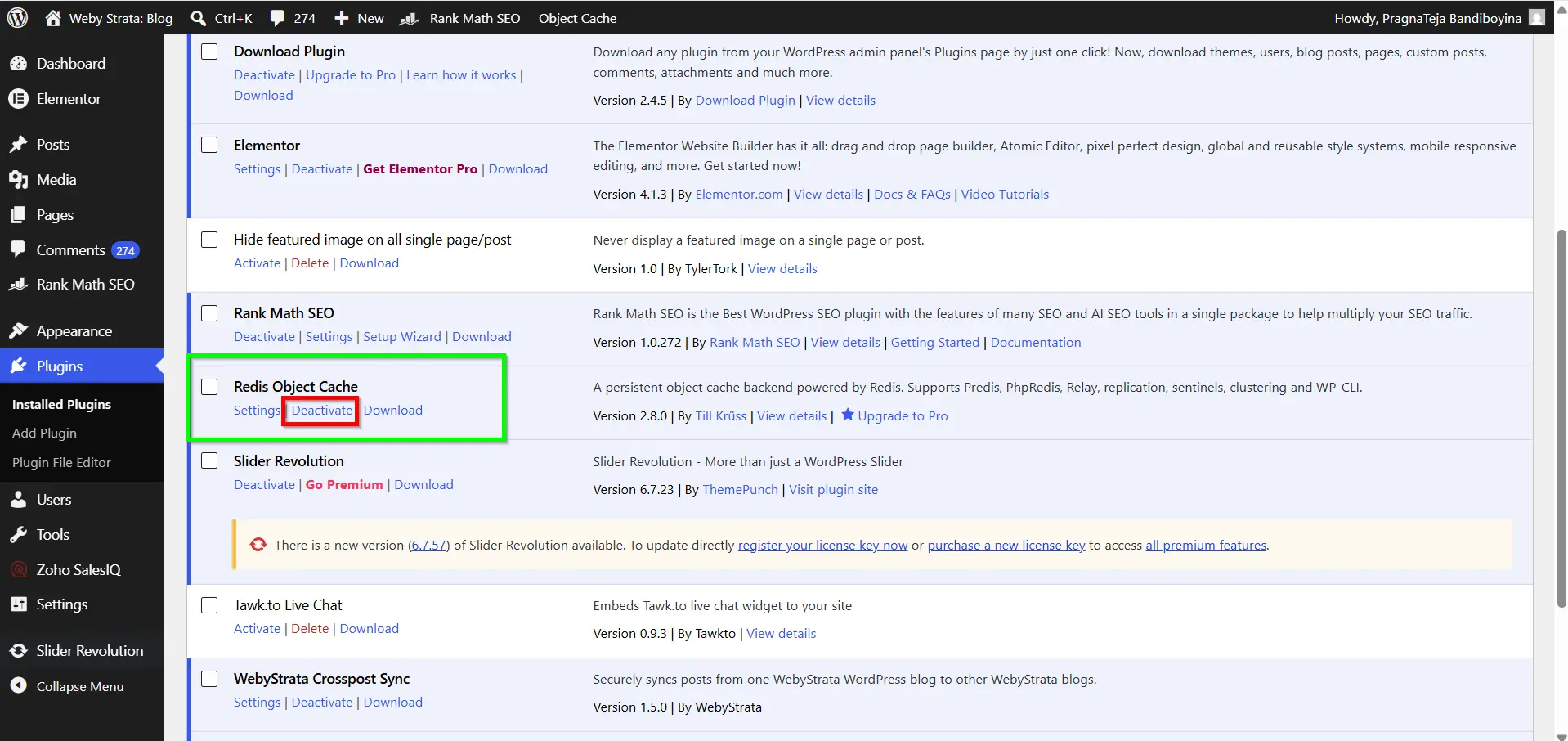
WordPress does not allow active plugins to be deleted.
Locate the plugin you wish to remove and click the Deactivate link below its name.
After a few seconds, the page will refresh and the plugin will become inactive.
Step 4: Delete the Plugin
Once the plugin is deactivated:
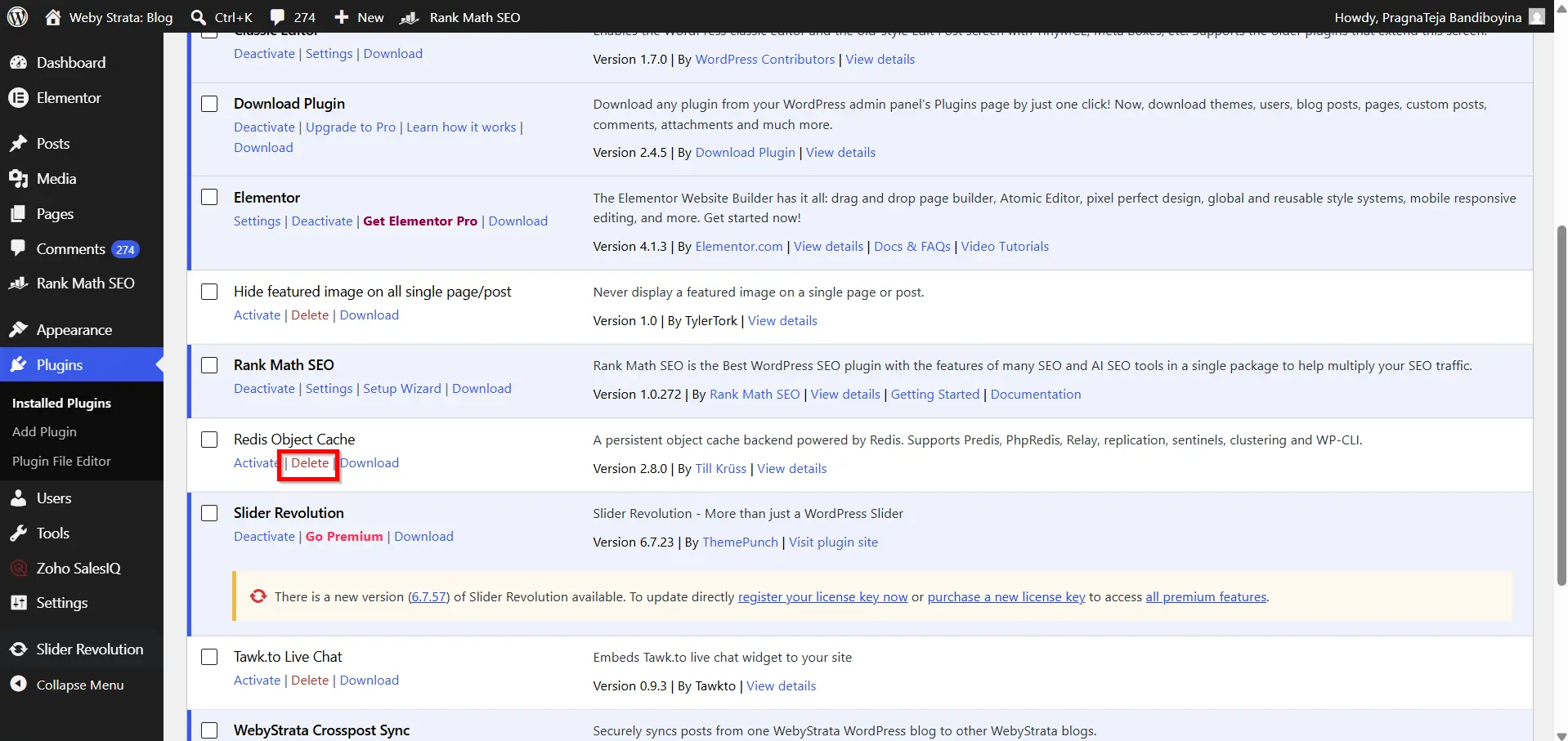
- Locate the plugin again.
- Click the Delete link.
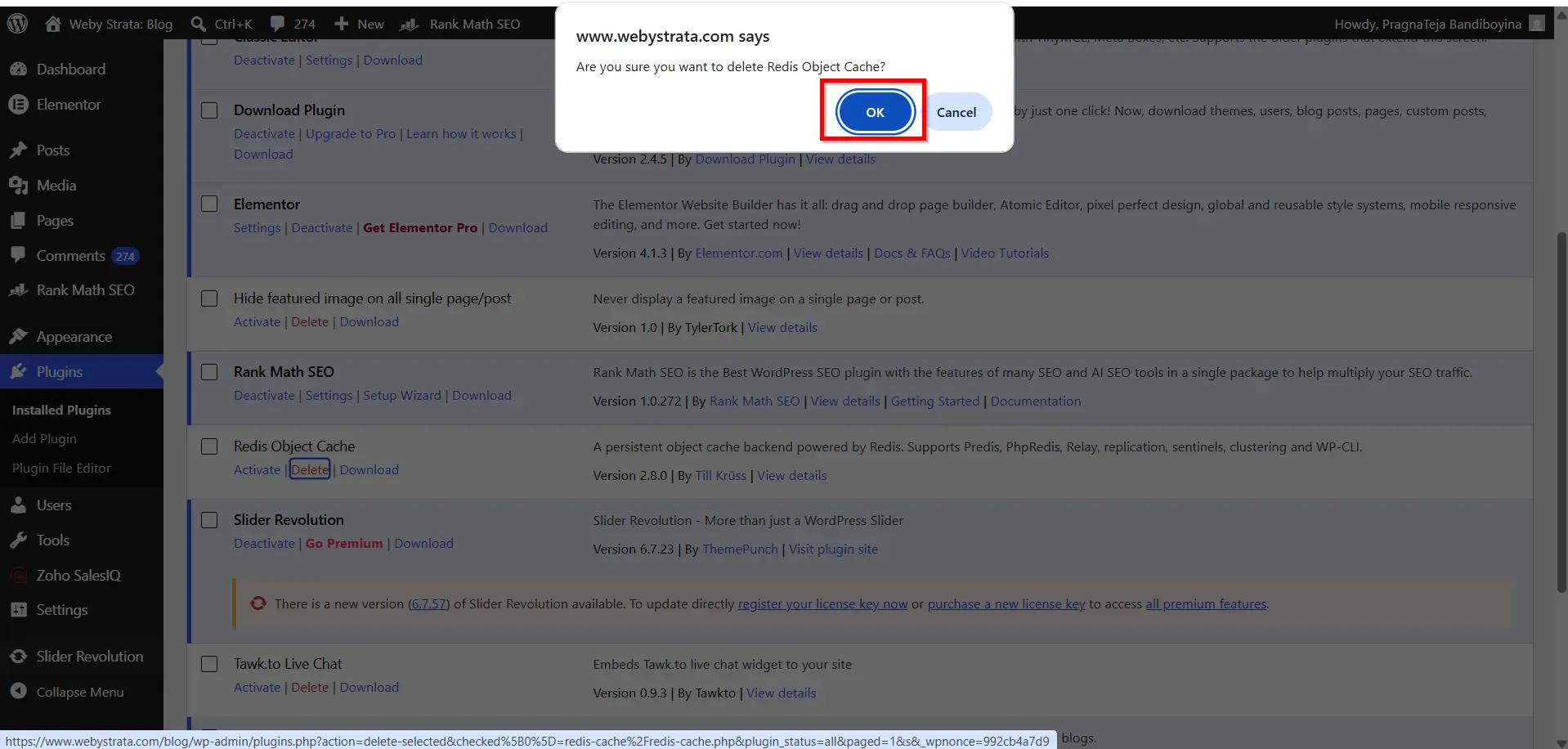
3. A confirmation popup will appear.
4. Click OK to proceed.
WordPress will remove the plugin files from your server.
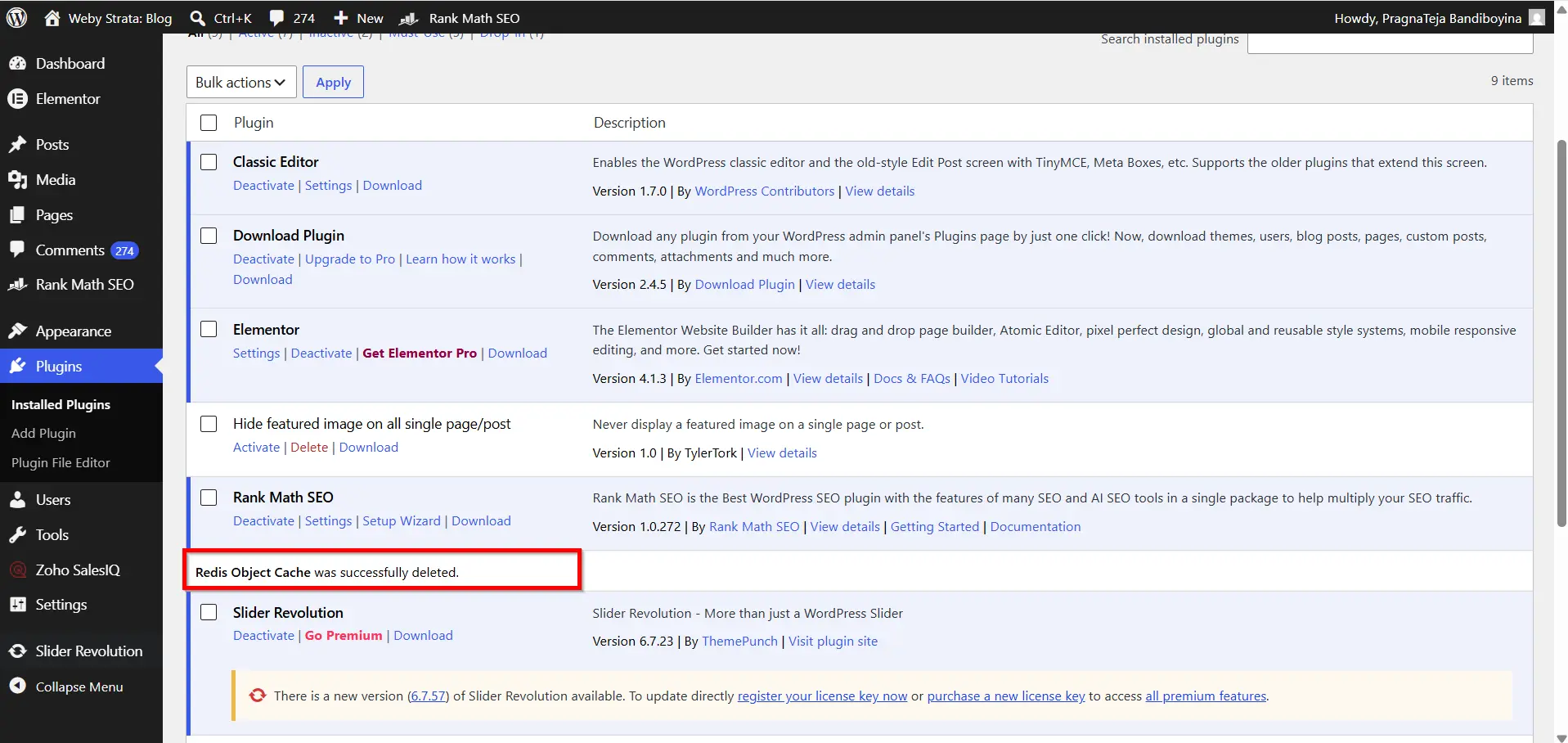
Step 5: Confirm Successful Removal
After deletion, verify that the plugin no longer appears in the Installed Plugins list.
You can also test your website to ensure all pages and features continue functioning properly.
What Happens After Deleting a Plugin?
Deleting a plugin removes its files from your server, but some plugins may leave behind:
- Database tables
- Configuration settings
- Cached files
- User-generated content
- Plugin logs
This behavior varies depending on the plugin developer.
Some premium plugins offer a complete uninstall option that removes all associated data during deletion.
Best Practices for Plugin Management
To keep your WordPress website secure and efficient:
- Delete plugins you no longer use.
- Keep active plugins updated.
- Install plugins only from trusted sources.
- Regularly review your plugin list.
- Limit the number of plugins to those that provide genuine value.
- Monitor website performance after adding or removing plugins.
Why Delete Unused WordPress Plugins?
Many website owners deactivate plugins but leave them installed indefinitely. While a deactivated plugin isn’t actively running, its files still remain on your server.
Deleting unused plugins offers several advantages:
- Improved Security
- Better Website Performance
- Reduced Maintenance
- More Storage Space
- Cleaner WordPress Dashboard
Benefits of Deleting Unused Plugins
When performed correctly, deleting unnecessary plugins provides numerous benefits:
- Improved website security
- Faster loading times
- Reduced server resource usage
- Easier website management
- Better overall performance
- Fewer plugin conflicts
- Cleaner WordPress environment
- Simplified troubleshooting
Conclusion
Knowing how to delete a plugin in WordPress is an essential website maintenance skill. Removing unnecessary plugins helps improve security, performance, and overall website health. The process is straightforward: deactivate the plugin, delete it through the WordPress dashboard, and verify that your website continues to function properly.
Regular plugin maintenance should be part of every WordPress administrator’s routine. By reviewing and removing unused plugins periodically, you can keep your website running smoothly, securely, and efficiently for your visitors.
Related Articles


