Latest Updates
How to Fix Image Links After a WordPress Migration
How to Fix Image Links After a WordPress Migration Migrating a WordPress website to a new hosting provider, server, or domain name is a common process. While WordPress migrations are usually straightforward, one issue…
How to Fix Image Links After a WordPress Migration
Migrating a WordPress website to a new hosting provider, server, or domain name is a common process. While WordPress migrations are usually straightforward, one issue that website owners frequently encounter is broken image links. After a migration, images may fail to load, display as broken icons, or point to the old domain instead of the new one.
This problem occurs because WordPress stores image URLs directly in the database. Simply updating the Site URL and Home URL settings does not always update the image paths stored within posts and pages. As a result, visitors may see missing images throughout your website.
Fortunately, fixing image links after a WordPress migration is relatively simple. By updating the image URLs stored in your database, you can quickly restore all images and ensure your website displays correctly.
In this guide, you will learn why image links break after migration, how to fix them using phpMyAdmin, and best practices to prevent similar issues in the future.
Before You Begin
Before making changes to your database, take the following precautions:
Create a Full Website Backup
Always create a backup of:
- Website files
- WordPress database
- Media uploads
A backup allows you to restore the website if any unexpected issue occurs.
Verify File Migration
Ensure that all files inside the uploads directory were transferred successfully:
wp-content/uploads/
If the images themselves are missing, updating URLs alone will not fix the problem.
How to Fix Image Links After a WordPress Migration
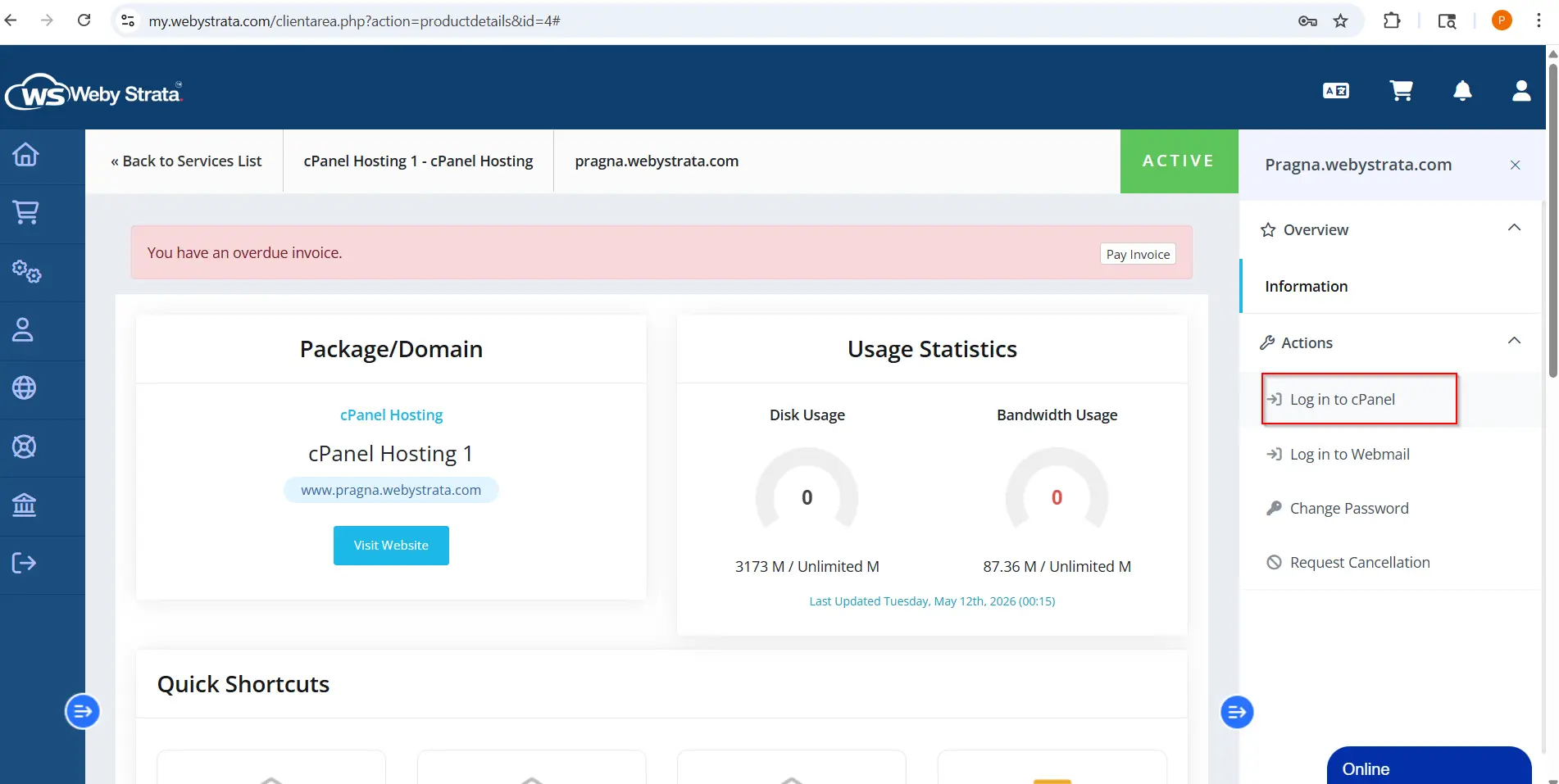
Step 1: Login to cPanel from WebyStrata Client Area
First, visit the WebyStrata website and log in to your client area account using your registered email address and password.
official Website www.webystrata.com
After logging in:
- Go to Services
- Click on My Services
- Select your active hosting service
- Click on Login to cPanel
Step 2: Open phpMyAdmin
- Once logged in, scroll down to the Databases section.
- Click phpMyAdmin.
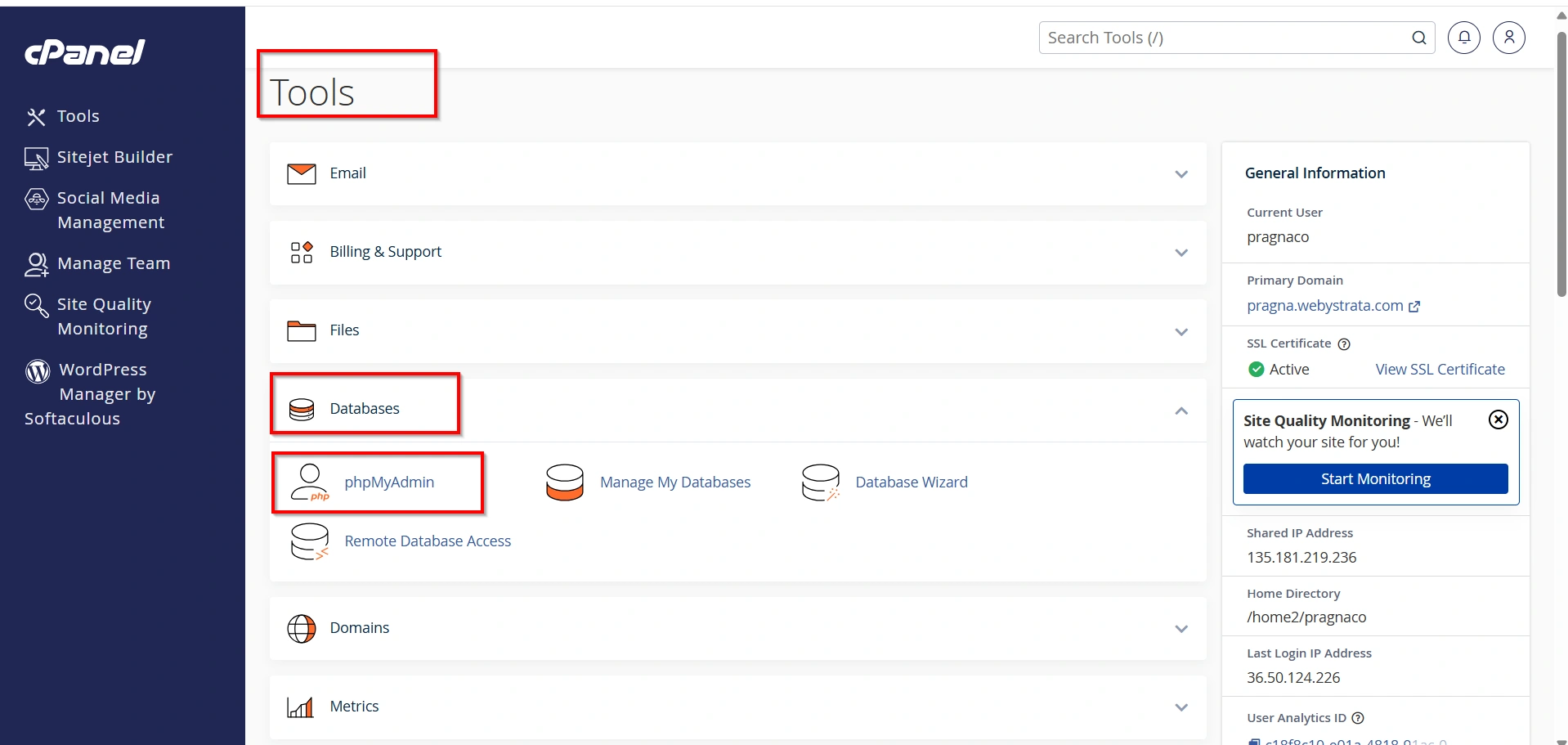
phpMyAdmin allows you to manage and edit your WordPress database directly through a web interface.
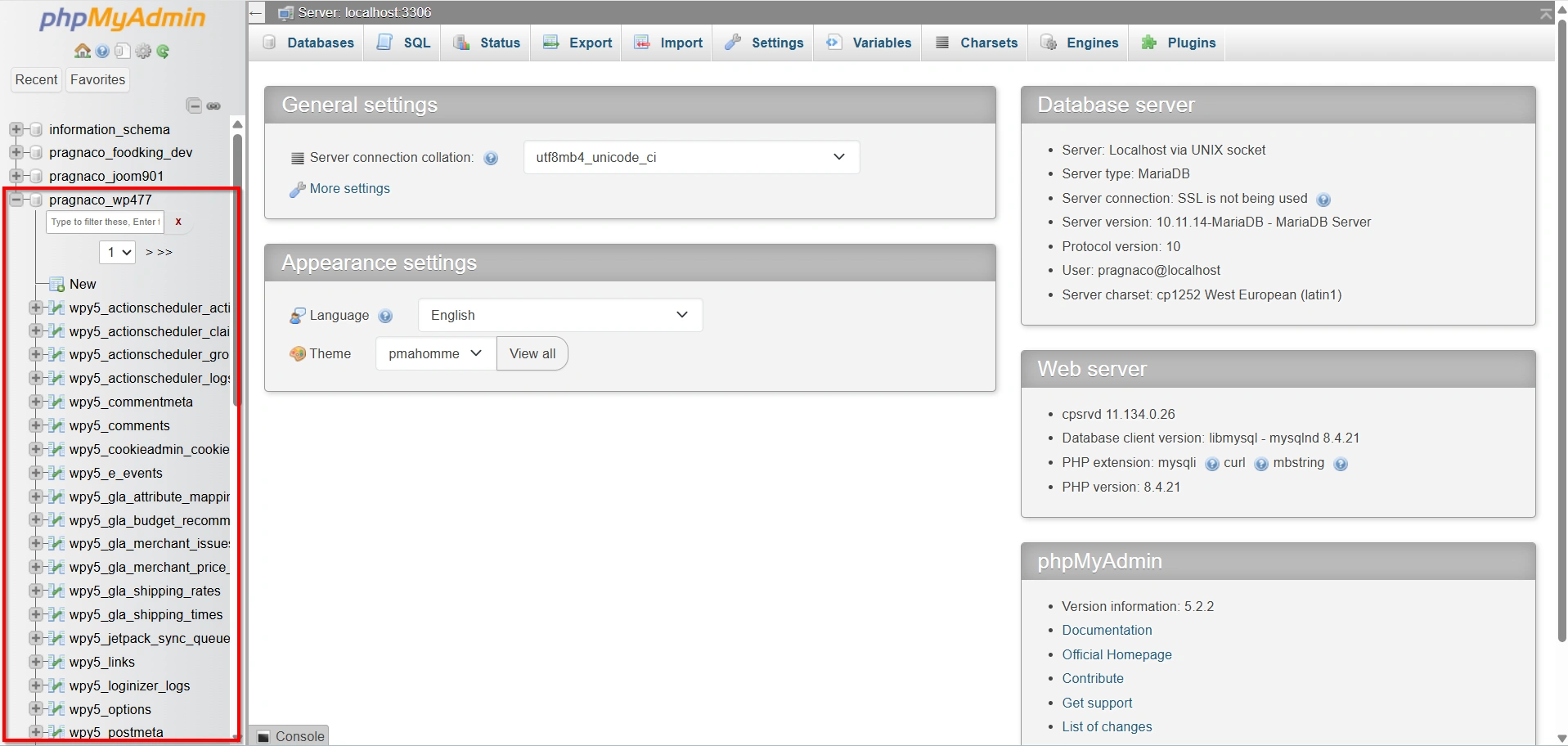
Step 3: Select the WordPress Database
In the left-hand sidebar, locate the database associated with your WordPress installation.
Click the database name to open it.
If you are unsure which database is being used, check the wp-config.php file for the database name.
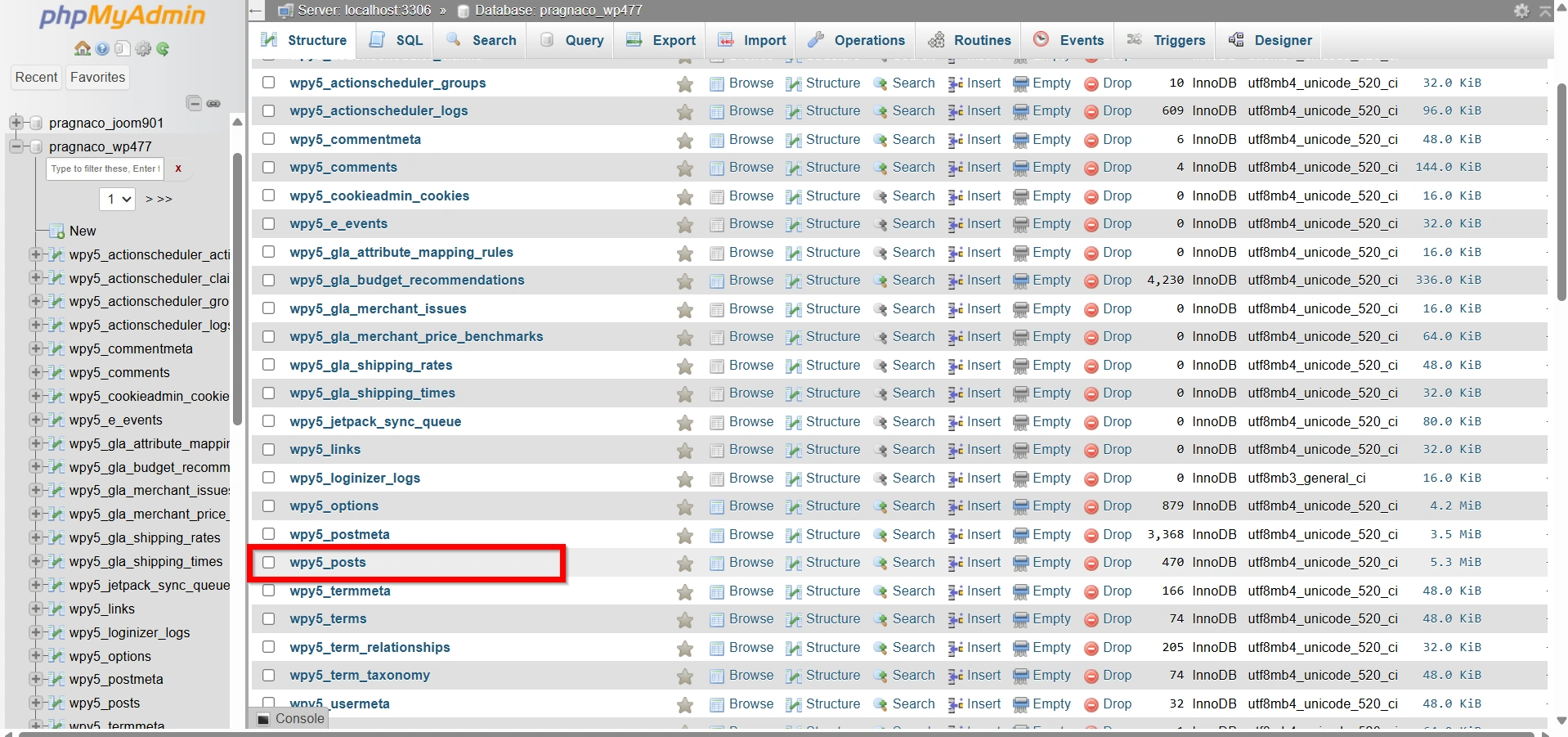
Step 4: Open the Posts Table
Locate the table ending with:
_posts
Most WordPress websites use:
wp_posts
However, some installations use custom prefixes.
Click the posts table to continue.
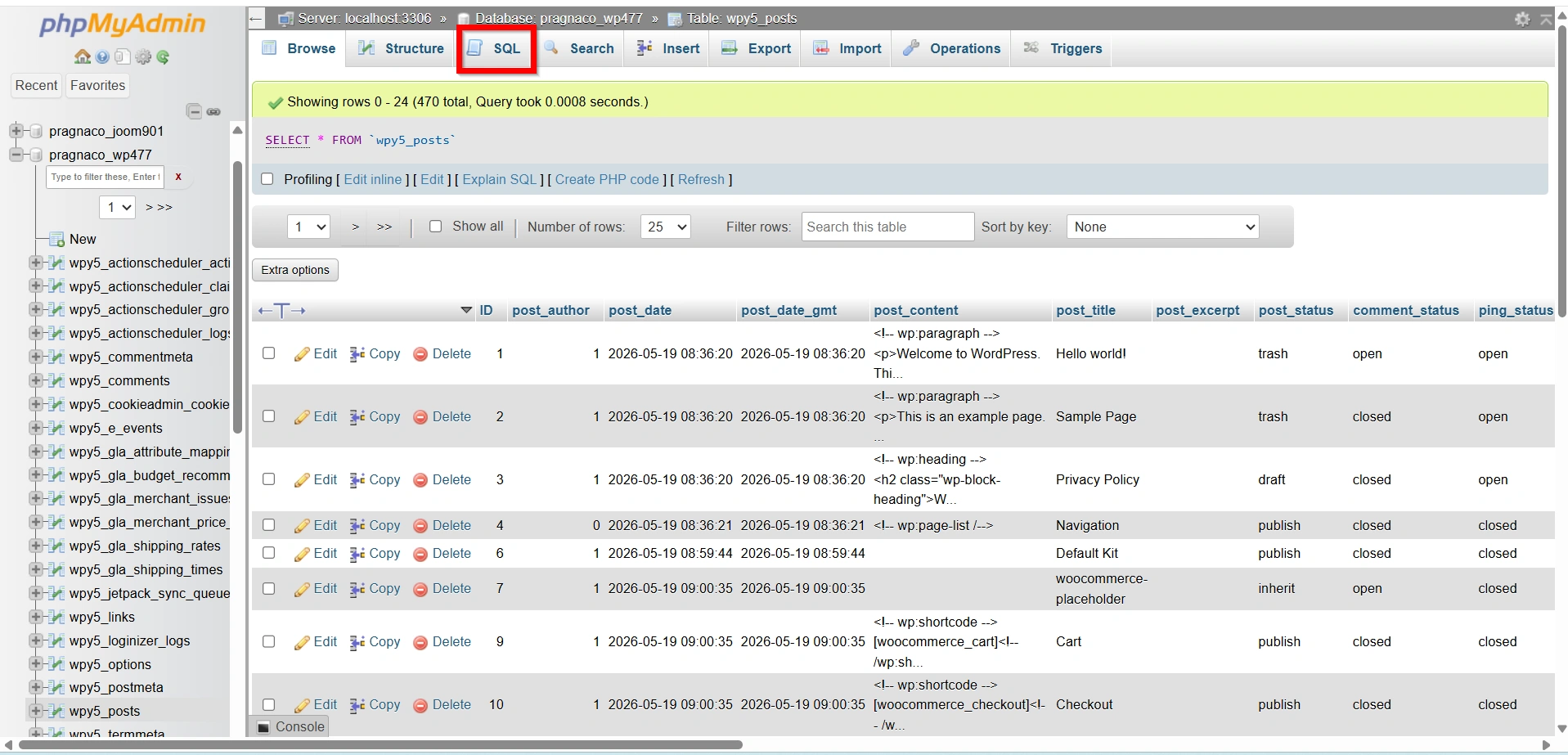
Step 5: Open the SQL Tab
At the top of the phpMyAdmin interface, click the SQL tab.
This section allows you to execute SQL commands directly against the database.
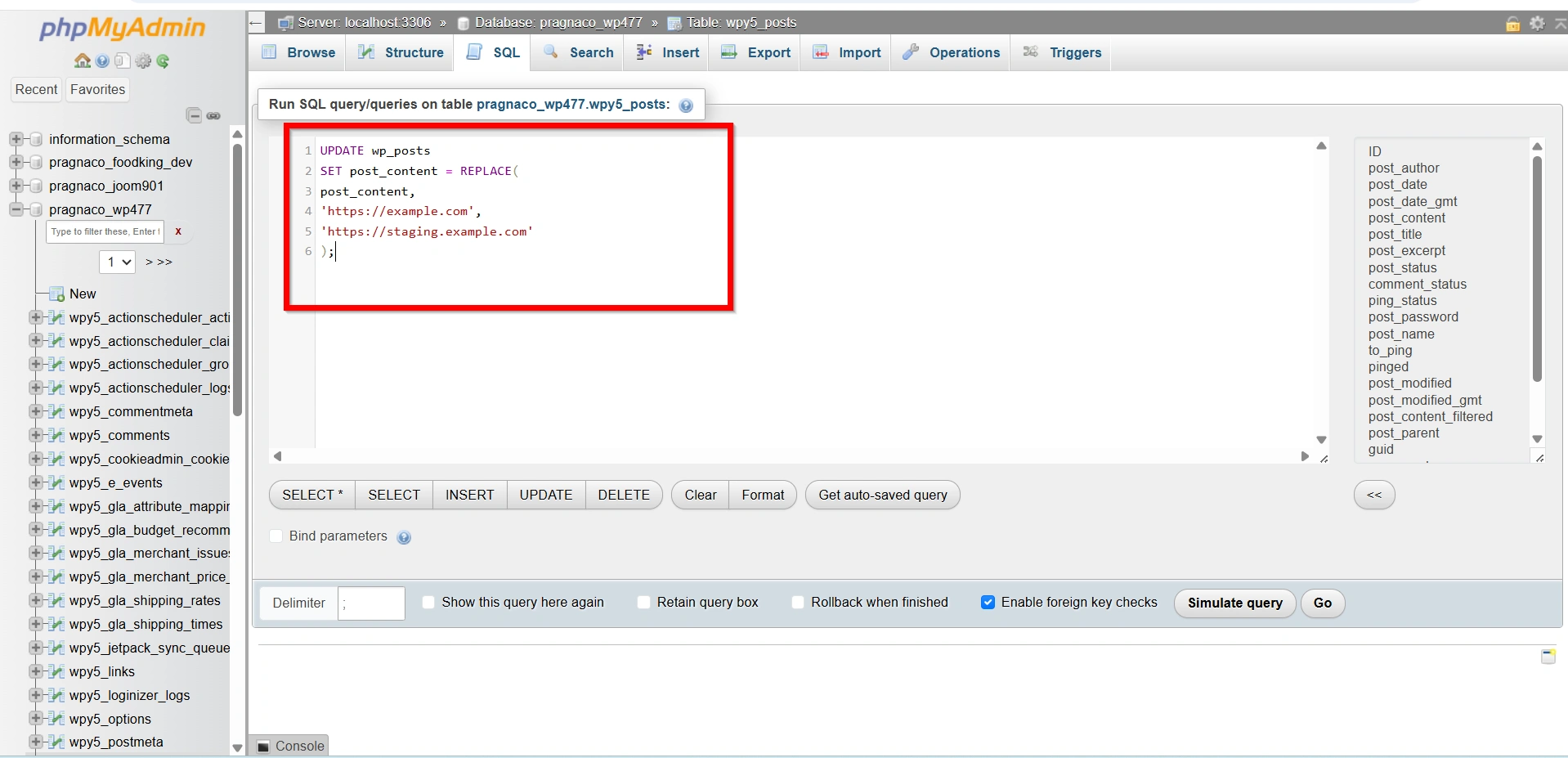
Step 6: Run the URL Replacement Query
Copy and paste the following SQL query:
UPDATE wp_posts
SET post_content = REPLACE(
post_content,
'https://old-domain.com',
'https://new-domain.com'
);
Replace:
https://old-domain.comwith your previous website URLhttps://new-domain.comwith your new website URL
Example
UPDATE wp_posts
SET post_content = REPLACE(
post_content,
'https://example.com',
'https://staging.example.com'
);
This command scans all post and page content and updates image URLs to use the new domain.
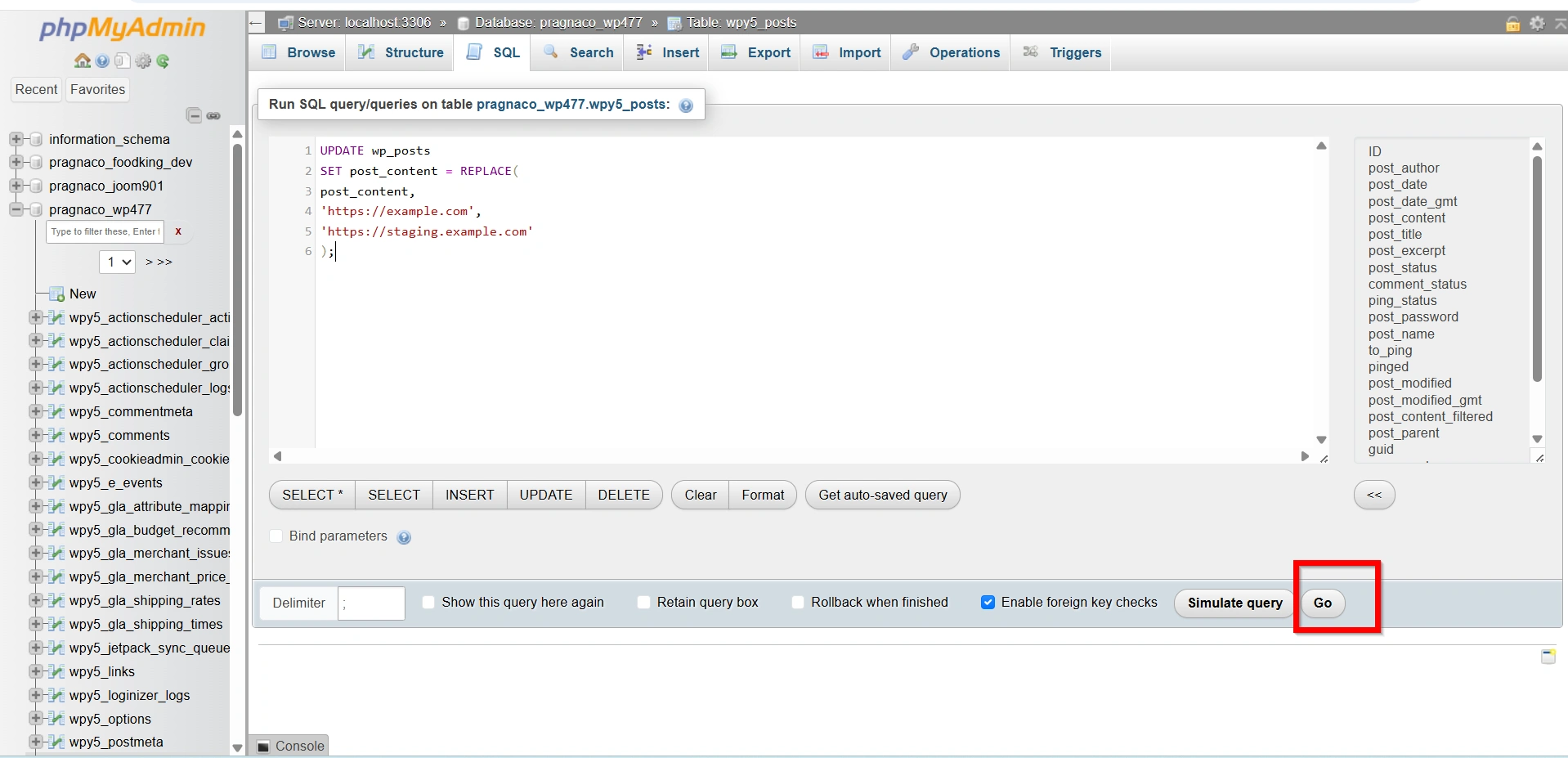
Step 7: Execute the Query
Click the Go button.
phpMyAdmin will process the query and display a success message showing how many rows were updated.
Step 8: Verify the Results
Visit several pages containing images.
Confirm that:
- Images load correctly
- Media files open successfully
- URLs point to the new domain
- No broken image icons remain
If images display properly, the repair was successful.
Why Do Image Links Break After a WordPress Migration?
WordPress stores image URLs in multiple locations, including:
- Posts and pages
- Media library references
- Theme settings
- Widgets
- Custom fields
- Plugin configurations
When a website is migrated to a new domain, these URLs may still reference the old domain. For example, if your website was previously hosted at:
and is migrated to:
the images may still point to the original URL. Since the old domain may no longer host the files, the images appear broken.
This issue is especially common when:
- Moving to a new domain name
- Creating a staging site
- Migrating between hosting providers
- Restoring a website backup to another location
- Cloning a WordPress website
Benefits of Fixing Image Links
Correcting broken image URLs offers several important benefits:
- Restores missing images across the website
- Improves visitor experience
- Maintains website professionalism
- Preserves SEO performance
- Ensures proper media loading
- Reduces bounce rates
- Supports faster troubleshooting
- Prevents broken links and errors
Keeping image URLs updated ensures that visitors and search engines can access all visual content without issues.
Conclusion
Broken image links are one of the most common issues encountered after a WordPress migration, especially when moving to a new domain. Since WordPress stores image URLs within the database, simply changing the website address is often not enough.
By using phpMyAdmin and a simple SQL replacement query, you can quickly update old image URLs and restore your website’s media content. After updating the links, remember to clear caches, verify file permissions, and test your pages thoroughly.
Taking a few extra minutes to repair image links ensures a smooth migration, improves user experience, and helps maintain your website’s professional appearance and SEO performance.
Related Articles


