Latest Updates
How to Configure Fraud Protection Settings in WHMCS
How to Configure Fraud Protection Settings in WHMCS Fraudulent orders are a common challenge for hosting providers, domain registrars, and online service businesses. Fraudsters often use stolen payment information, fake identities, or automated bots…
How to Configure Fraud Protection Settings in WHMCS
Fraudulent orders are a common challenge for hosting providers, domain registrars, and online service businesses. Fraudsters often use stolen payment information, fake identities, or automated bots to place orders that can result in chargebacks, financial losses, and wasted resources. Fortunately, WHMCS includes powerful Fraud Protection Settings that help identify and block suspicious orders before they become a problem.
By properly configuring Fraud Protection Settings in WHMCS, you can significantly reduce the risk of fraudulent transactions while ensuring legitimate customers enjoy a smooth ordering experience. This guide explains how to configure and optimize fraud protection within WHMCS.
What Are Fraud Protection Settings in WHMCS?
Fraud Protection Settings in WHMCS allow administrators to automatically screen incoming orders and identify potentially fraudulent activity. These settings work alongside third-party fraud detection services and built-in verification checks to evaluate orders based on risk factors such as:
- IP address location
- Email address reputation
- Billing information consistency
- Proxy or VPN usage
- Geographic mismatches
- High-risk countries
- Order value and behavior patterns
When suspicious activity is detected, WHMCS can automatically reject, hold, or flag the order for manual review.
Why Fraud Protection Is Important
Without proper fraud protection, hosting providers may face:
- Chargebacks and payment disputes
- Resource abuse from malicious users
- Spam and phishing activities
- Fraudulent domain registrations
- Financial losses
- Increased administrative workload
Implementing fraud screening helps maintain business security while protecting both your company and genuine customers.
Accessing Fraud Protection Settings
Step 1: Log in to WHMCS Admin Area
Log in to your WHMCS administrator dashboard.
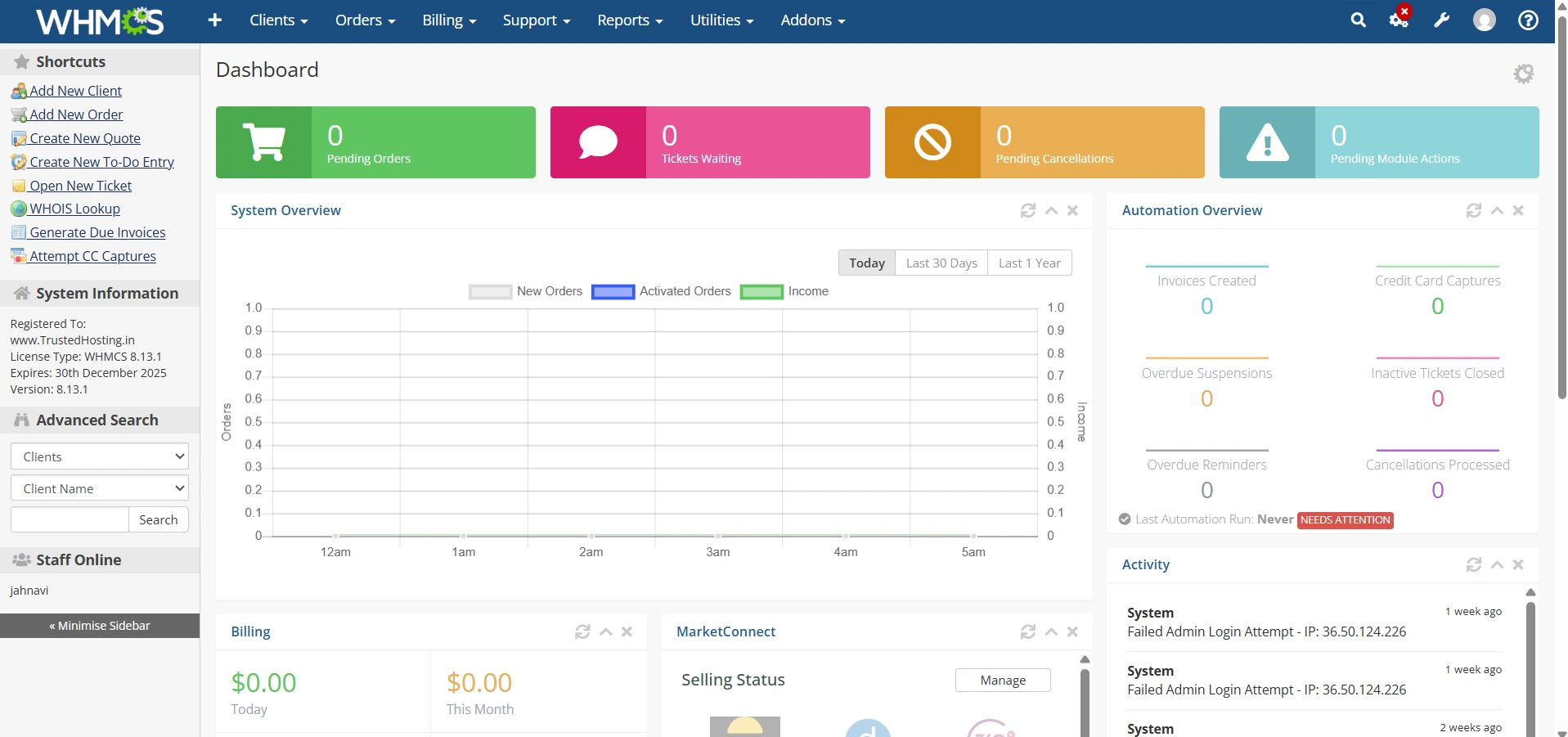
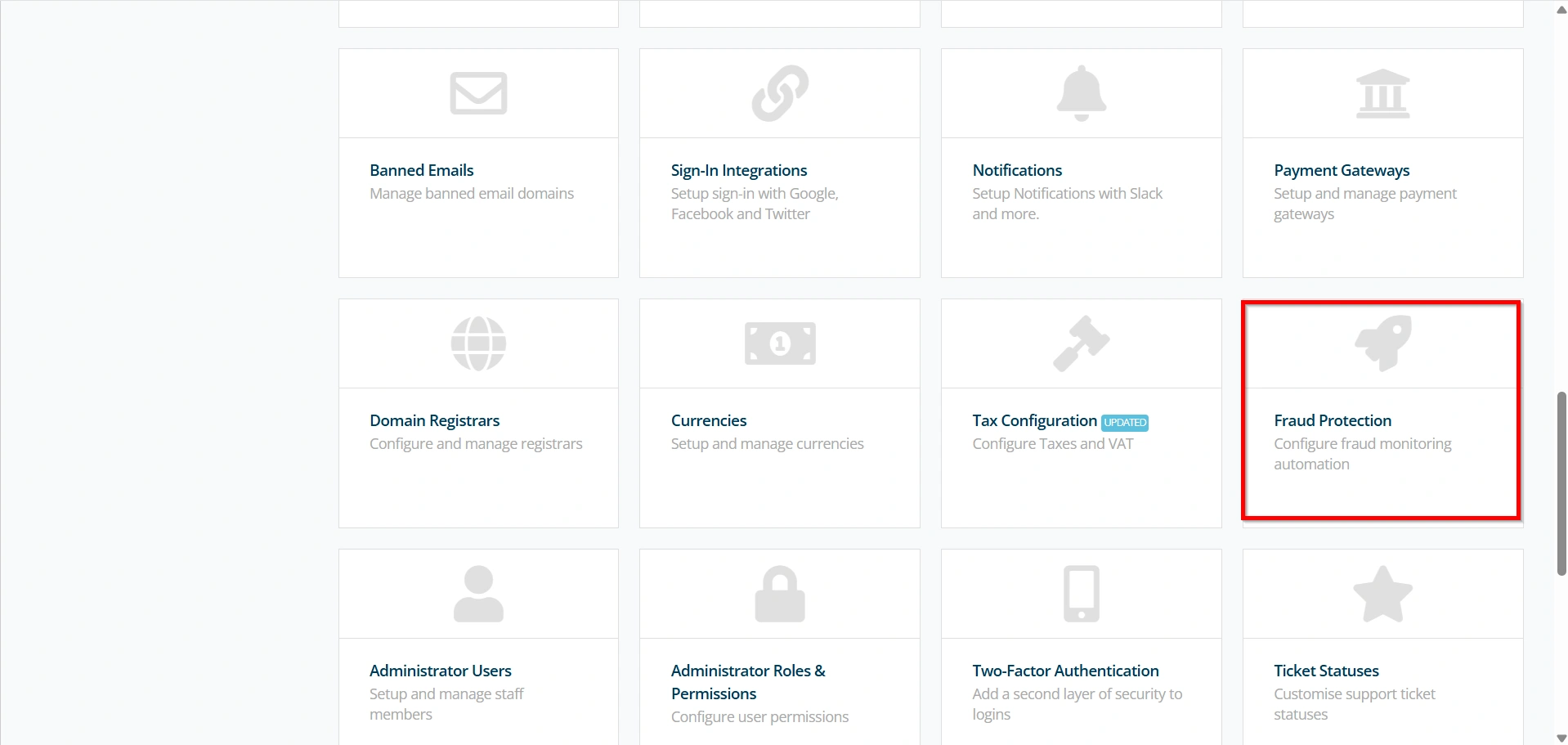
Step 2: Navigate to General Settings
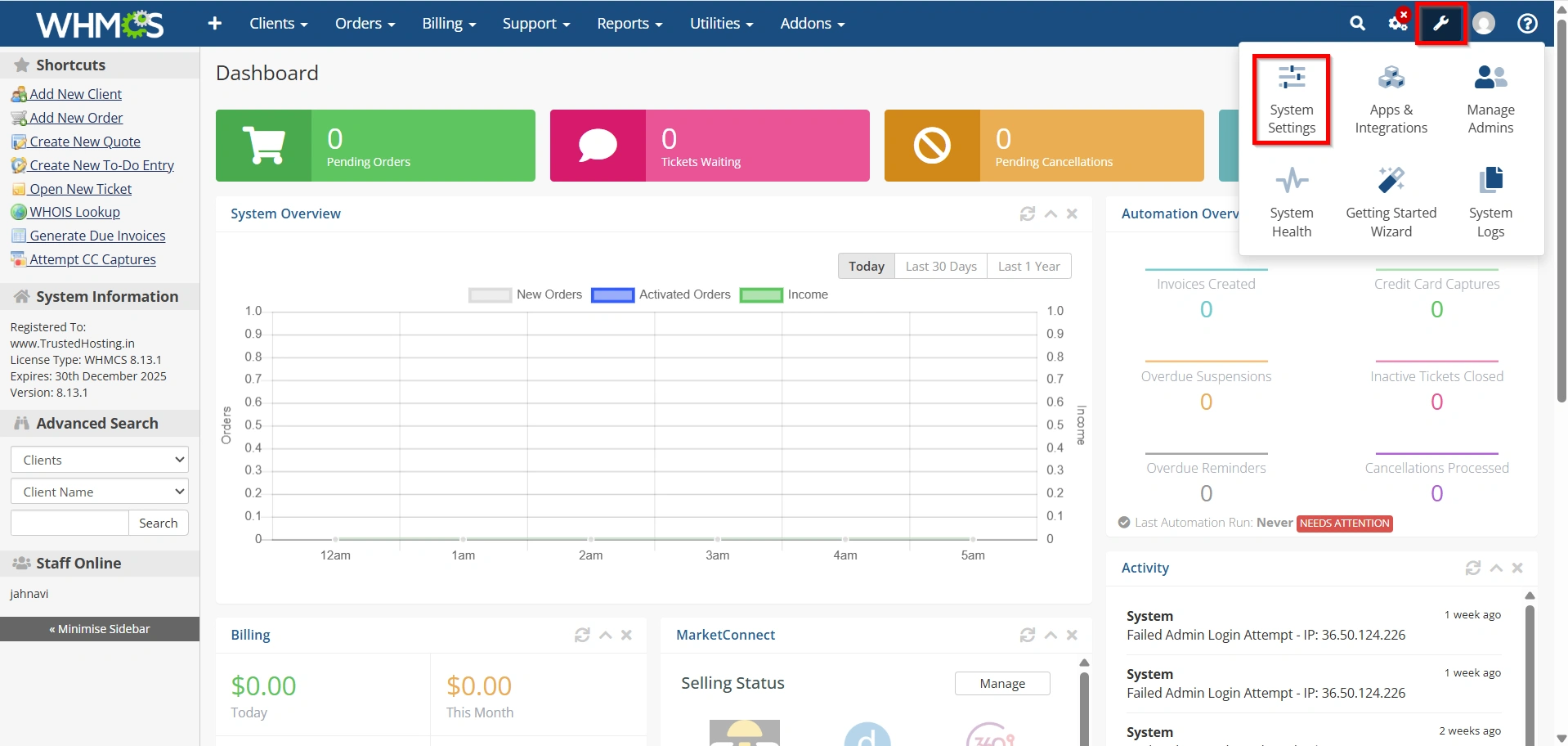
Go to:
- Configuration Icon → System Settings
- Under All Settings ,
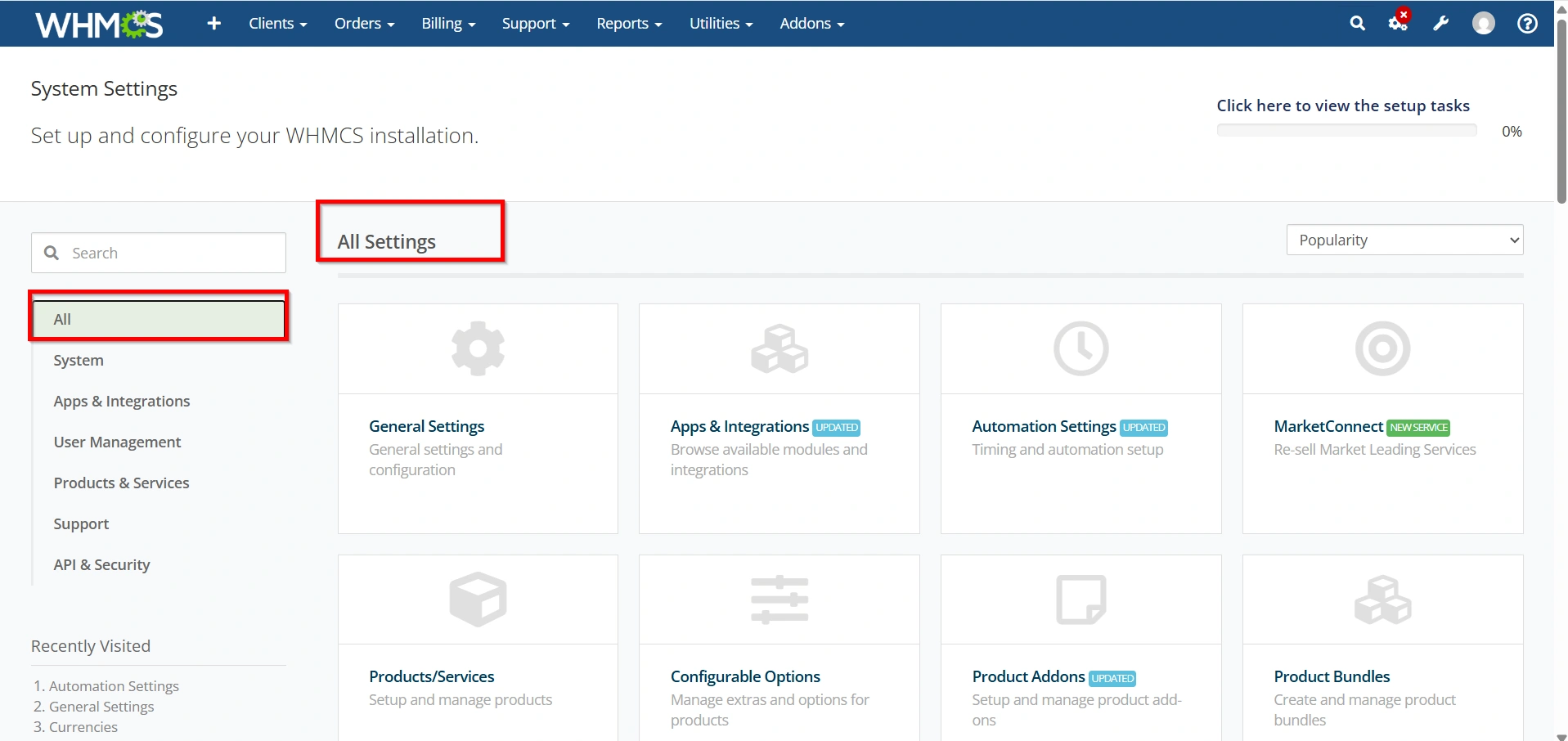
- Select Fraud Protection.
Available Fraud Protection Modules
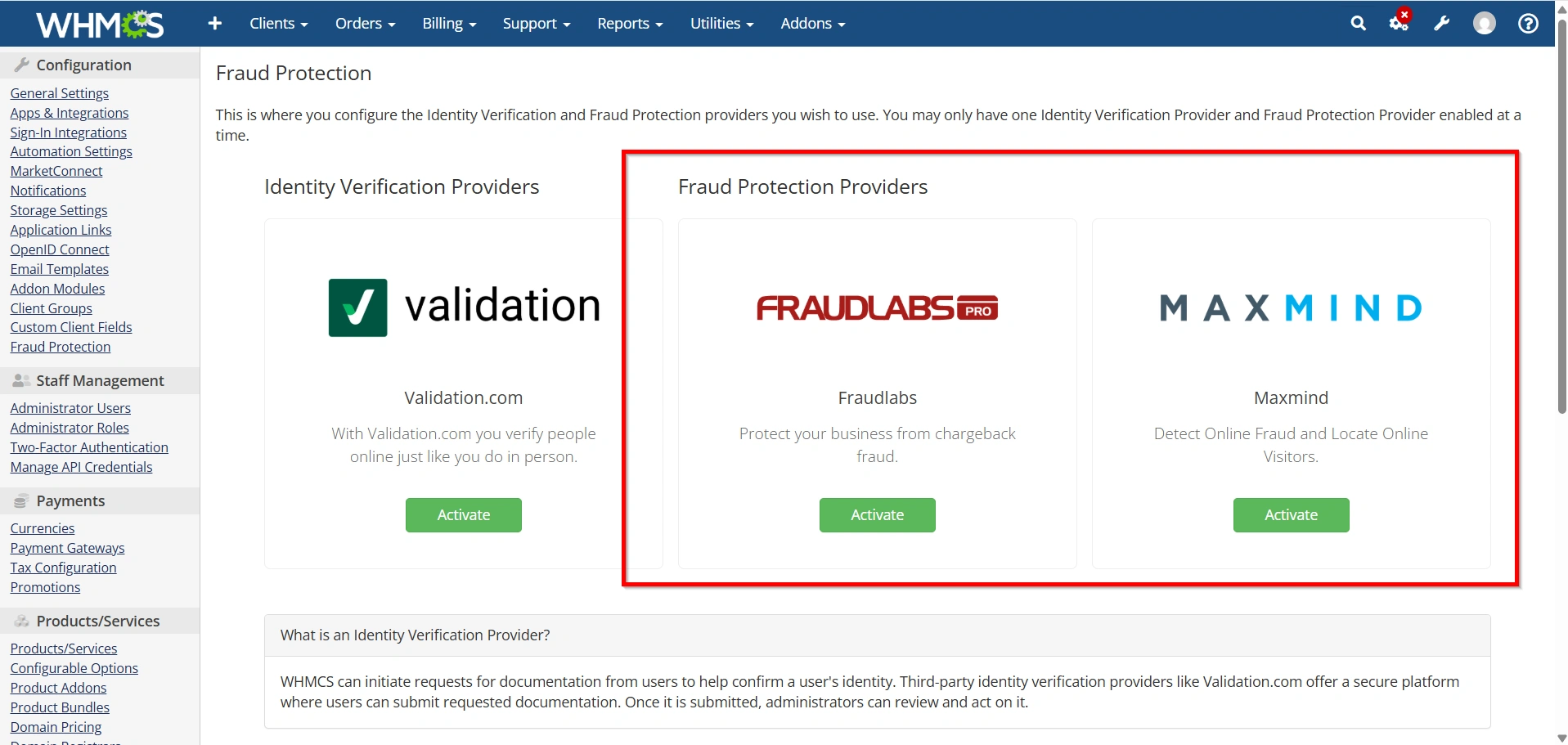
WHMCS supports multiple fraud detection providers. Depending on your WHMCS version and installed modules, you may see options such as:
MaxMind Fraud Protection
MaxMind is one of the most widely used fraud prevention services for hosting businesses. It analyzes orders using multiple risk indicators and provides a fraud score.
Benefits include:
- IP geolocation analysis
- Proxy detection
- Anonymous VPN detection
- Risk scoring
- Device reputation checks
- Country verification
Third-Party Fraud Screening Services
Some businesses integrate specialized fraud detection platforms that offer:
- Advanced machine learning analysis
- Identity verification
- Behavioral monitoring
- Real-time risk assessment
Choose a provider based on your business size and risk profile.
Configuring MaxMind Fraud Protection
MaxMind is the most commonly used fraud prevention service in WHMCS.
Step 1: Create a MaxMind Account
Visit the MaxMind website and create an account , if you already having an account ignore this step.
After registration:
- Generate API credentials.
- Complete account verification if required.
- Enable fraud detection services.
Step 2: Enable MaxMind in WHMCS
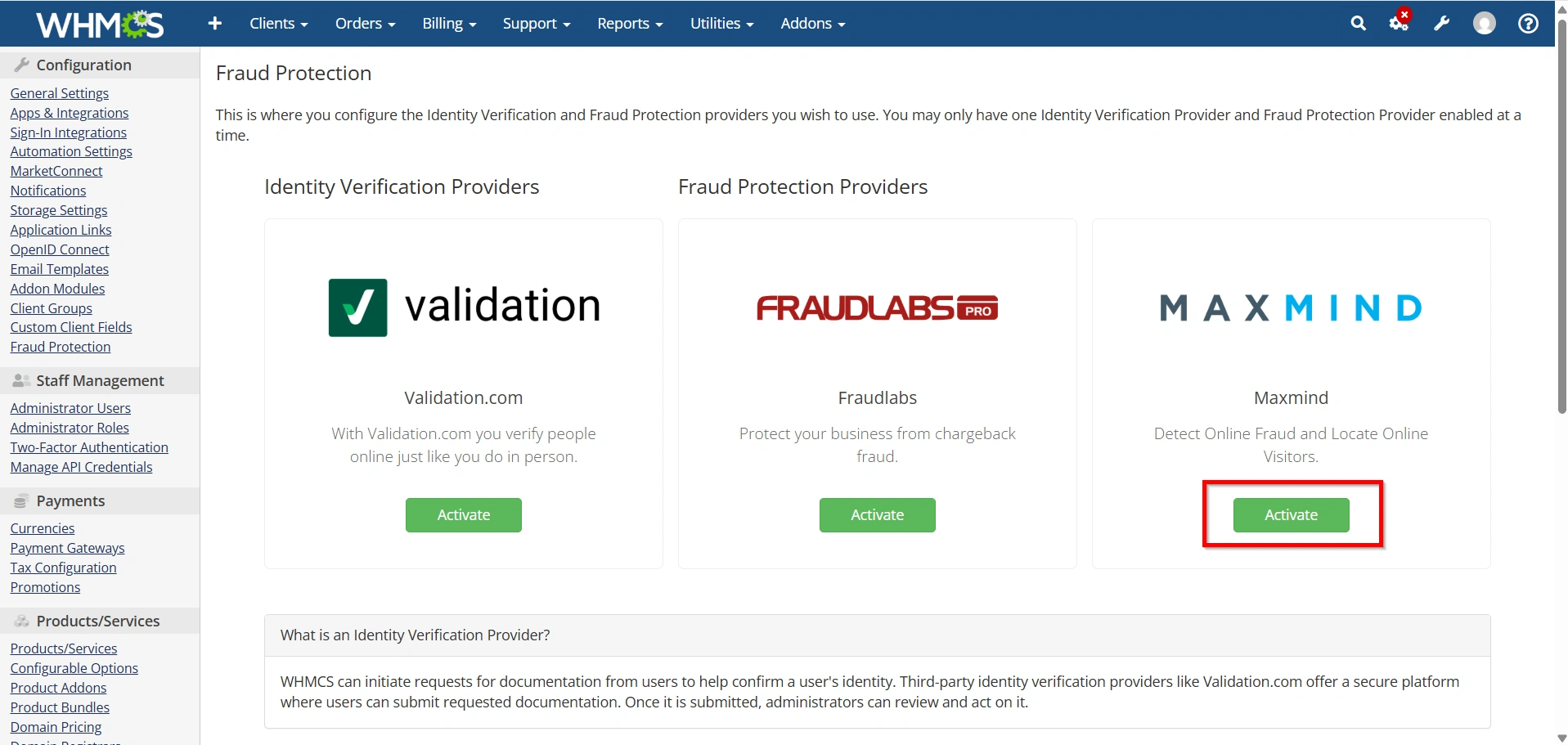
Within the Fraud Protection settings:
- Select MaxMind.
- Click Activate.
- Enter your API credentials.
- Save the configuration.
WHMCS will now communicate with MaxMind during order screening.
Step 3: Configure Fraud Detection Provider
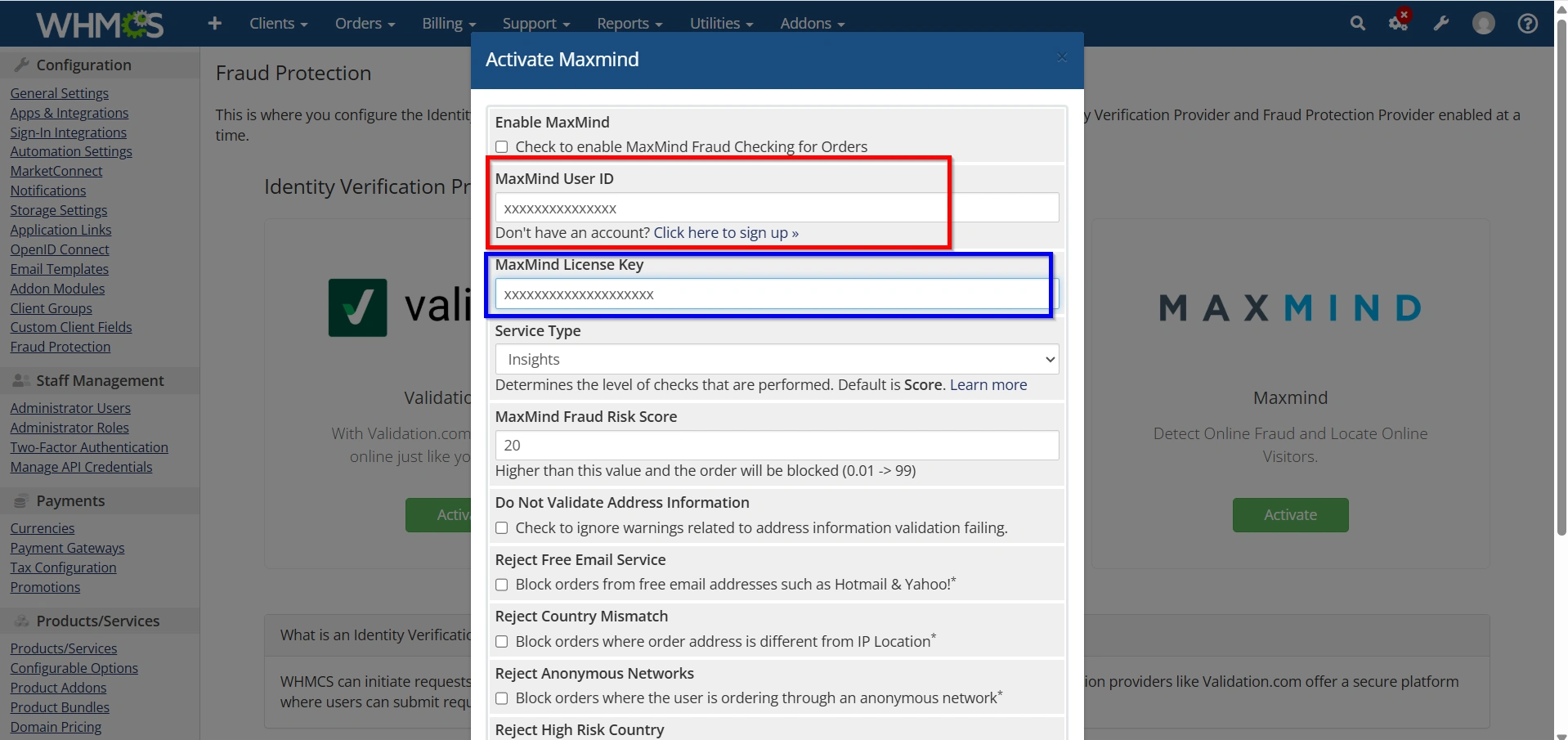
After activating the fraud protection module, enter the required credentials provided by your fraud detection service.
Common configuration options may include:
- License Key
- API Key
- Account ID
- User ID
- Authentication Token
Ensure all credentials are entered correctly to establish a successful connection between WHMCS and the fraud detection service.
This integration enables real-time fraud analysis during the order process.
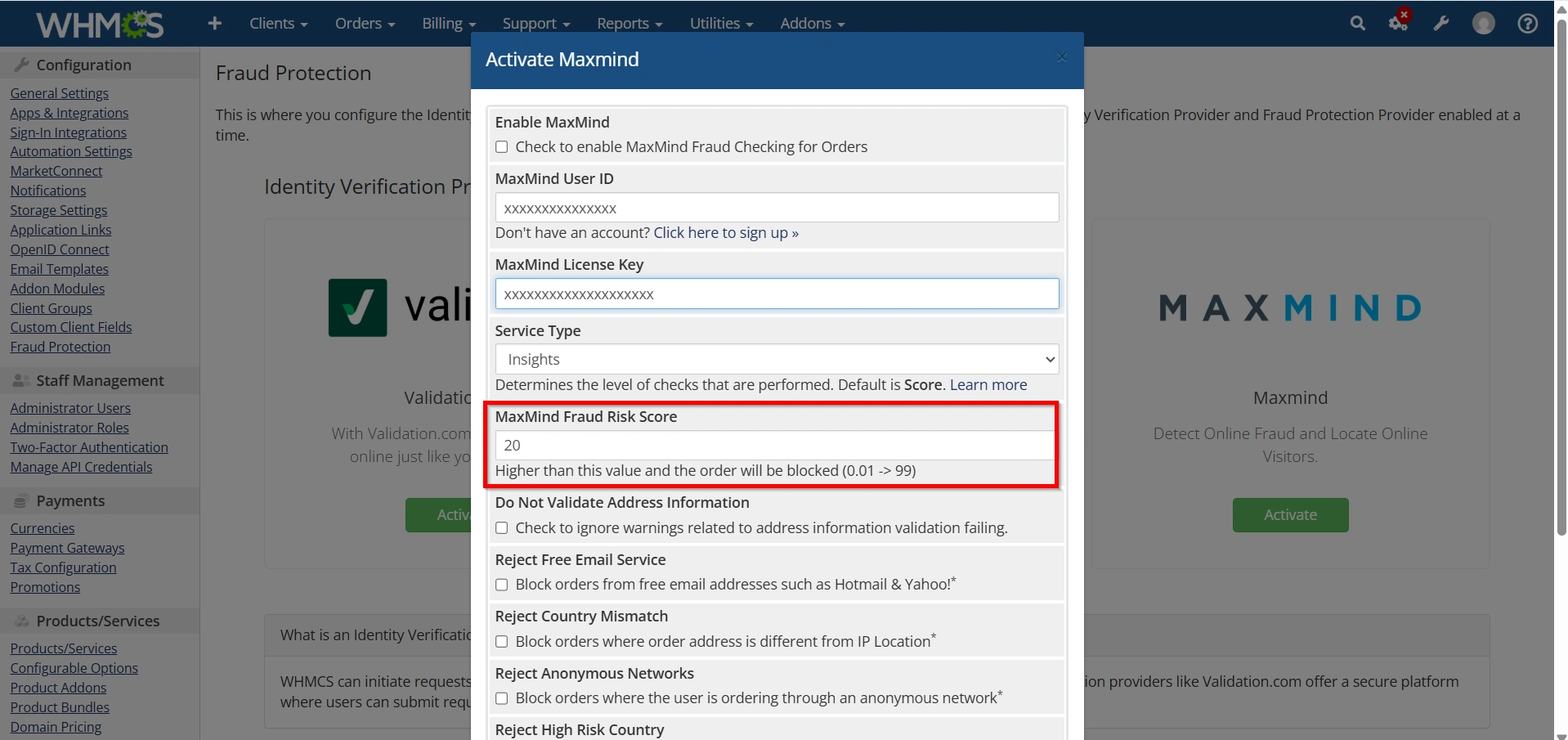
Step 4: Configure Risk Assessment Settings
Set the fraud scoring thresholds used to evaluate incoming orders.
Typical options include:
- Minimum Risk Score
- Maximum Risk Score
Orders exceeding the configured risk threshold can be automatically rejected or flagged for review.
Proper risk assessment helps reduce chargebacks while minimizing false positives.
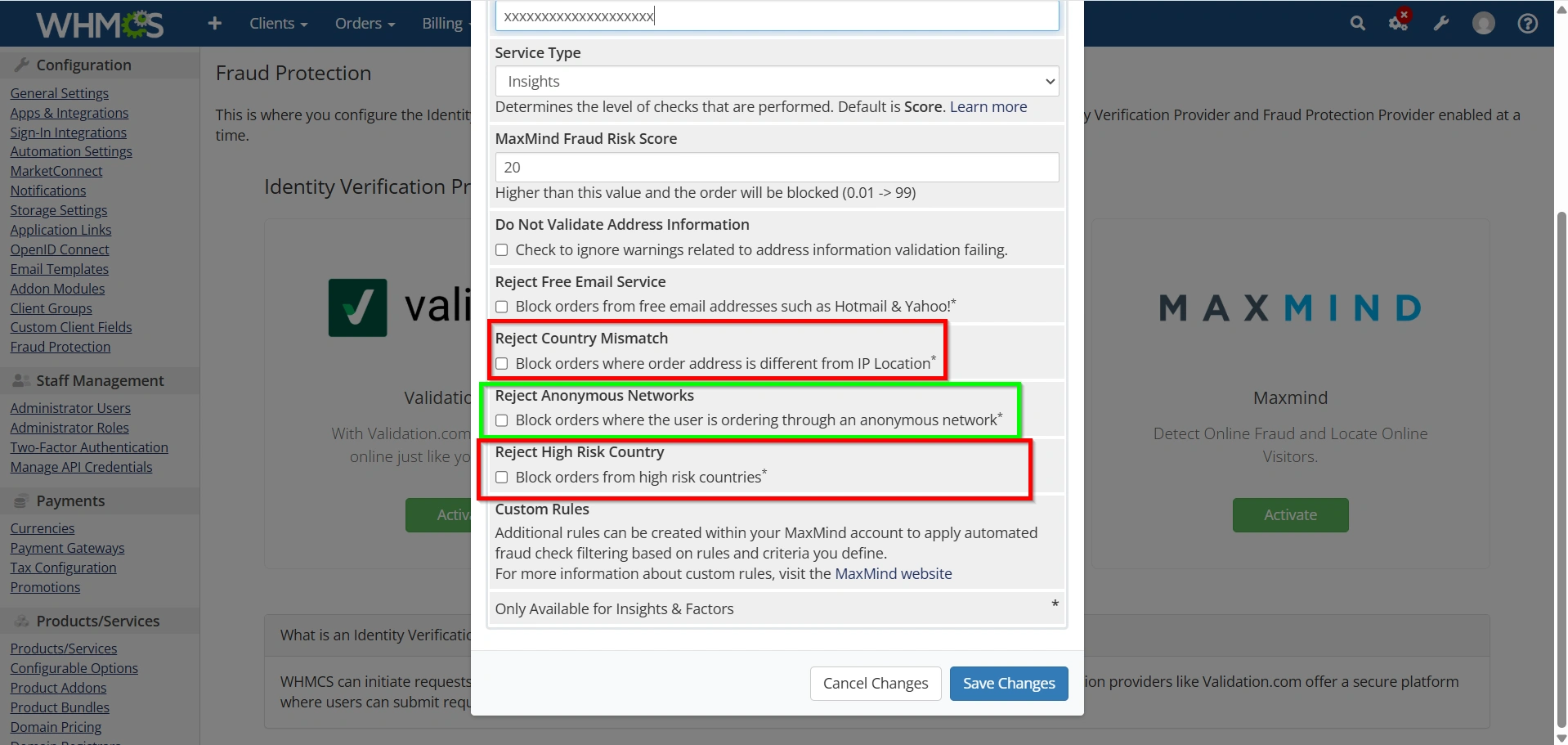
Step 5: Configure Geographic and IP Screening
Fraud detection services often provide geographic and IP-based analysis.
Available checks may include:
- Country Verification
- High-Risk Country Detection
- Anonymous Proxy Detection
- Tor Network Detection
These checks help identify suspicious activity originating from unusual locations or anonymized connections.
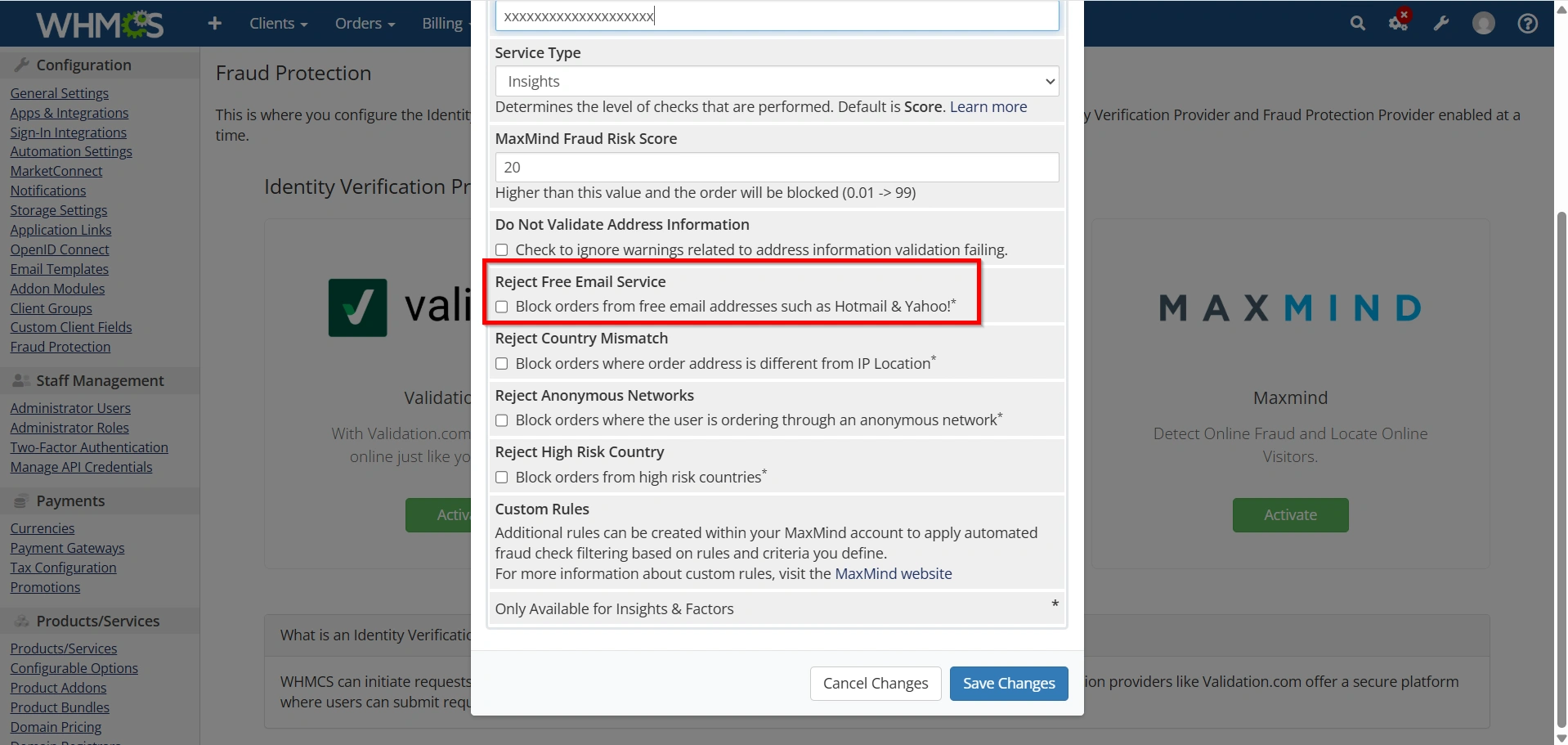
Step 6: Configure Customer Verification Options
Enable additional verification checks to improve order accuracy.
Common verification methods include:
- Email Address Validation
These checks help ensure customer information is legitimate before services are provisioned.
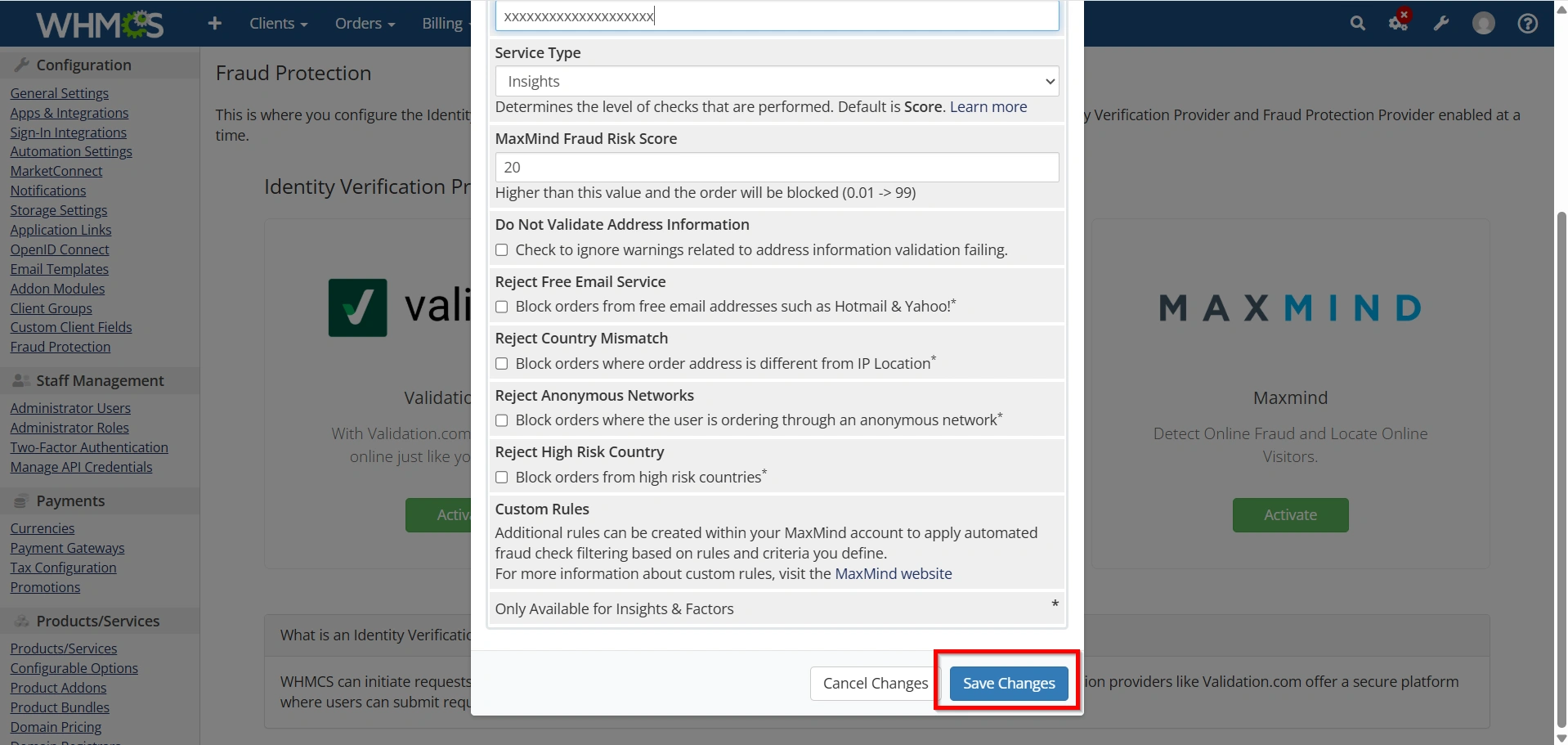
Step 7: Save Changes
After configuring your Fraud Protection Settings:
- Click Save Changes.
- Place a test order if possible.
- Verify that fraud screening is functioning correctly.
- Review detection logs for successful communication with the fraud protection provider.
Your Fraud Protection Settings in WHMCS are now configured and ready to help protect your business from fraudulent orders and chargebacks.
Common Fraud Protection Mistakes
Avoid these common errors:
- Setting risk thresholds too low
- Automatically rejecting all flagged orders
- Ignoring manual review processes
- Not monitoring chargeback reports
- Failing to update fraud detection configurations
A thoughtful fraud prevention strategy is more effective than relying on aggressive automated blocking.
Best Practices for Fraud Protection Settings in WHMCS
To maximize effectiveness:
- Use Multiple Verification Methods
- Monitor Chargebacks
- Review Flagged Orders Regularly
- Update Fraud Rules Periodically
- Balance Security and Customer Experience
Conclusion
Fraud Protection Settings in WHMCS are essential for securing your hosting business against fraudulent orders, chargebacks, and abuse. By configuring fraud screening services such as MaxMind, setting appropriate risk thresholds, and implementing manual review procedures, you can effectively reduce fraud while maintaining a positive customer experience.
Regularly reviewing your fraud prevention strategy and adjusting settings based on real-world order activity will help ensure your WHMCS installation remains secure, reliable, and protected as your business grows.
Related Articles


