Reseller Hosting
How To Check If Your Reseller Hosting Account Is Upgraded
If you have recently requested a reseller hosting upgrade, you may want to verify whether the upgraded resources have been applied to your account. The easiest way to check this is through the WHM…
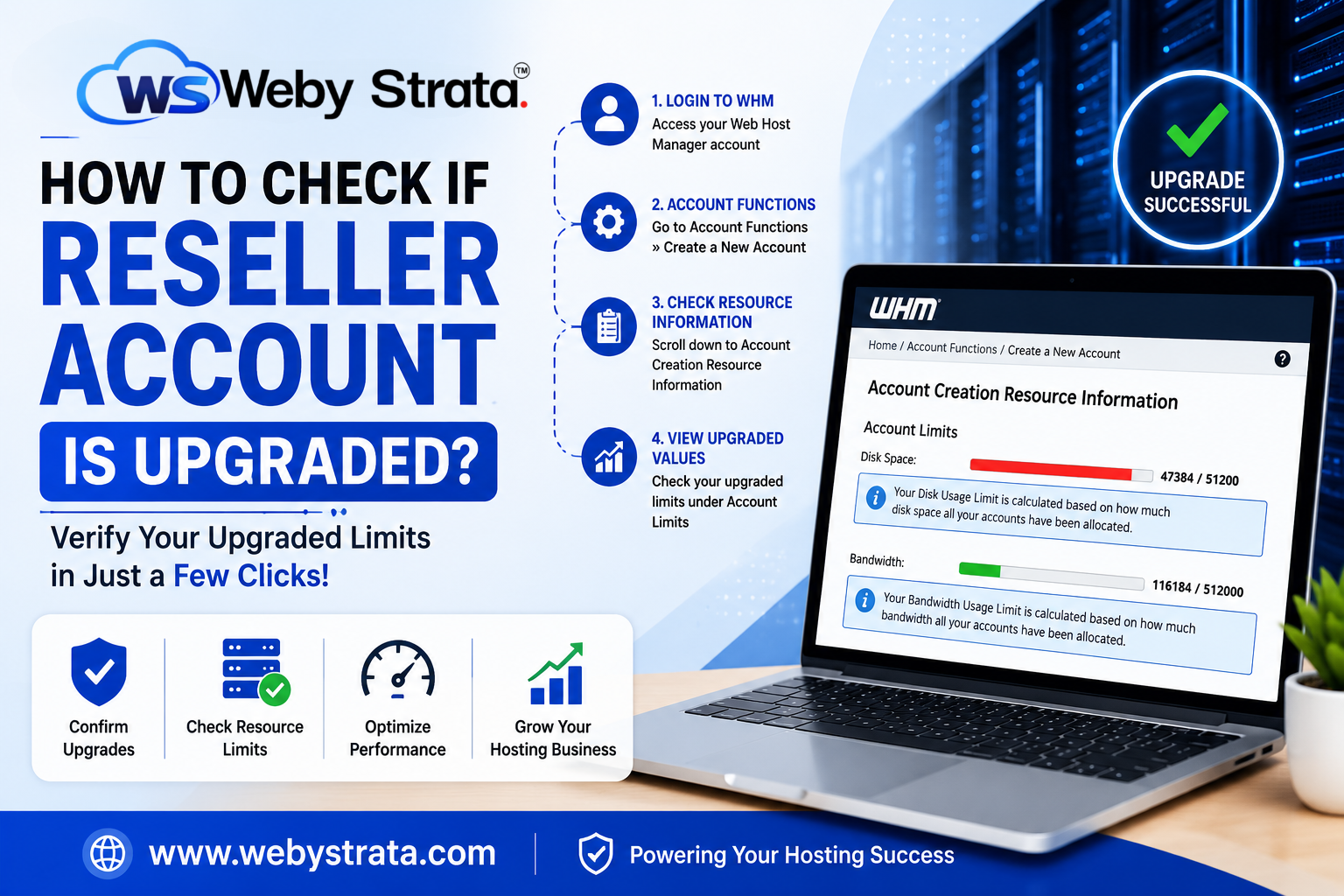
If you have recently requested a reseller hosting upgrade, you may want to verify whether the upgraded resources have been applied to your account. The easiest way to check this is through the WHM (Web Host Manager) panel.
WHM allows reseller hosting users to view their account limits, package resources, and reseller permissions. Once the upgrade is completed, the updated values will be visible in your reseller account settings.
Step 1: Login to WHM
Access your WHM (Web Host Manager) account using your reseller login credentials.
After logging in, you will see the WHM dashboard.
Step 2: Open Account Functions
From the WHM sidebar menu:
Account Functions → Create a New Account
Click on Create a New Account to open the account creation page.
Step 3: Locate Account Creation Resource Information
Scroll down the page until you find:
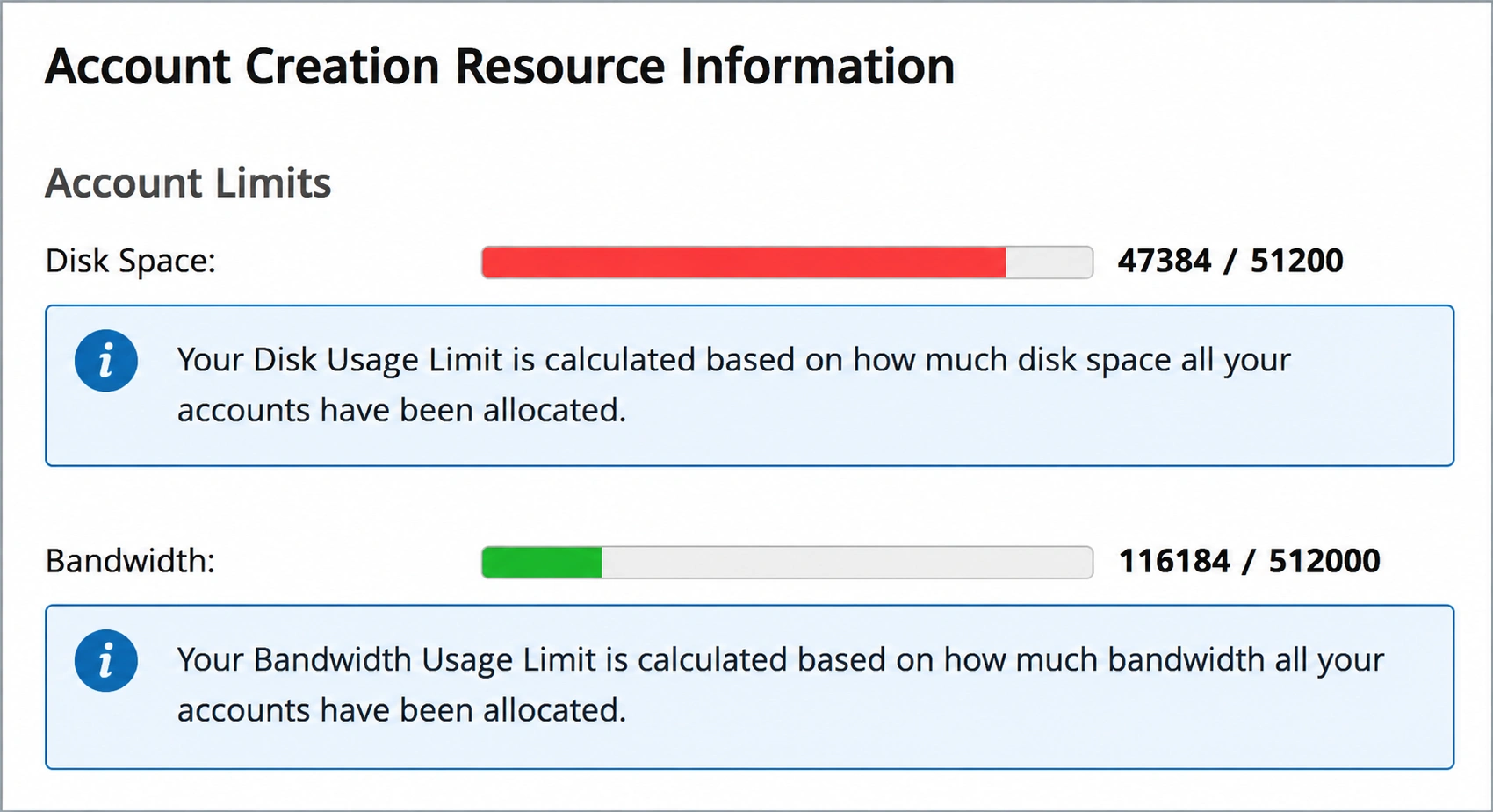
Account Creation Resource Information
This section displays the resource limits assigned to your reseller account.
Step 4: Check Updated Account Limits
Under Account Limits, you can review your upgraded reseller hosting resources, including:
- Disk Space Allocation
- Bandwidth Limits
- Maximum Accounts Allowed
- Package Creation Permissions
- Feature Availability
- Reseller Privileges
If your reseller account has been upgraded successfully, the new values will be displayed in this section.
Related Articles