cPanel
How to Disable ModSecurity in cPanel
How to Disable ModSecurity in cPanel Website security is one of the most important aspects of managing a hosting account. Most web hosting providers include various security features to help protect websites from hackers,…
How to Disable ModSecurity in cPanel
Website security is one of the most important aspects of managing a hosting account. Most web hosting providers include various security features to help protect websites from hackers, malicious bots, and common web-based attacks. One such security feature available in many cPanel hosting environments is ModSecurity.
ModSecurity acts as a Web Application Firewall (WAF) and helps filter incoming requests before they reach your website. While this security layer is highly effective, there are situations where ModSecurity may incorrectly block legitimate website activity. This can result in errors when submitting forms, uploading files, accessing specific pages, or using third-party applications.
In such cases, temporarily disabling ModSecurity can help identify whether the firewall is causing the issue. This guide explains how to disable ModSecurity in cPanel, when you should disable it, and important considerations before making changes.
What Is ModSecurity?
ModSecurity is an open-source web application firewall designed to protect websites hosted on Apache, LiteSpeed, and other supported web servers.
It analyzes incoming traffic and blocks requests that match known attack patterns. This helps protect websites from various security threats including:
- SQL Injection attacks
- Cross-Site Scripting (XSS)
- Remote File Inclusion attacks
- Brute-force login attempts
- Malicious bots and crawlers
- Exploits targeting website vulnerabilities
Because ModSecurity uses predefined security rules, there are times when legitimate website requests may accidentally trigger those rules. These situations are known as false positives.
Before You Disable ModSecurity
Before disabling ModSecurity, keep the following recommendations in mind:
- Disable it only for troubleshooting purposes.
- Always create a website backup before making significant changes.
- Test your website immediately after disabling the firewall.
- Re-enable ModSecurity once troubleshooting is complete.
- Consider requesting a rule adjustment from your hosting provider instead of permanently disabling protection.
Maintaining website security should always remain a priority.
How to Disable ModSecurity in cPanel
Follow these simple steps to disable ModSecurity for a domain within your cPanel account.
Step 1: Login to cPanel from Client Area
First, visit the WebyStrata website and log in to your client area account using your registered email address and password.
official Website www.webystrata.com
After logging in:
- Go to Services
- Click on My Services
- Select your active hosting service
- Click on Login to cPanel

Step 2: Open the ModSecurity Tool
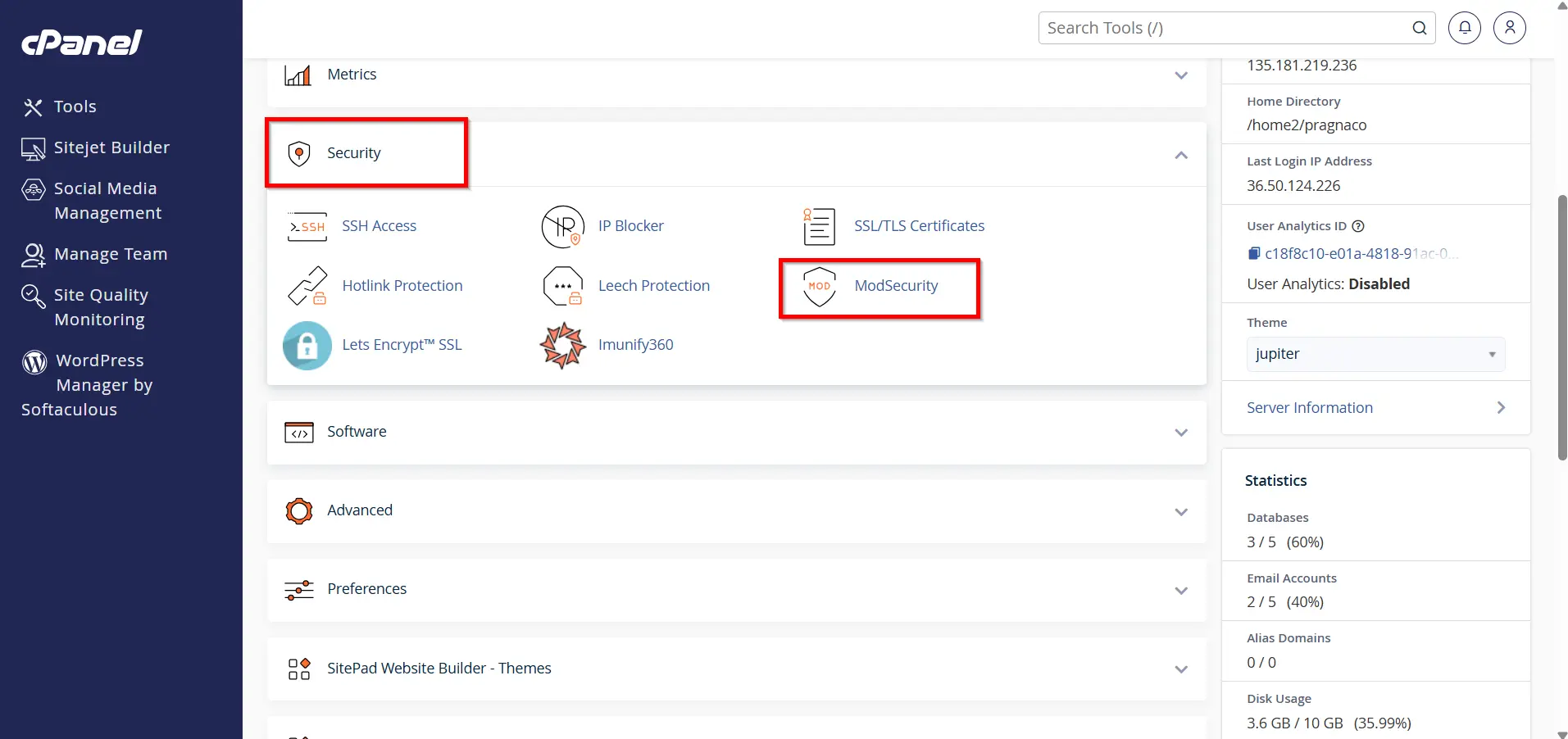
- Scroll down to the Security section of cPanel and click on ModSecurity.
- This feature allows you to manage ModSecurity protection for all domains associated with your hosting account.
Step 3: Locate the Domain
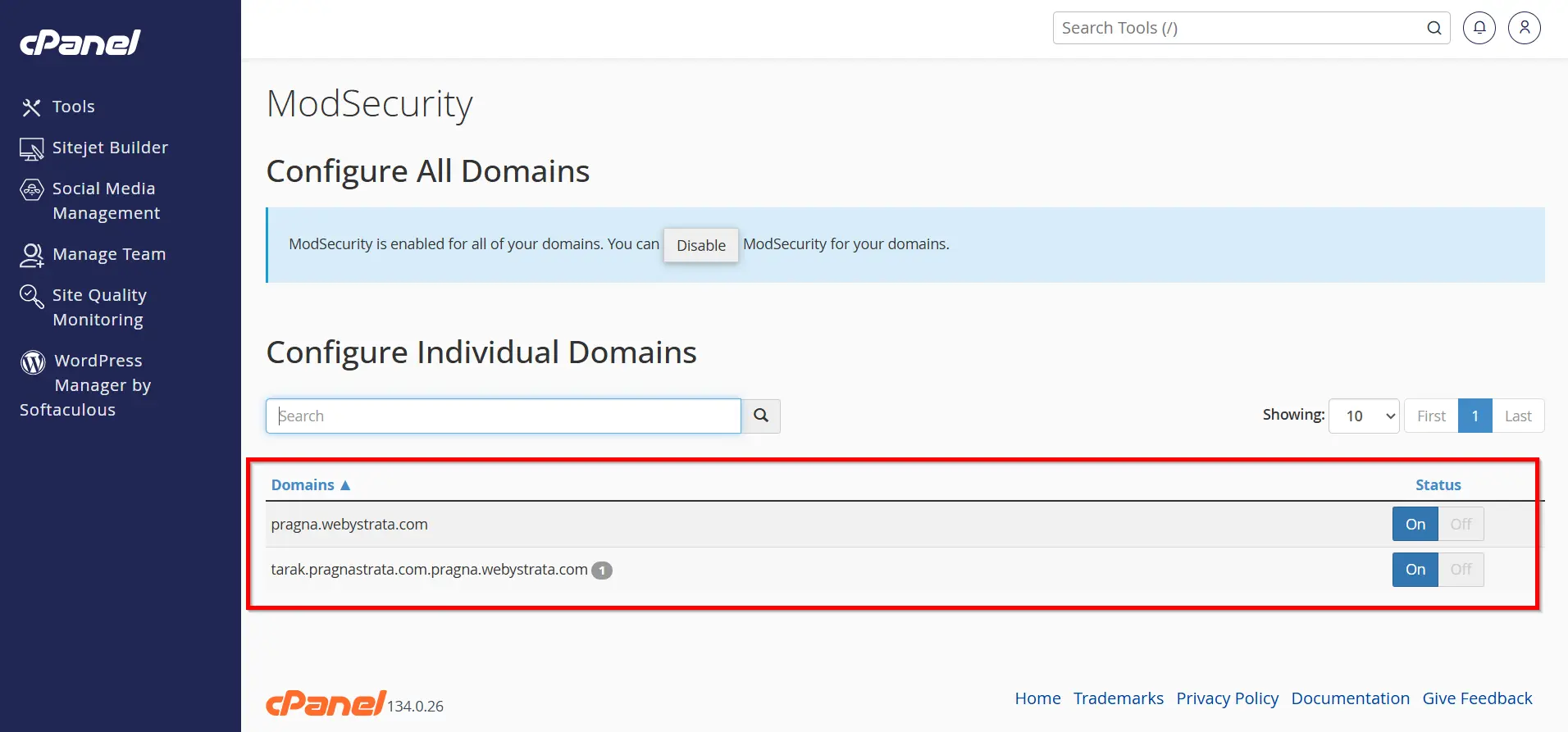
- After opening ModSecurity, you will see a list of domains and subdomains hosted within your account.
- Find the domain for which you want to disable ModSecurity protection.
Step 4: Disable ModSecurity
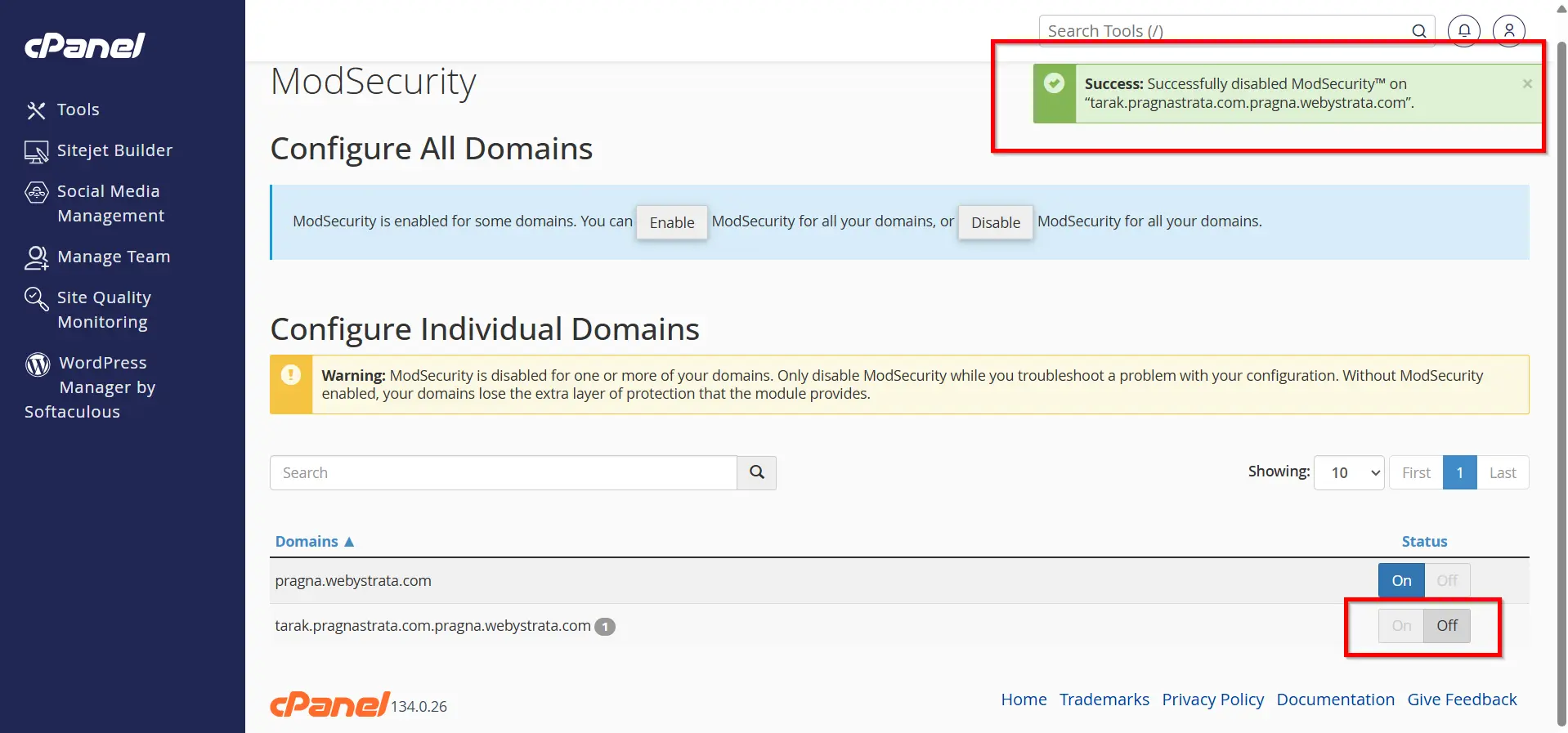
Next to the selected domain, you will find a toggle button showing the current status.
- If the status is On, click the toggle button.
- The status will change to Off.
- ModSecurity will now be disabled for that domain.
The change takes effect immediately in most hosting environments.
Step 5: Test Your Website
Once ModSecurity has been disabled, visit your website and test the functionality that was previously causing issues. This may include:
- Contact forms
- Login pages
- Shopping cart functions
- API integrations
- CMS plugins and extensions
If the issue is resolved, it is possible that a ModSecurity rule was blocking the request.
Step 6: Re-enable ModSecurity
For security reasons, it is highly recommended to re-enable ModSecurity after troubleshooting is complete.
To do this:
- Return to cPanel → ModSecurity.
- Locate your domain.
- Toggle the status back to On.
This restores firewall protection for your website.
Why Disable ModSecurity?
Although ModSecurity provides valuable protection, there are situations where temporarily disabling it may be necessary.
Common reasons include:
1. Website Forms Are Not Working
2. Receiving 403 Forbidden Errors
3. Plugin Conflicts
4. API Integration Issues
5. Troubleshooting Website Problems
Advantages of Using ModSecurity
Even if you occasionally need to disable it for troubleshooting, ModSecurity provides several important benefits.
- Enhanced Website Security
- Protection Against Vulnerabilities
- Real-Time Request Filtering
- Reduced Risk of Data Breaches
- Additional Layer of Defense
- Better Compliance
Risks of Leaving ModSecurity Disabled
While disabling ModSecurity can solve temporary issues, leaving it disabled permanently may expose your website to security threats.
Potential risks include:
- Increased vulnerability to attacks
- Higher risk of malicious traffic
- Unauthorized access attempts
- Exploitation of website vulnerabilities
- Increased likelihood of data compromise
For these reasons, ModSecurity should only be disabled when absolutely necessary.
Alternative Solutions
Instead of completely disabling ModSecurity, consider these alternatives:
- Contact Your Hosting Provider
- Whitelist Legitimate Requests
- Update Plugins and Applications
- Use Developer Tools
Conclusion
ModSecurity is a powerful security feature that helps protect websites from a wide range of online threats. However, there are occasions when legitimate website activity may be blocked due to strict security rules. In these situations, temporarily disabling ModSecurity through cPanel can help identify and resolve the problem.
The process is simple: log in to cPanel, open the ModSecurity tool, locate your domain, and switch the protection off. After troubleshooting, remember to re-enable ModSecurity to ensure your website remains protected against malicious traffic and common web-based attacks.
By understanding how ModSecurity works and when to disable it safely, website owners can effectively balance security and functionality while maintaining a reliable hosting environment.
Related Articles