Latest Updates
How to Set Up Two-Factor Authentication in WHMCS
How to Set Up Two-Factor Authentication in WHMCS Securing your WHMCS installation is one of the most important steps in protecting your business and customer data. This guide explains how to Set Up Two-Factor…
How to Set Up Two-Factor Authentication in WHMCS
Securing your WHMCS installation is one of the most important steps in protecting your business and customer data. This guide explains how to Set Up Two-Factor Authentication in WHMCS to add an extra layer of security to administrator accounts. When you Set Up Two-Factor Authentication in WHMCS, users must provide both their password and a one-time verification code before gaining access to the admin area, significantly reducing the risk of unauthorized logins.
What Is Two-Factor Authentication?
Two-Factor Authentication (2FA) is a security feature that requires users to verify their identity using two different methods:
- Something you know (your password)
- Something you have (a mobile authenticator app or security device)
Even if a password is compromised, attackers cannot log in without the second verification factor.
Prerequisites
Before starting, ensure that:
- WHMCS is installed and working properly.
- You have administrator access.
- Your server time is synchronized correctly.
- You have a smartphone if using an authenticator app.
Steps to Set Up Two-Factor Authentication in WHMCS
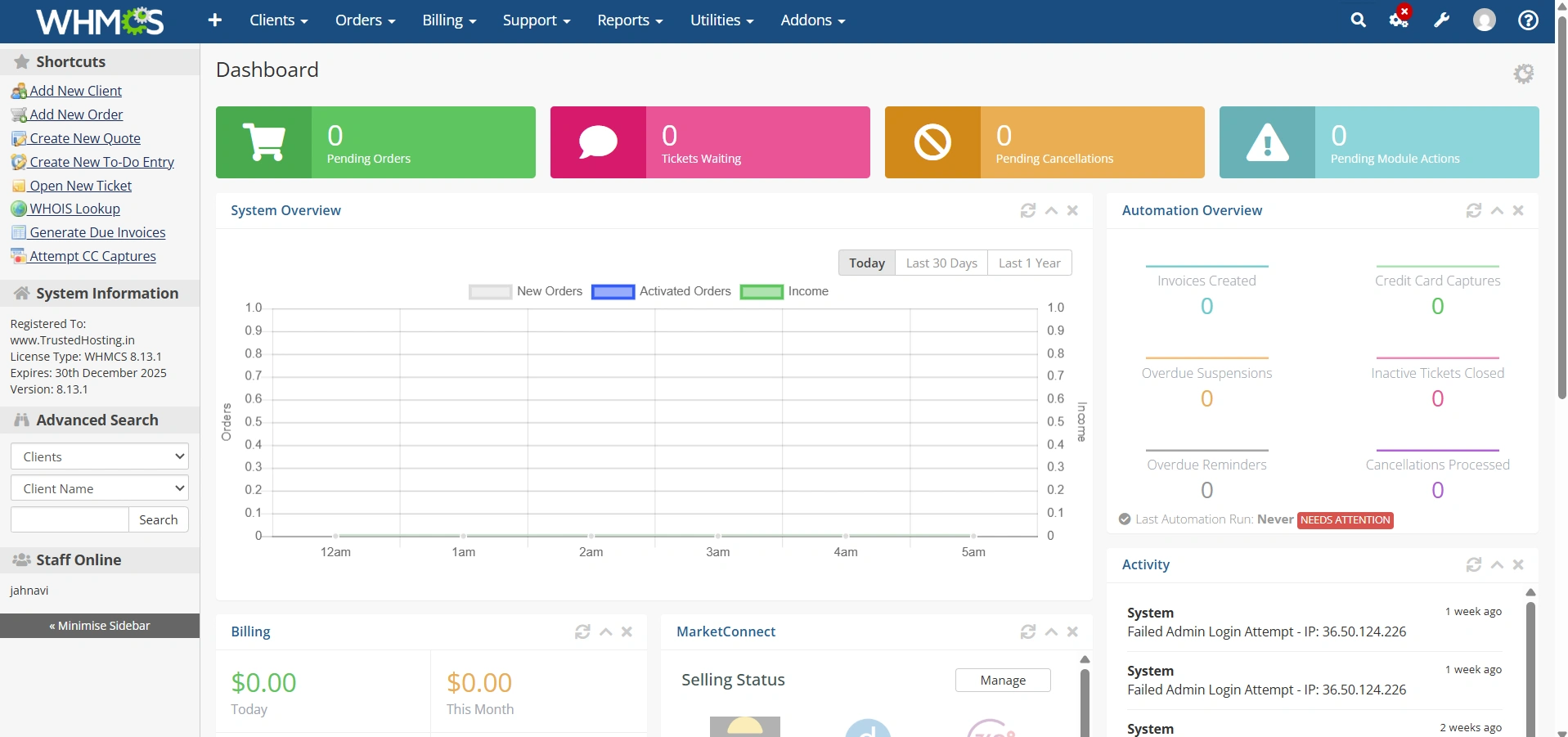
Step 1: Log in to WHMCS Admin Area
Log in to your WHMCS administrator dashboard.
Step 2: Open Security Settings
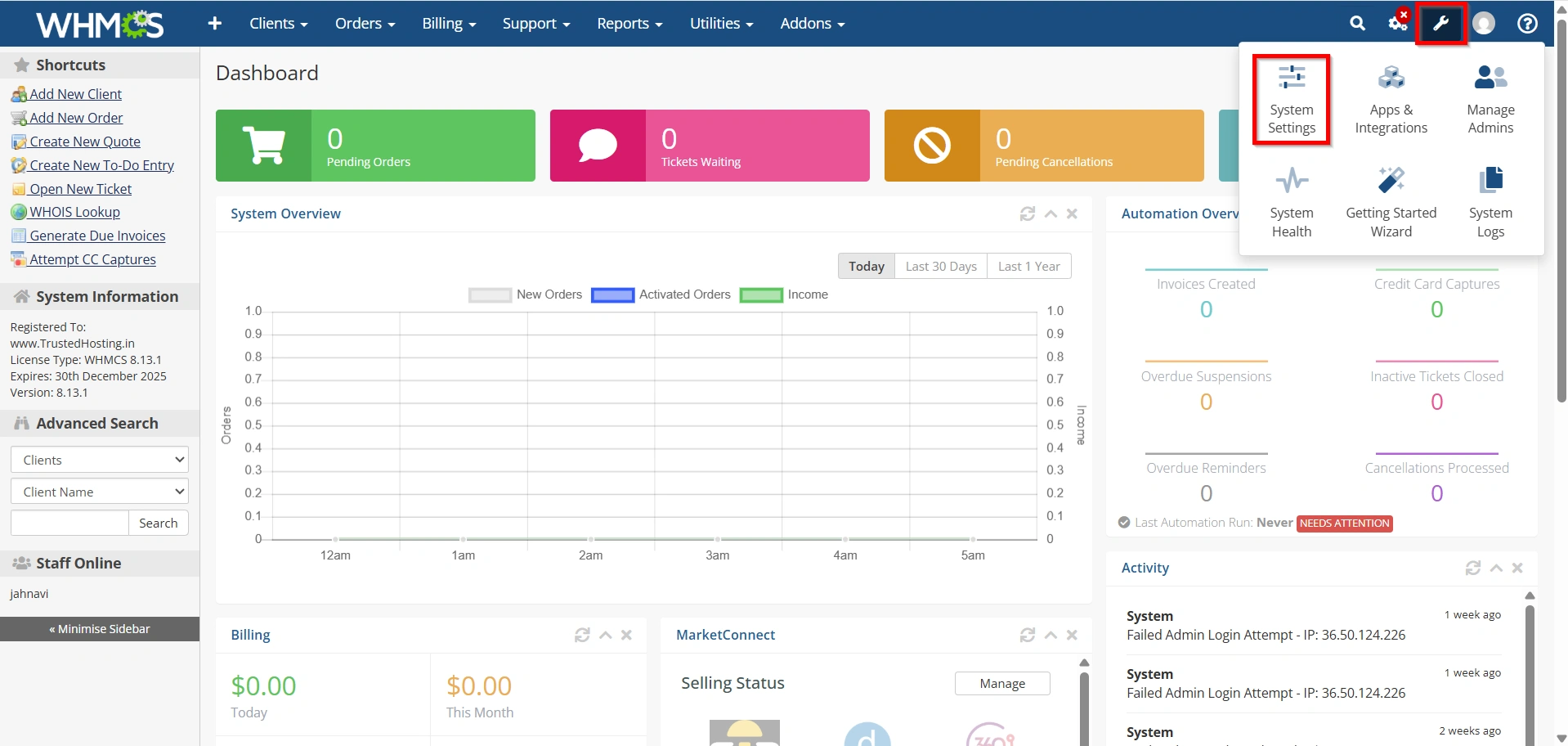
- Navigate to Configuration Icon → System Settings
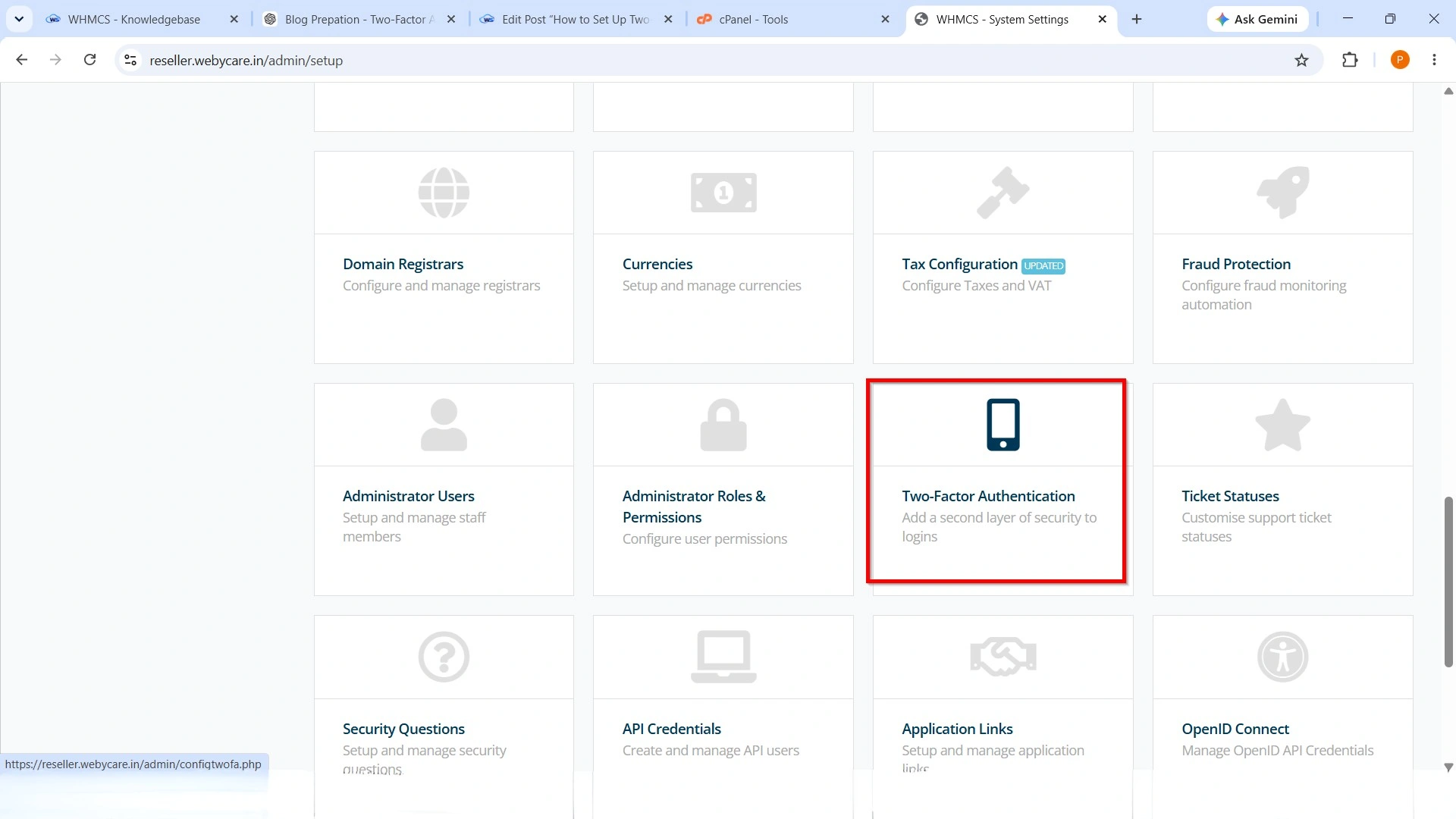
- Select Two-Factor Authentication
This is where you can manage all 2FA providers.
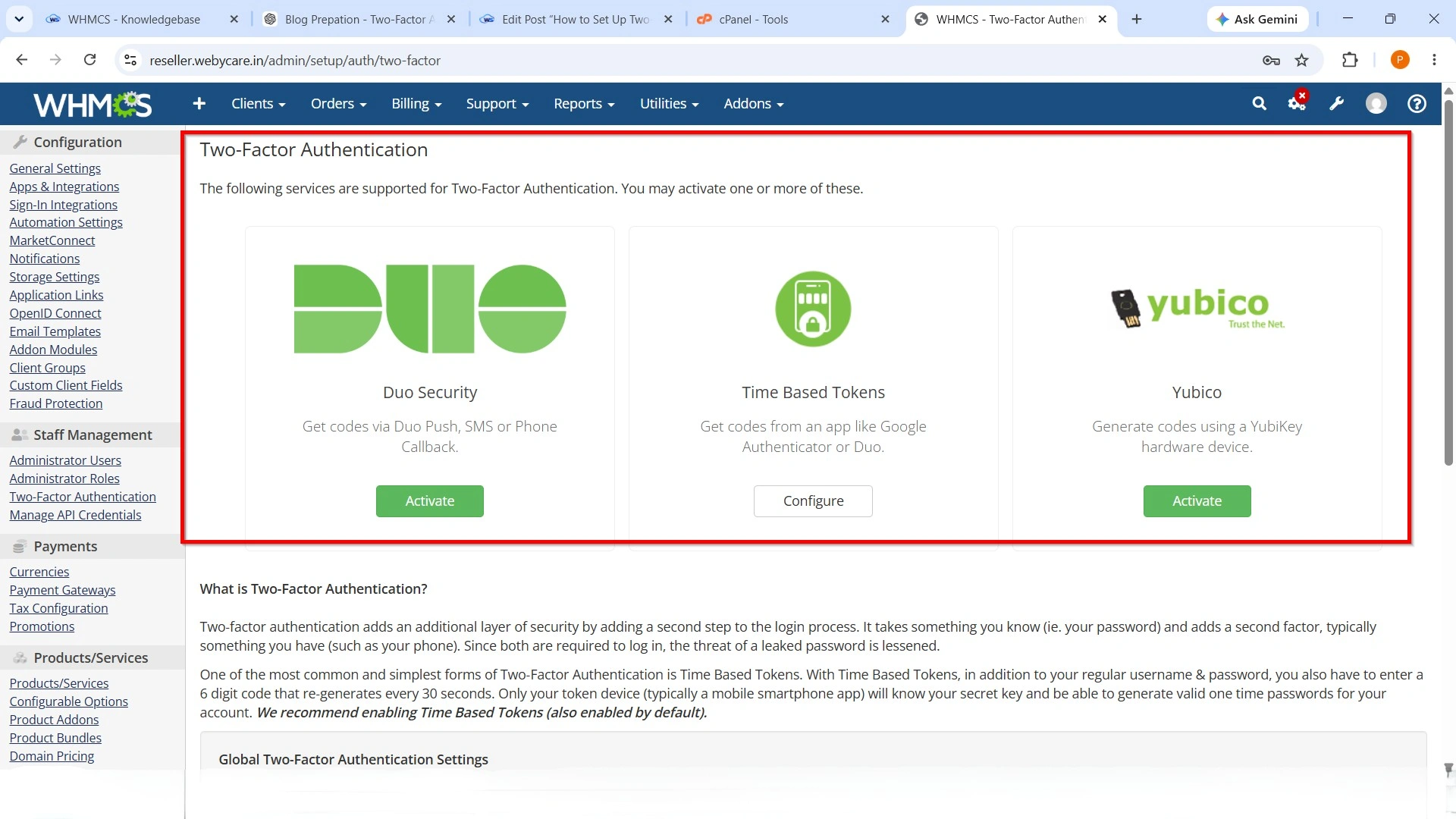
Step 3: Enable a Two-Factor Authentication Provider
WHMCS supports multiple authentication providers depending on your installation.
Common options include:
- Time-Based Tokens (TOTP)
- Duo Security
- Other supported authentication modules
Enable the provider you want to use.
Step 4: Configure the Authentication Method
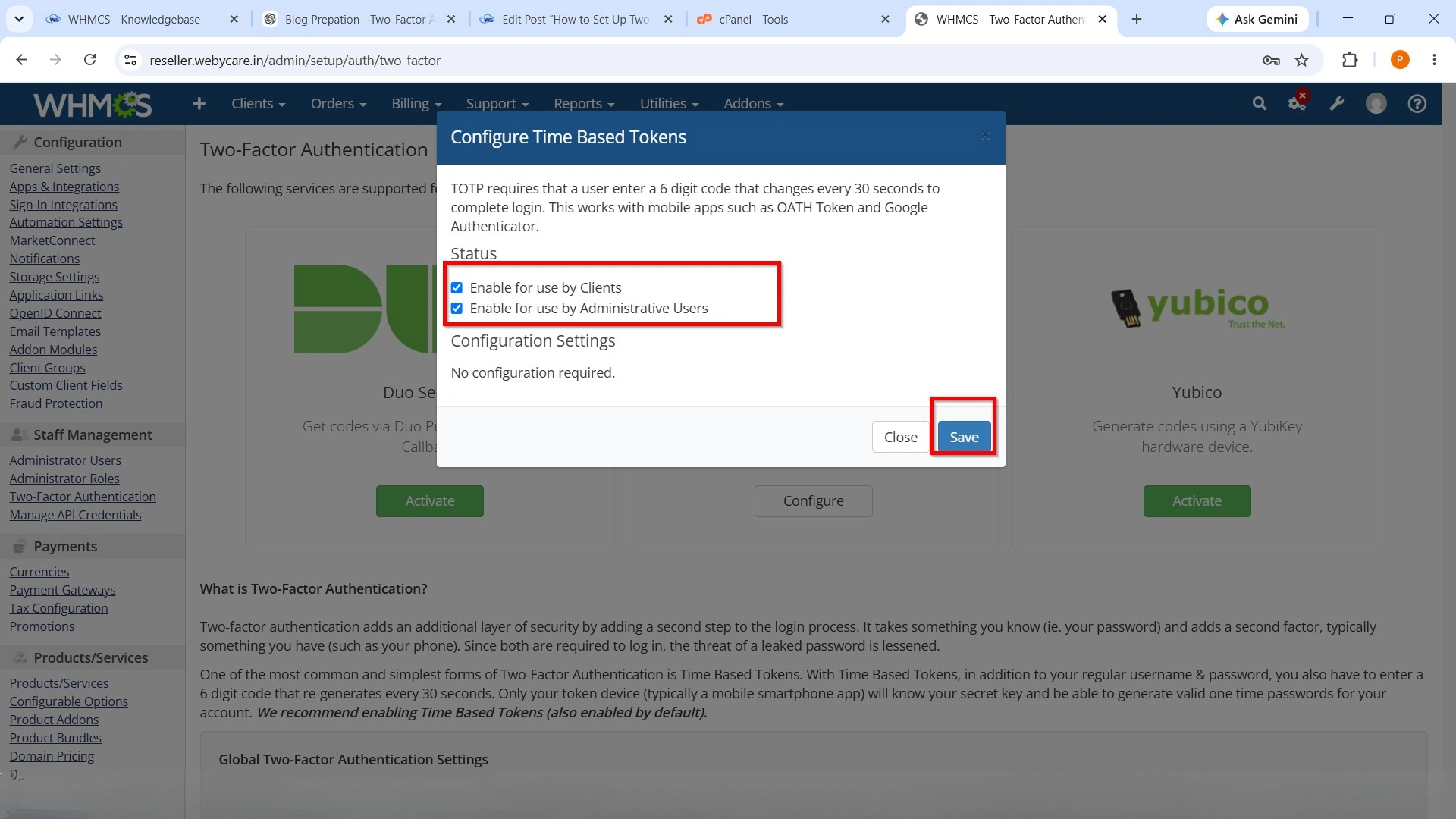
For Time-Based Tokens:
- Enable the provider.
- Save the settings.
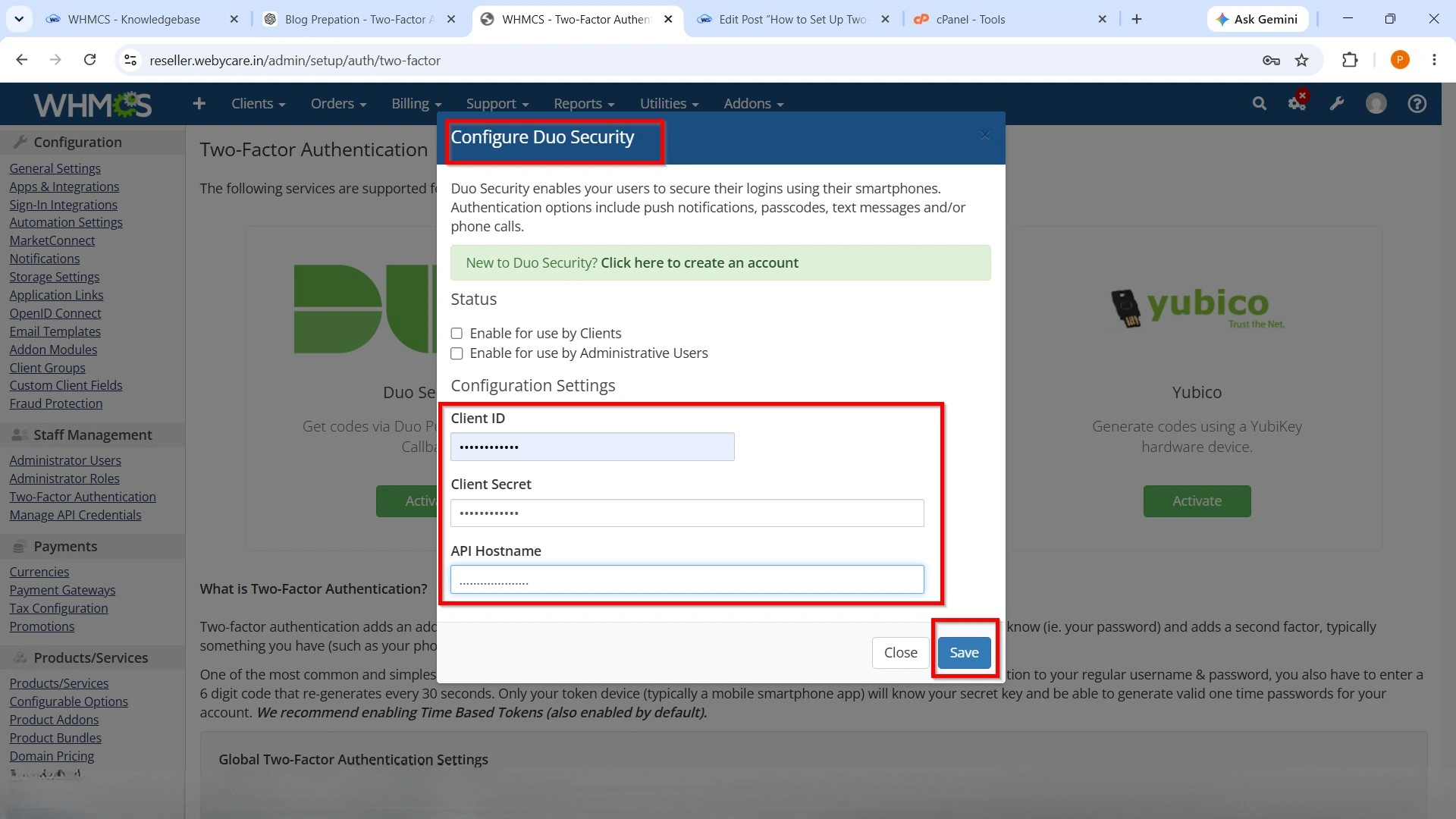
For Duo Security:
- Enter the Integration Key.
- Enter the Secret Key.
- Enter the API Hostname.
- Save the configuration.
Step 5: Assign Two-Factor Authentication to an Administrator
After enabling the provider:
- Go to:
Configuration → System Settings → Administrator Users
- Edit the administrator account.
- Enable Two-Factor Authentication.
- Save the changes.
Each administrator can configure their own authentication device during login.
Step 6: Scan the QR Code
When the administrator logs in for the first time after enabling 2FA:
- A QR code is displayed.
- Open Google Authenticator, Microsoft Authenticator, Authy, or another compatible app.
- Scan the QR code.
- Enter the generated verification code.
- Complete the setup.
The account is now protected with two-factor authentication.
Step 7: Test the Login Process
Log out of the WHMCS Admin Area.
Log back in using:
- Username
- Password
- Verification code from the authenticator app
If all credentials are correct, access will be granted.
This confirms the Two-Factor Authentication Setup in WHMCS is working properly.
Best Practices
To maximize security:
- Require 2FA for all administrators.
- Use a strong administrator password.
- Keep recovery codes in a secure location.
- Limit the number of administrator accounts.
- Regularly review administrator permissions.
- Update WHMCS to the latest version.
- Remove unused administrator accounts immediately.
Why Enable Two-Factor Authentication?
Every WHMCS administrator should Set Up Two-Factor Authentication in WHMCS to strengthen account security. Even if a password is compromised through phishing or a data breach, attackers cannot access the admin panel without the second authentication factor. Taking a few minutes to Set Up Two-Factor Authentication in WHMCS can help prevent costly security incidents and protect your hosting business from unauthorized access.
Benefits of Two-Factor Authentication Setup in WHMCS
When you Set Up Two-Factor Authentication in WHMCS, you gain several important security benefits:
- Protects administrator accounts
- Prevents unauthorized access
- Reduces password-related security risks
- Improves compliance with security best practices
- Adds an extra layer of protection for sensitive client data
- Increases customer trust
Conclusion
Learning how to Set Up Two-Factor Authentication in WHMCS is an essential step toward securing your hosting management platform. By enabling 2FA, you protect administrator accounts, customer information, and billing data from unauthorized access. Whether you use Time-Based Tokens or Duo Security, taking the time to Set Up Two-Factor Authentication in WHMCS provides a simple yet highly effective security enhancement for your WHMCS installation.
Related Articles


