Latest Updates
How to View and Manage System Logs in WHMCS
How to View and Manage System Logs in WHMCS Learning how to View and Manage System Logs in WHMCS is essential for every WHMCS administrator. System Logs provide valuable information about administrator activities, configuration…
How to View and Manage System Logs in WHMCS
Learning how to View and Manage System Logs in WHMCS is essential for every WHMCS administrator. System Logs provide valuable information about administrator activities, configuration changes, and important system events. By understanding how to View and Manage System Logs in WHMCS, you can quickly troubleshoot issues, improve security, and maintain a reliable hosting automation platform.
What Are System Logs in WHMCS?
System Logs are a built-in feature that records important events and administrator activities within your WHMCS installation. By learning to View and Manage System Logs in WHMCS, administrators can monitor system operations, track configuration changes, and maintain a secure hosting environment. These logs provide a detailed history of actions such as administrator logins, settings updates, security events, and other system activities.
When you View and Manage System Logs in WHMCS, each log entry typically includes the date and time, administrator name, IP address, and a description of the event. Regularly reviewing these logs helps identify issues quickly, improve security, and maintain a reliable and well-managed WHMCS installation.
Why View System Logs in WHMCS?
One of the biggest advantages of learning to View and Manage System Logs in WHMCS is having complete visibility into your billing system. Whether you need to investigate administrator actions or review recent system events, the ability to View and Manage System Logs in WHMCS makes administration much easier.
Include benefits like:
- Troubleshoot unexpected issues
- Monitor administrator actions
- Track configuration updates
- Detect unauthorized access
- Maintain security compliance
- Audit important changes
- Diagnose module problems
How to View System Logs in WHMCS
Follow the steps below to access and use the System Logs effectively.
Step 1: Log in to the WHMCS Admin Area
Open your WHMCS installation in a web browser and sign in using an administrator account with the necessary permissions.
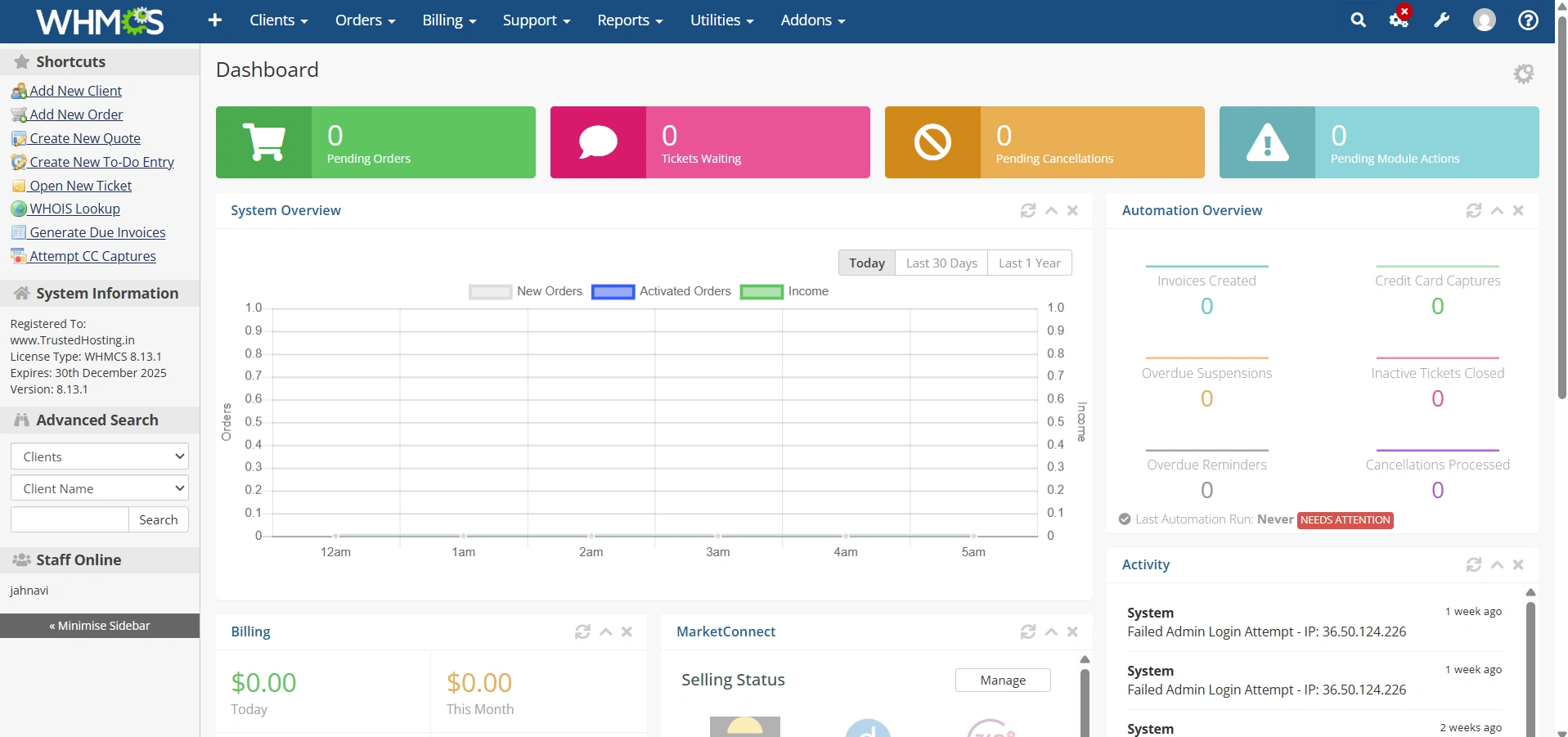
After logging in, you will be taken to the WHMCS Admin Dashboard, where you can access all configuration and management tools.
Step 2: Configure System Logs
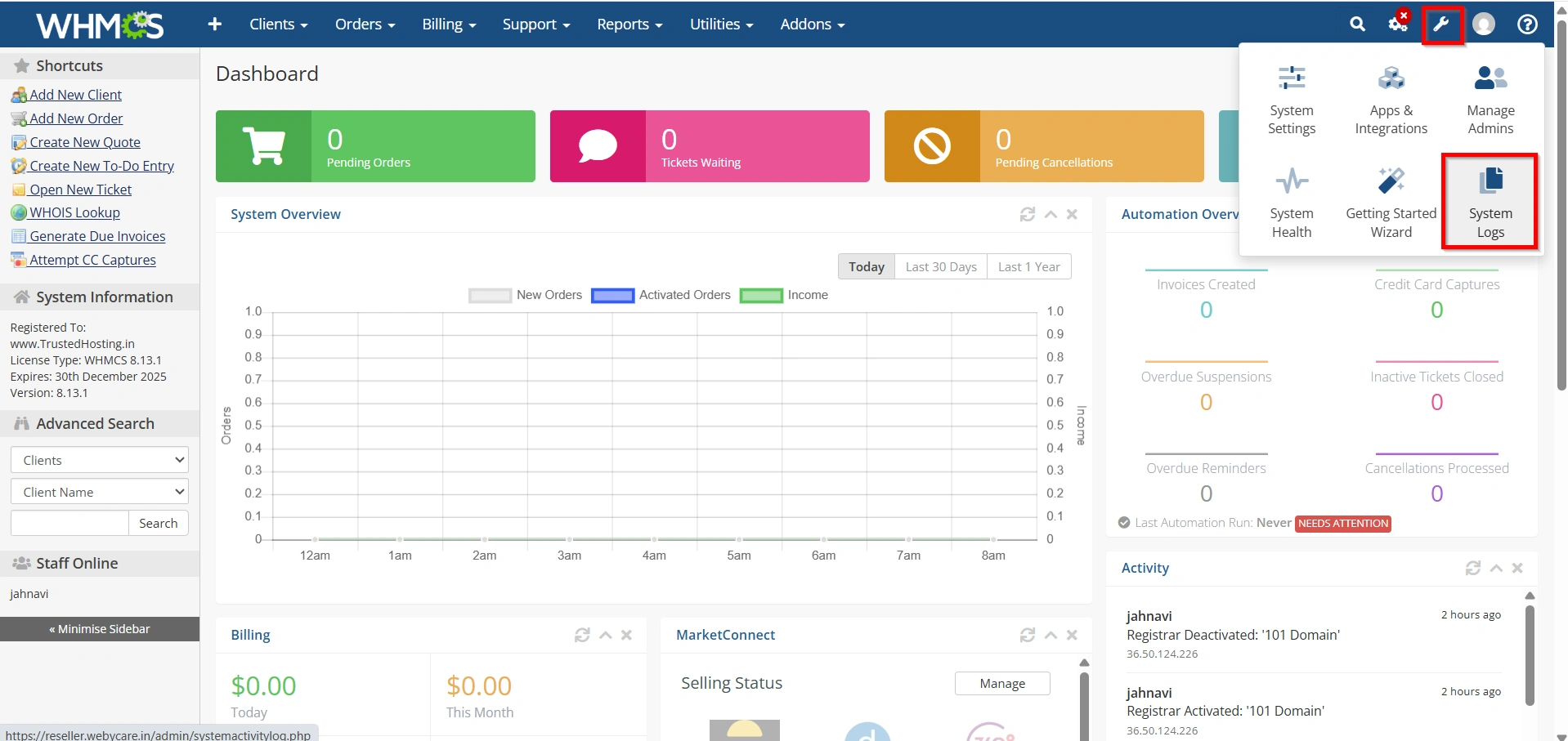
From the top navigation menu, click Configuration Icon.
Scroll through the available configuration options and locate System Logs
Step 3: Review the System Log Entries
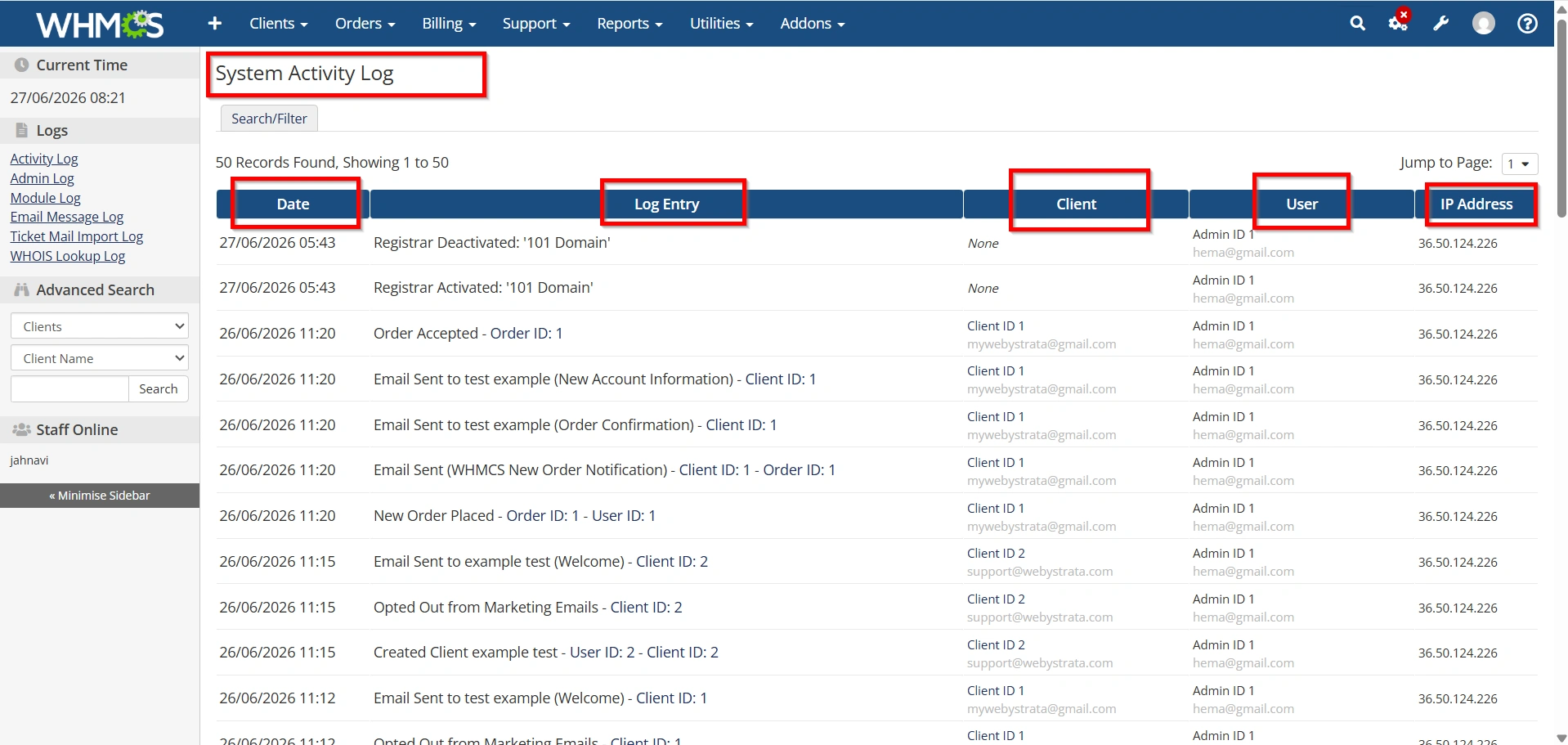
Once the System Logs page opens, you will see a table containing detailed information about recorded events.
Each log entry typically includes:
- Date & Time – Shows exactly when the event occurred.
- Administrator – Displays the administrator account associated with the action, if applicable.
- IP Address – Indicates the IP address from which the action originated.
- Description – Explains what action or event was recorded.
- Event Type – Identifies the category of the logged event.
These details make it easy to understand what happened, when it happened, and who performed the action.
Take some time to scroll through the entries and familiarize yourself with the types of events that are recorded automatically by WHMCS.
Step 4: Search or Filter the Logs
As your WHMCS installation grows, the number of log entries will increase significantly. Instead of manually browsing hundreds of entries, use the available filtering and search options.
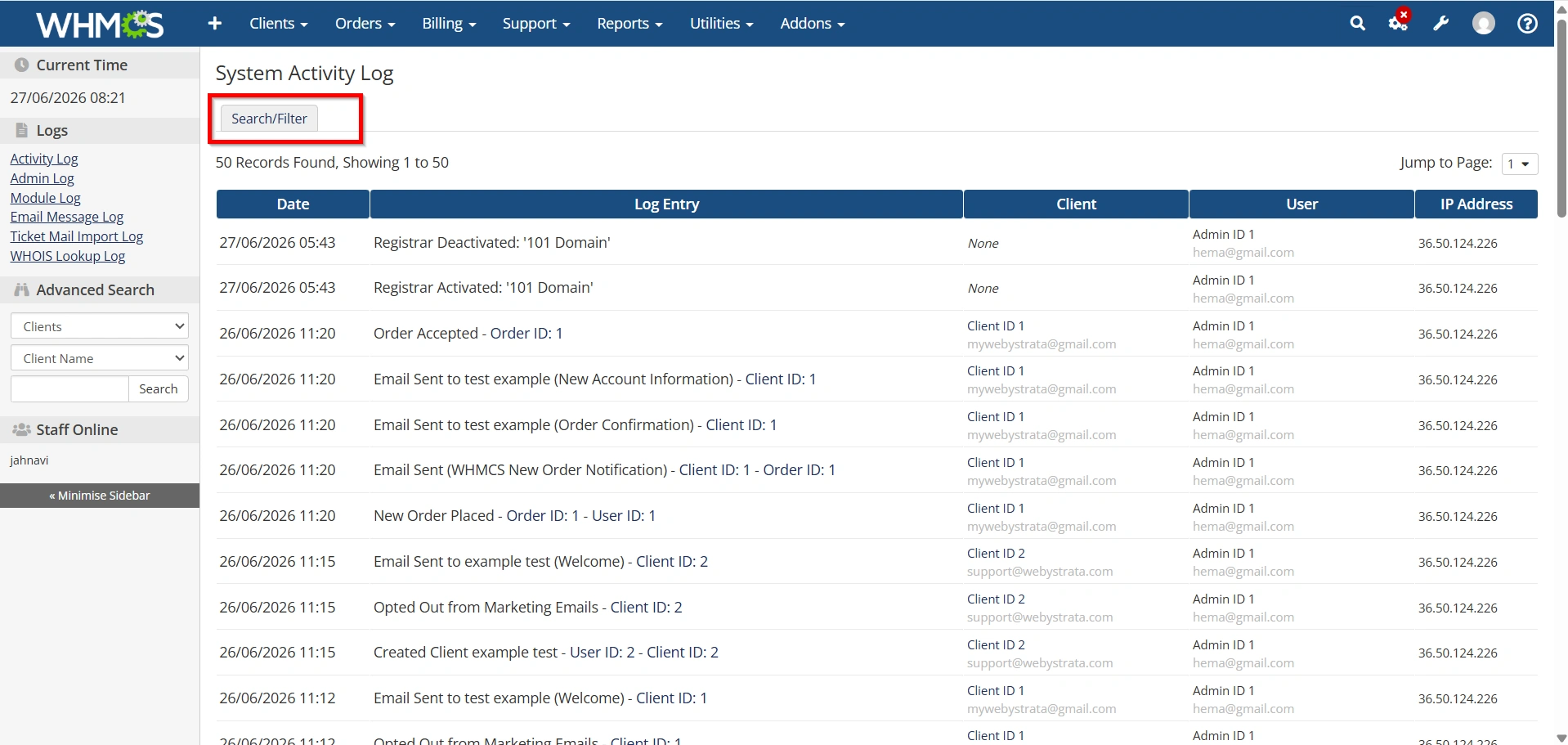
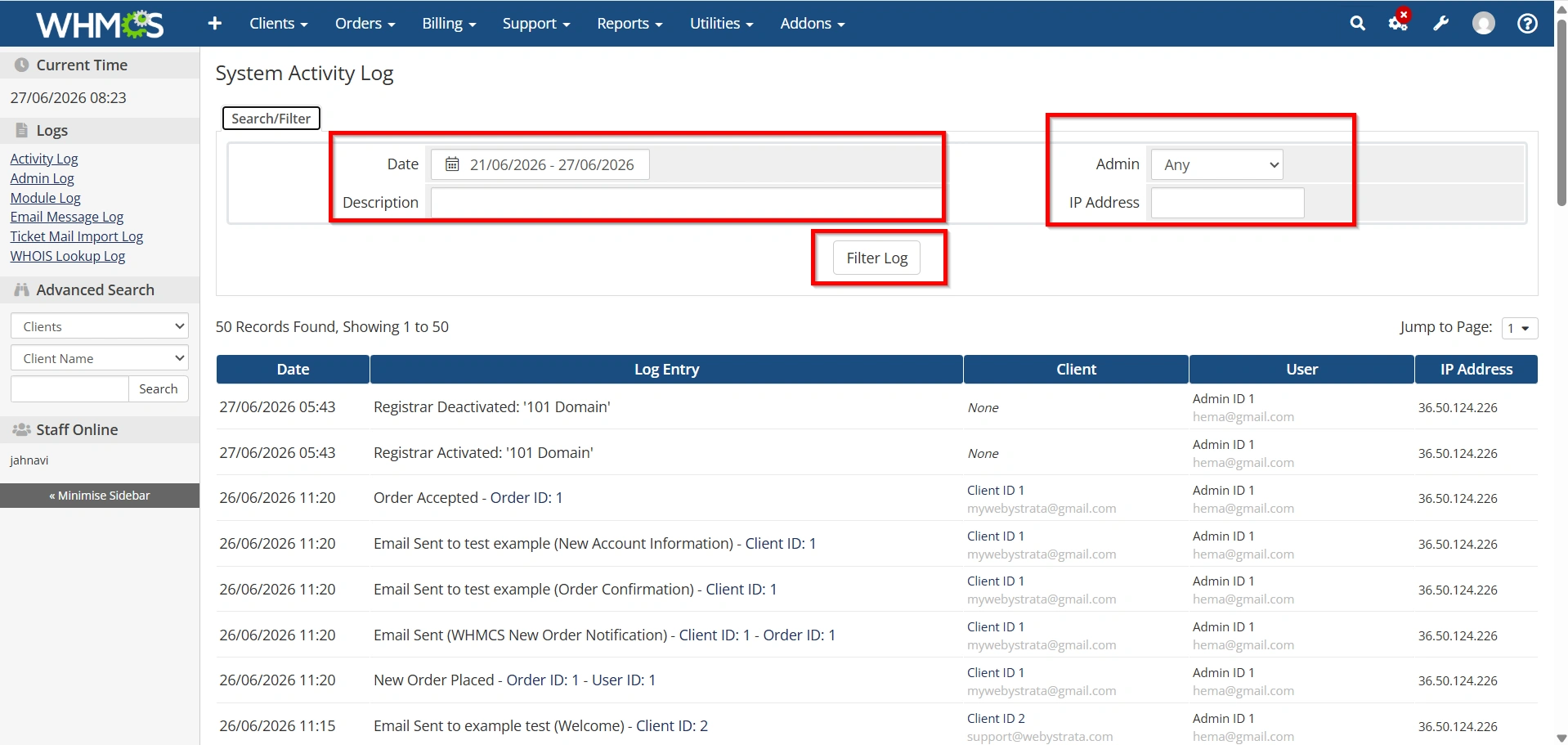
Depending on your WHMCS version, you may be able to filter logs using:
- Date or date range
- Administrator account
- Keywords
- Event category
- Specific activities
Using filters helps you quickly locate the information you need, especially when troubleshooting recent issues or investigating administrator activity.
For example, if you recently changed a configuration setting and want to verify when it happened, filtering by today’s date can quickly locate the relevant log entry.
- Click on Filter Log.
Step 5: Examine Individual Log Entries
Carefully review the descriptions provided for each log entry.
Common activities you may notice include:
- Administrator logins and logouts
- Configuration changes
- Security-related events
- Client account modifications
- Module operations
- API requests
- Automation activities
Reading the detailed descriptions helps you understand exactly what occurred and whether any action is required.
For instance, repeated failed administrator login attempts may indicate someone is trying to gain unauthorized access to your WHMCS installation.
Step 6: Investigate Suspicious or Unexpected Activity
If you notice unusual entries, investigate them immediately.
Some warning signs include:
- Multiple failed administrator login attempts
- Changes made by unknown administrator accounts
- Unexpected configuration modifications
- Repeated module failures
- Frequent API errors
- Unknown IP addresses accessing the admin area
Cross-check these events with your administrator team to confirm whether the actions were expected.
If necessary, change administrator passwords, review access permissions, or enable additional security measures such as Two-Factor Authentication.
Step 7: Monitor Logs Regularly
System Logs are most effective when reviewed regularly rather than only after problems occur.
Create a routine to review logs:
- Daily for busy hosting businesses
- Weekly for small businesses
- After WHMCS upgrades
- Following module installations
- After changing important settings
- Whenever users report unexpected issues
Regular monitoring helps identify trends, detect security threats early, and maintain a healthy WHMCS environment.
Step 8: Use Log Information for Troubleshooting
Whenever you encounter an issue in WHMCS, System Logs should be one of the first places you check.
The logs can help determine:
- When a problem started
- Which administrator performed an action
- Whether a configuration change caused the issue
- If a module encountered an error
- Whether unauthorized activity occurred
Combining System Logs with other WHMCS logs, such as the Activity Log, Module Log, and Gateway Log, provides a more complete picture when diagnosing complex issues.
Understanding Common Log Entries
Create a table.
| Log Entry | Meaning |
|---|---|
| Administrator Login | Admin successfully logged in |
| Failed Login Attempt | Incorrect login credentials |
| Settings Updated | Configuration changes were saved |
| Module Action | A provisioning module performed an action |
| API Request | API call processed |
| Client Update | Client information modified |
Best Practices
Recommend:
- Review logs regularly
- Monitor failed login attempts
- Remove inactive administrator accounts
- Keep WHMCS updated
- Restrict admin permissions
- Investigate unusual activity
- Export logs before major maintenance
Common Issues Found Using System Logs
Discuss examples such as:
- Login Problems
- Module Errors
- Configuration Mistakes
- Security Alerts
Tips for Effective Log Management
- Check logs daily
- Archive older logs
- Use filters for faster searches
- Review after software updates
- Monitor third-party module activities
- Investigate recurring errors
Conclusion
Knowing how to View and Manage System Logs in WHMCS is an important skill for every hosting provider and system administrator. Regularly reviewing system logs helps you monitor administrator activities, identify configuration changes, investigate security incidents, and troubleshoot operational issues. By making it a routine to View and Manage System Logs in WHMCS, you can improve system reliability, strengthen security, and ensure your WHMCS installation continues to operate efficiently.
Related Articles


